People Overview
Find a staff member and see who needs help.
Last updated About 2 hours ago
Find a staff member and see who needs help.
For center admins using Bloomily on a computer. The orange outline shows where to look or click.
1. Open People
Click Team on the left. Then click People.
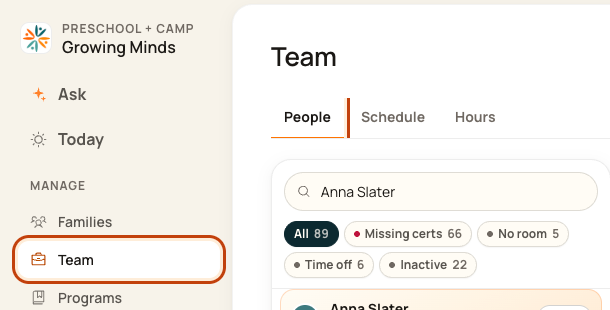
2. Search the list
Type a name in Search team. You can also search for a role or room.
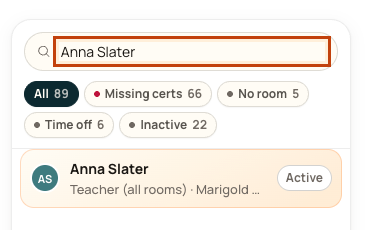
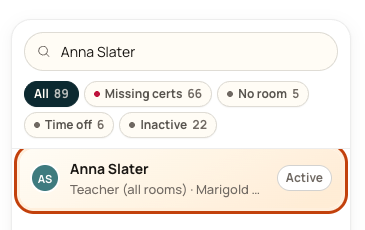
3. Open their record
Click the person’s name. Their details open on the right.
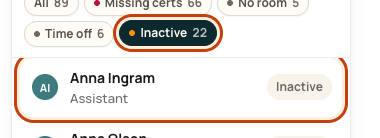
4. Use a filter
Click a filter to narrow the list. For example, Inactive shows people whose center access is turned off. Click All to see the full list again.
Good to know
Active means the person can use this center’s account. It does not mean they are at work.
Walkthrough: View Team Member Profiles and Assignments in Bloomily
Open Team and find the person.
Open their profile to review the available details and assignments.
Viewing a record does not change permissions or assignments. Use the relevant edit action when a correction is needed.
The recording uses one center’s example data and settings. Names, amounts, dates, counts and policy choices are examples. Follow the written guidance above where recording labels differ.
Was this helpful?