Add a New Team Member
Invite a new staff member to join your center.
Last updated About 2 hours ago
Invite a new staff member to join your center.
For center admins using Bloomily on a computer. The orange outline shows where to look or click.
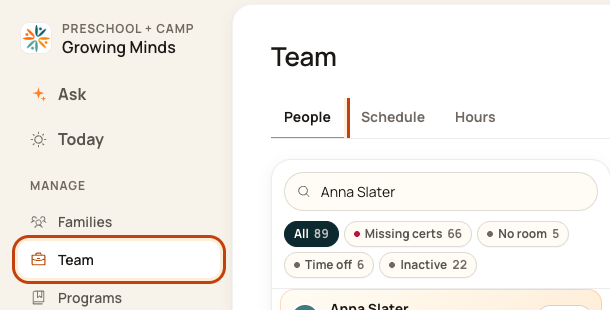
1. Open People
Click Team on the left. Then click People.
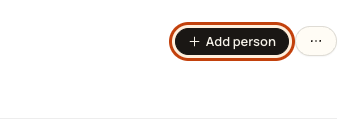
2. Click Add person
Click Add person at the top right.
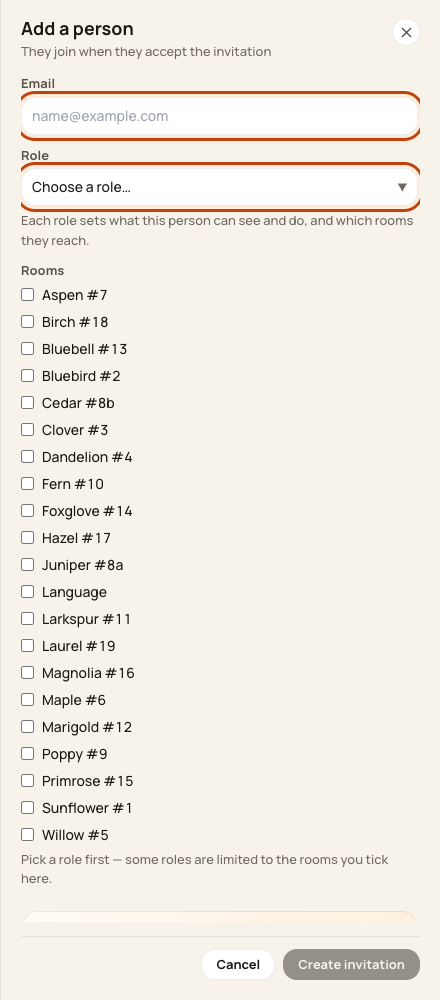
3. Fill in their details
Enter their email. Choose their role. Tick their rooms. A role controls what they can see and do. Read any access warning.
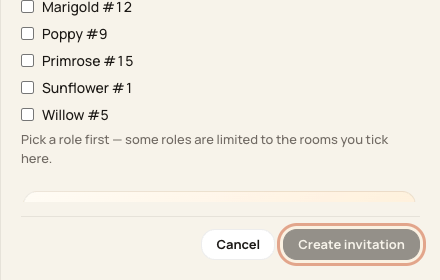
4. Create the invitation
Check the email, role, and rooms. Click Create invitation. Then read the result.
Good to know
The person gets access after they accept. An email is sent only when invite emails are on. If no email was sent, share the invite link with that person.
Check when you are done
Look for Invitation pending in People. Once they accept, open their staff record and check their access.
Add a teacher who sees every child
Click Team, then People. Click Add person.
Enter their Email.
In Role, choose Teacher (All Classrooms). It is listed under “Sees every child in the school”.
Under Before you send this, tick the box that says this person will see every child in the school. Create invitation stays gray until you tick it.
Click Create invitation.
By default, this role opens every room, with edit rights for attendance, daily reports, messages and more. It can’t open billing, enrollment, Team or settings. Rooms you tick don’t limit it.
Walkthrough: Add a teacher who sees every child
The recording uses one center’s example data. Names, amounts, dates, counts and configured policies are examples; use your own center’s records and settings. Some labels in the recording may differ from the written steps above.
Walkthrough: Invite and Onboard Team Members in Bloomily
Open Team > Add person.
Enter the intended email address and review the role and room assignments.
Review the invitation and choose Create invitation.
Check the result and invitation status.
Creating an invitation does not complete onboarding. The person must follow the invitation and complete the required setup.
The recording uses one center’s example data and settings. Names, amounts, dates, counts and policy choices are examples. Follow the written guidance above where recording labels differ.
Was this helpful?