Manage a Team Member’s Profile
Keep a staff member’s contact details up to date.
Last updated About 2 hours ago
Keep a staff member’s contact details up to date.
For center admins using Bloomily on a computer. The orange outline shows where to look or click.
1. Open People
Click Team on the left. Then click People.
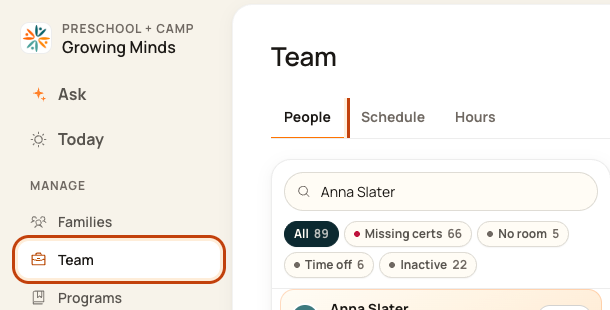
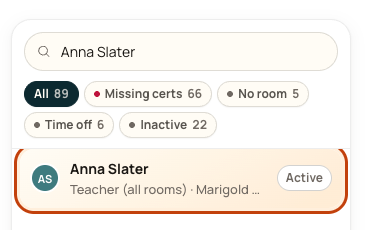
2. Find the person
Type the person’s name in Search team. Click their name. Our example uses Anna Slater.
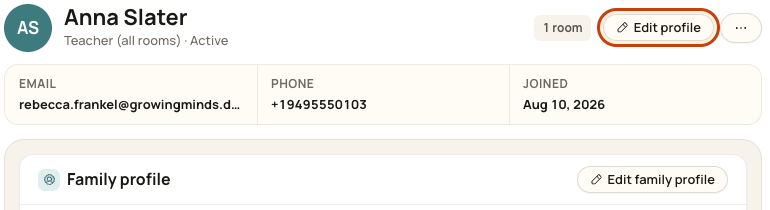
3. Open Edit profile
Click Edit profile on the person’s record.
Try opening a staff profile
This interactive example uses Charlotte Lowe. Choose the person you need in your own center. The demo shows how to reach Edit profile; follow step 4 below to save your changes.
Open the profile walkthrough in a new window
4. Update and save
Change the name, photo, phone, or emergency contact. Click Save profile. If nothing changed, the button stays gray.
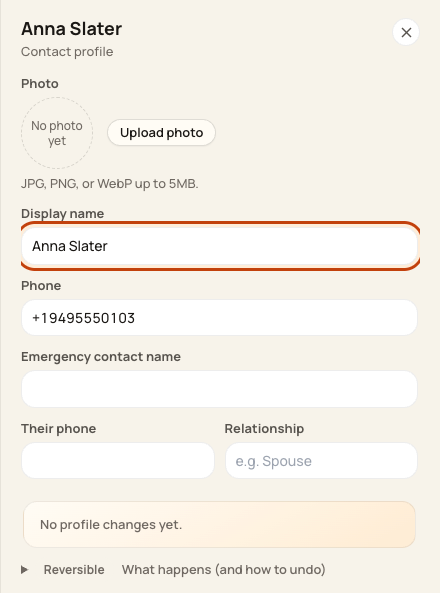
At the bottom of the form:

Good to know
This form changes contact details. It does not change their role. Rooms and certificates have their own controls on the record.
Check when you are done
Reopen the person’s record. Check that the details are right.
Was this helpful?