Review Time-Off Requests
Review a leave request before you approve or deny it.
Last updated About 2 hours ago
Review a leave request before you approve or deny it.
For center admins using Bloomily on a computer. The orange outline shows where to look or click.
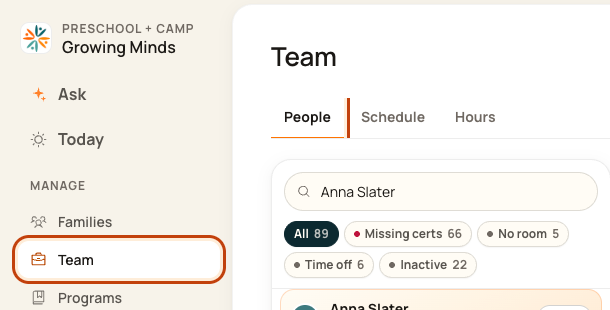
1. Open People
Click Team on the left. Then click People.
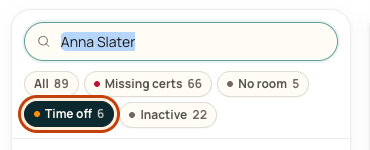
2. Find pending leave
Click Time off. Read the person’s name, dates, type, and status.
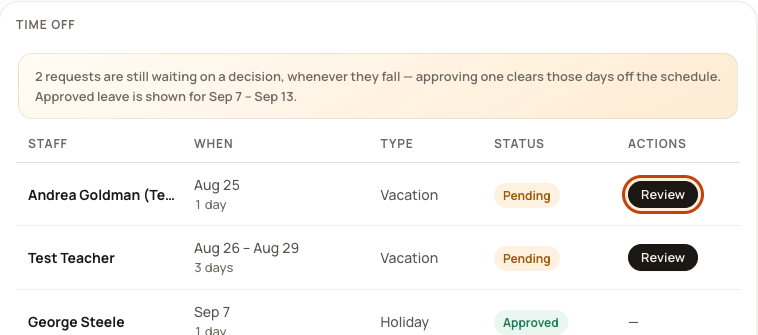
3. Open the request
Click Review beside the request you want. Check the person’s leave balance and room staffing before deciding.
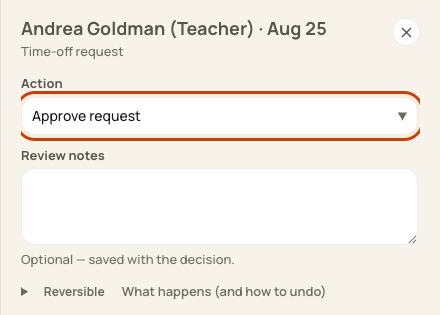
4. Make the decision
Choose Approve request or Deny request under Action. Add review notes if needed. Click Approve or Deny.
At the bottom of the form:

Good to know
The decision does not email the person. Approved leave takes those days out of their work plan. Deleting approved leave can also remove its days off.
Check when you are done
Check the request’s new status and the affected schedule.
Was this helpful?