Create and Manage Standard Shifts
Save common work hours as a named shift. You can use it again.
Last updated About 2 hours ago
Save common work hours as a named shift. You can use it again.
For center admins using Bloomily on a computer. The orange outline shows where to look or click.
1. Open Schedule
Click Team on the left. Then click Schedule.
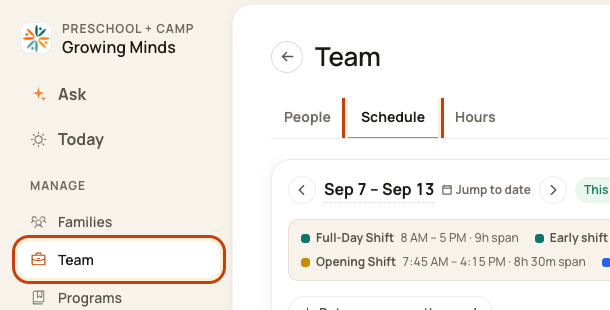
2. Open shifts
Click Edit shifts beside the shift list.

3. Add a shift
Click Add a shift.
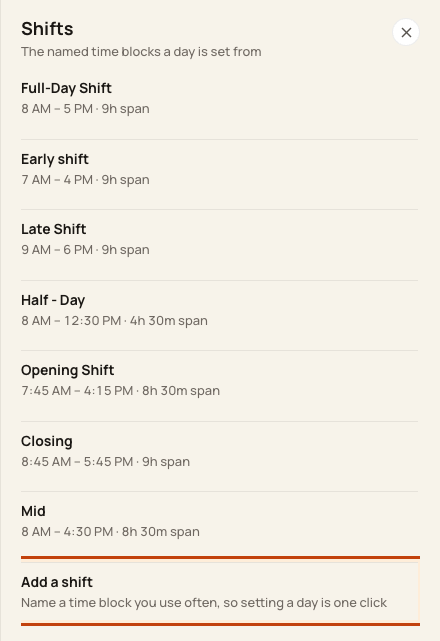
At the bottom of the form:

4. Name the hours
Enter a name, start time, end time, and color. Tick Use as the default shift only if needed. Click Save shift.
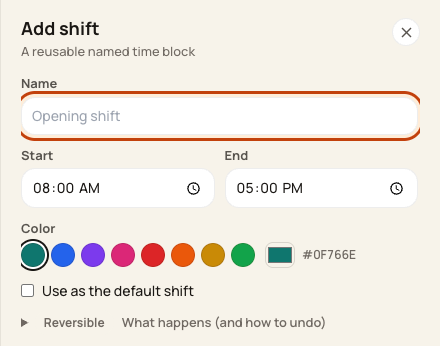
At the bottom of the form:

Good to know
To edit a saved shift, open it from the shift list and choose Edit. Check days already on the schedule after changing a shift.
Check when you are done
The shift should appear in the list and in the day form’s choices.
Walkthrough: Create Shift Pattern Templates on Bloomily
Open Team > Schedule > Edit shifts.
Choose Add a shift and enter its name, start time, end time and color.
Choose the default option only if intended, then select Save shift.
Review the saved shift template before applying it to staff.
A shift template is reusable setup. Creating it does not establish that a staff member worked those hours.
The recording uses one center’s example data and settings. Names, amounts, dates, counts and policy choices are examples. Follow the written guidance above where recording labels differ.
Was this helpful?