Schedule One Day for a Team Member
Set or change one person’s hours for one day.
Last updated About 2 hours ago
Set or change one person’s hours for one day.
For center admins using Bloomily on a computer. The orange outline shows where to look or click.
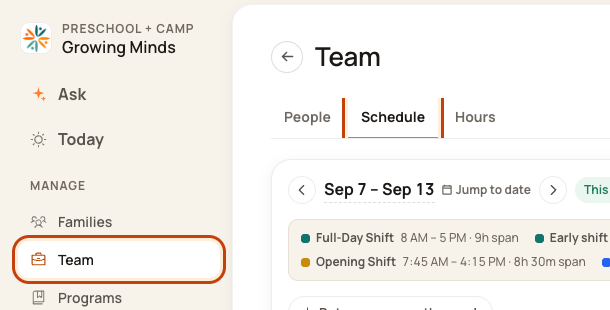
1. Open Schedule
Click Team on the left. Then click Schedule.
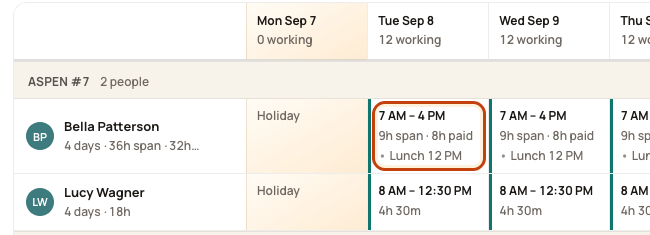
2. Open the day
Find the person’s row. Click the box under the date you want. Check the name and date before you go on.
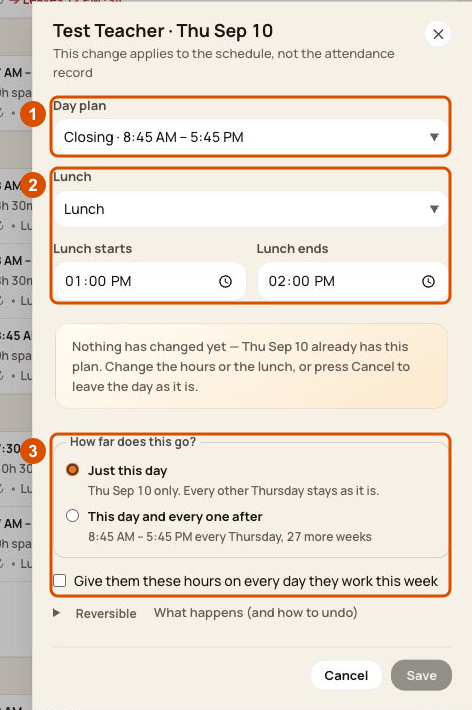
3. Choose hours, lunch and scope
1. Day plan: choose a named shift or Custom hours. For custom hours, set Start and End.
2. Lunch: use the separate Lunch section to set Lunch starts and Lunch ends, or choose No lunch. Lunch must fit inside the working hours; an out-of-hours lunch blocks Save.
3. Scope: choose Just this day when the scope options appear. Leave the whole-week checkbox clear for a one-date edit. Recheck the name and date, then choose Save. Save is disabled if nothing changed; Cancel leaves the plan alone.
Good to know
This changes planned work. It does not fix clock-in or clock-out times. If a future-days option appears, leave it on this day unless you mean to change later dates.
Check when you are done
Check the hours in the grid and room coverage in Day. Publish the changes when the plan is ready.
Was this helpful?