Schedule the Same Hours Across the Week
Give one person the same hours across the center’s workweek.
Last updated About 2 hours ago
Give one person the same hours across the center’s workweek.
For center admins using Bloomily on a computer. The orange outline shows where to look or click.
1. Open Schedule
Click Team on the left. Then click Schedule.
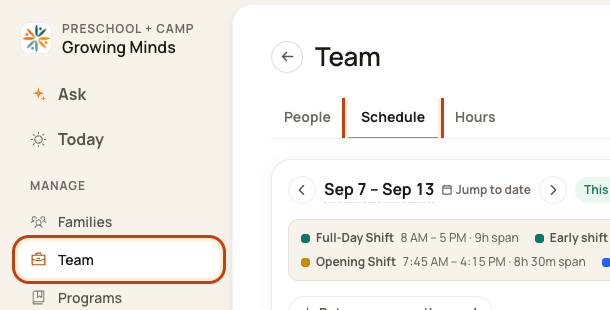
2. Open the person’s week menu
Point to their name. Click the … button beside it.
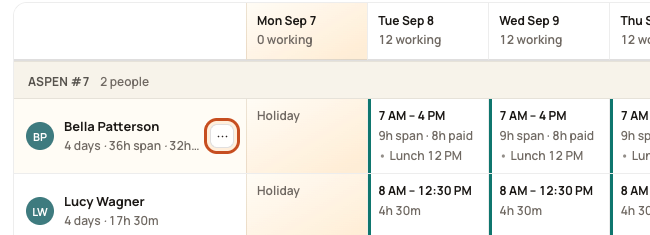
3. Choose whole week
Click Set their whole week.
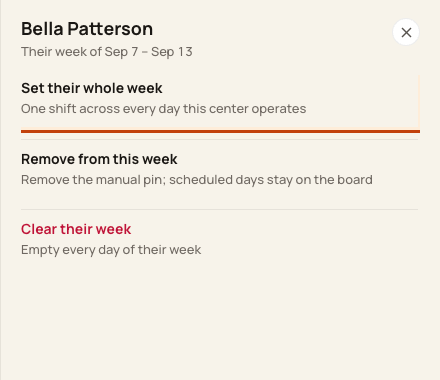
4. Set the hours
Pick a shift, or choose Custom hours and enter times. Check the week. Click Set their week.
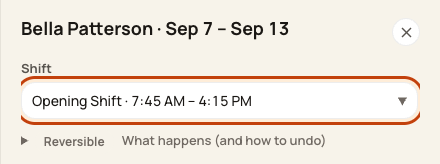
At the bottom of the form:

Good to know
This is for one person. It uses the center’s operating days. Review leave, holidays, breaks, and any days that need different hours.
Check when you are done
Check every changed date before you publish.
Was this helpful?