Set a Schedule for Several Employees at Once
Give several people the same plan for one date.
Last updated About 2 hours ago
Give several people the same plan for one date.
For center admins using Bloomily on a computer. The orange outline shows where to look or click.
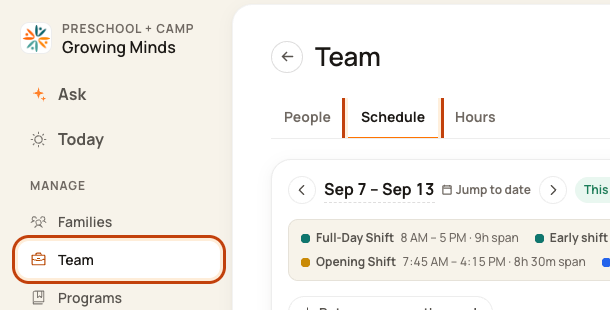
1. Open Schedule
Click Team on the left. Then click Schedule.
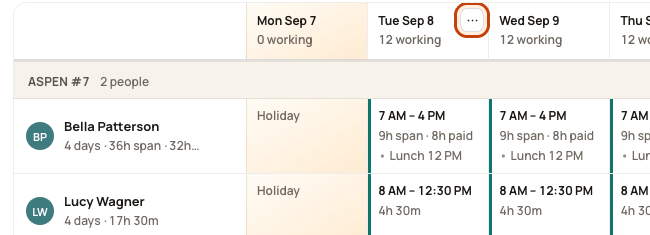
2. Open the date menu
Point to the date heading. Click its … button.
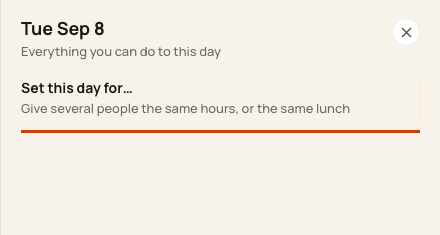
3. Choose Set this day for
Click Set this day for….
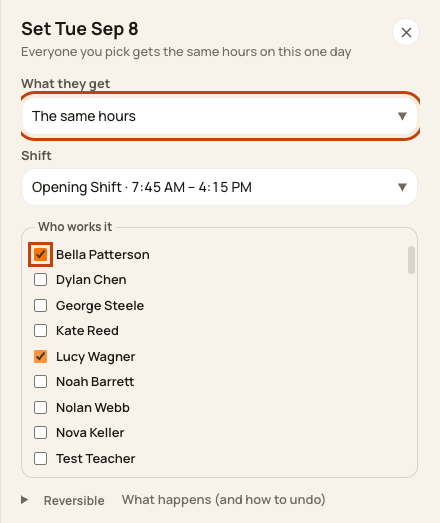
4. Pick the plan and people
Choose what they get. Pick a shift or break times. Tick each person. Check the count on the button, then save.
At the bottom of the form:

Good to know
A break must fit inside work hours. Read the result for any skipped people or days. Use a whole-week box only if that is what you want.
Check when you are done
Check the selected date and room coverage, especially if several people take lunch together.
Was this helpful?