Post and Manage an Open Shift
Post work that an eligible staff member can claim.
Last updated About 2 hours ago
Post work that an eligible staff member can claim.
For center admins using Bloomily on a computer. The orange outline shows where to look or click.
1. Open Schedule
Click Team on the left. Then click Schedule.
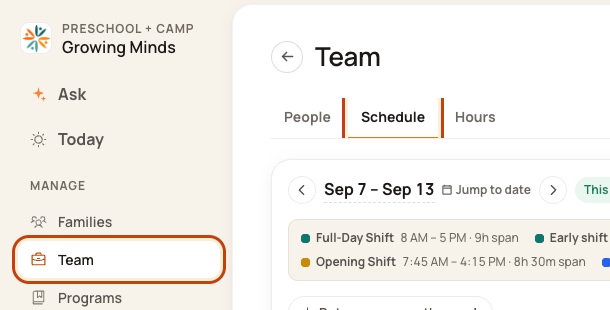
2. Open the week menu
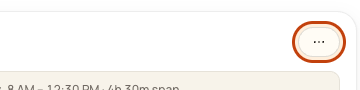
Check the week. Click the … button at the top right. This means More actions.
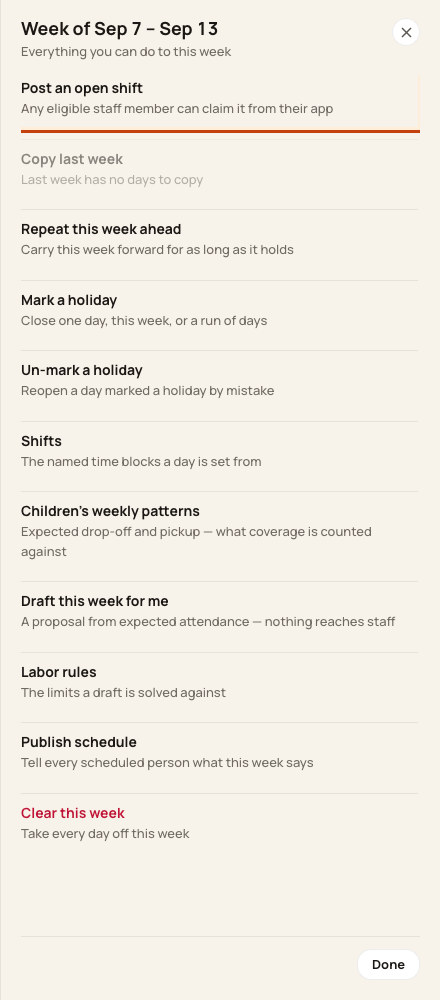
3. Choose Post an open shift
Click Post an open shift.
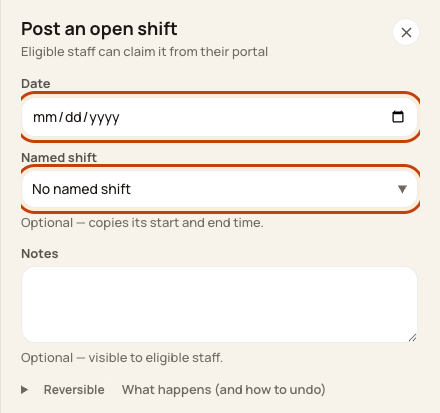
4. Set the shift
Choose the date. Pick a Named shift for its hours. Add notes staff may read. Check the details, then click Post shift.
At the bottom of the form:

Good to know
Posting does not mean someone has taken the shift. Staff claim it in their staff portal. This form has no separate room or custom-hours field.
Check when you are done
Check who claims the shift. Then check their actual hours and room on the schedule. To withdraw it, open the open shift from the week menu and use its cancel action.
Was this helpful?