Publish the Staff Schedule
Publish the finished week so staff can see it.
Last updated About 2 hours ago
Publish the finished week so staff can see it.
For center admins using Bloomily on a computer. The orange outline shows where to look or click.
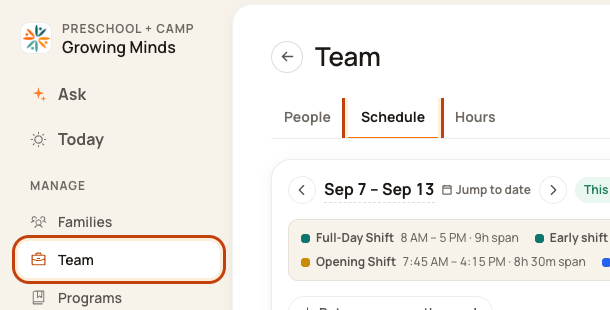
1. Open Schedule
Click Team on the left. Then click Schedule.
2. Open the week menu
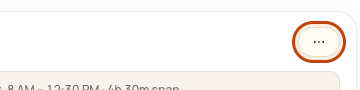
Check the week. Click the … button at the top right. This means More actions.
3. Choose Publish schedule
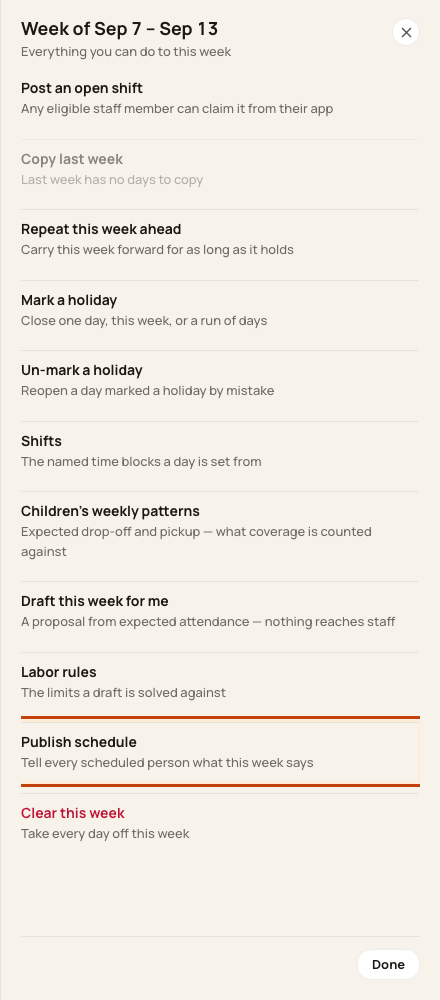
Click Publish schedule.
4. Review who will be told
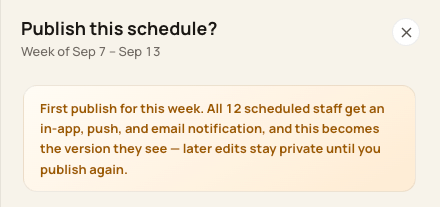
Wait for the preview. Check the week, changes, and staff who will get a notice. Click Publish & notify only when ready.
At the bottom of the form:

Good to know
This action sends notices. The first publish notifies scheduled staff. Later publishes notify people whose days changed. Read the preview and result for the exact audience.
Check when you are done
After publishing, new edits stay pending until you publish again. Some Day Board cover actions can notify staff right away; read their form too.
Was this helpful?