Identify Staffing Shortages
Find times when a room needs more staff.
Last updated About 2 hours ago
Find times when a room needs more staff.
For center admins using Bloomily on a computer. The orange outline shows where to look or click.
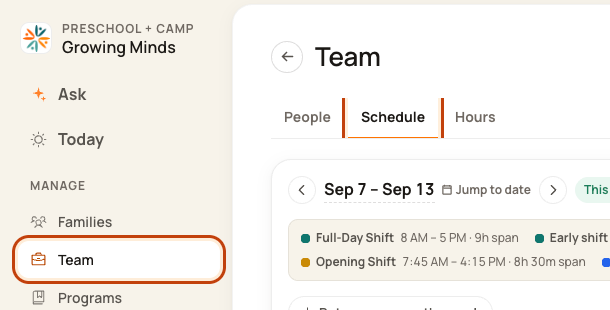
1. Open Schedule
Click Team on the left. Then click Schedule.
2. Open the Day Board
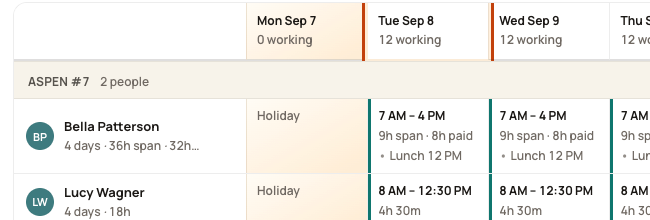
Click a date at the top of the week, such as Tue Sep 8. This opens that day’s room plan.
3. Find red gaps
Read the red note beside each room, then check each interval in the detailed coverage strip. Current limitation: a summary saying “nobody” can combine zero-staff and partly staffed periods. Do not assume the whole summary window has zero staff.

4. Read the numbers
Compare staff planned with staff needed. Check each part of the day.

5. Review cover
Click the red note. Pick a suitable person and check the room and From/To times before saving. The prefilled window may span intervals with different staffing levels. On a published week, review Tell them: this Cover form can send an in-app message and push immediately, separately from Publish.
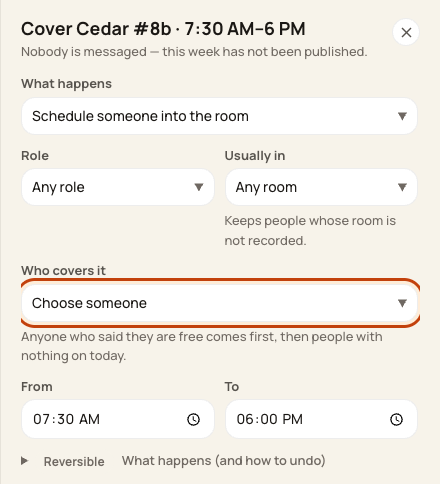
At the bottom of the form:

Good to know
One well-staffed hour does not fix a gap at another time. Check the person’s leave and other work before you assign them.
Check when you are done
The gap should shrink or disappear after the right cover is saved.
Example: summary versus interval counts
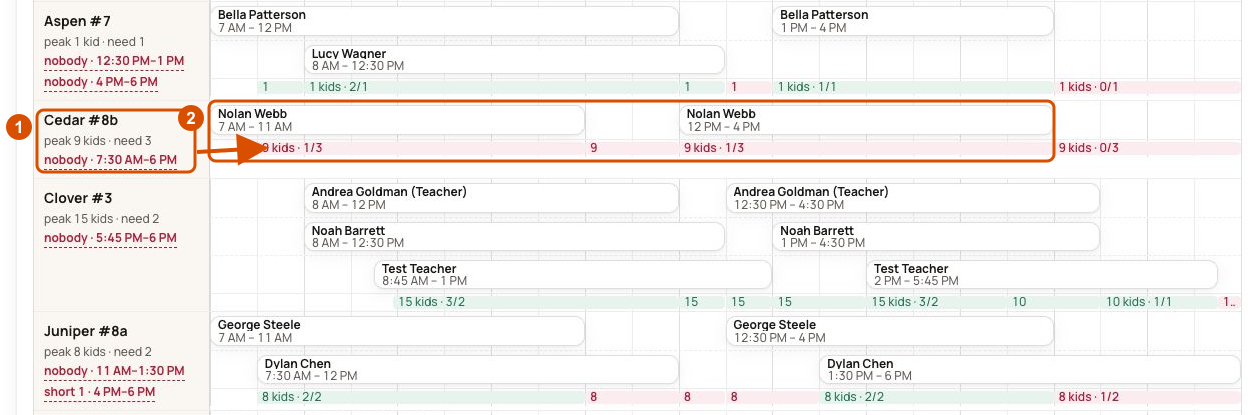
This demo screenshot illustrates the current summary limitation. Cedar has one planned staff member during parts of the highlighted period. Read each interval and check the person’s other work and leave before assigning cover.
Was this helpful?