Review Scheduled Span and Paid Hours
See the difference between a shift’s full length and its paid time.
Last updated About 2 hours ago
See the difference between a shift’s full length and its paid time.
For center admins using Bloomily on a computer. The orange outline shows where to look or click.
1. Open Schedule
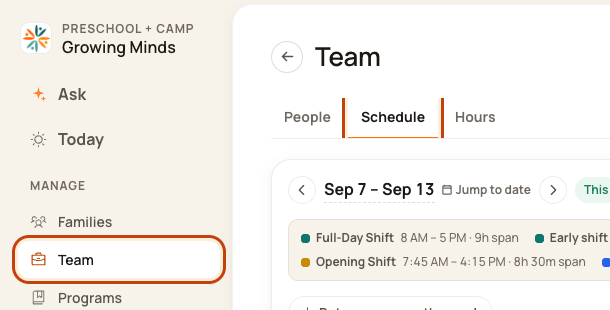
Click Team on the left. Then click Schedule.
2. Read the person’s totals
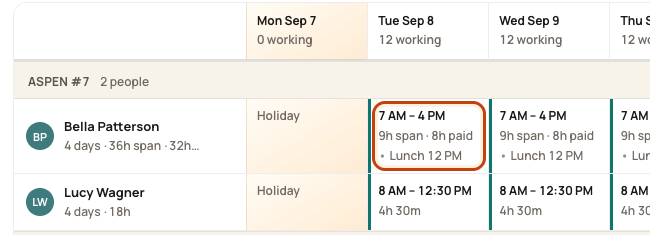
The week row shows planned hours. Where they differ, it shows span and paid. Span is the full work window.
3. Check the break
Open the day. Read any lunch and its times. Unpaid lunch comes out of paid time. Paid prep or support stays in paid time.
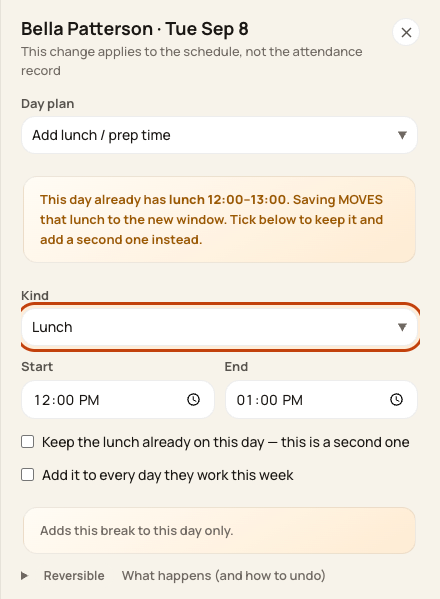
At the bottom of the form:

4. Check room cover too
Open that date’s Day Board. A paid block can still take the person out of classroom cover.

Good to know
Example: an 8-hour shift with a 30-minute unpaid lunch has 7.5 paid hours. Use your center’s actual break settings. Planned paid hours are not payroll approval.
Was this helpful?