Correct a Staff Member’s Recorded Hours
Fix a wrong or missing clock time after checking the facts.
Last updated About 2 hours ago
Fix a wrong or missing clock time after checking the facts.
For center admins using Bloomily on a computer. The orange outline shows where to look or click.
1. Open Hours
Click Team on the left. Then click Hours.
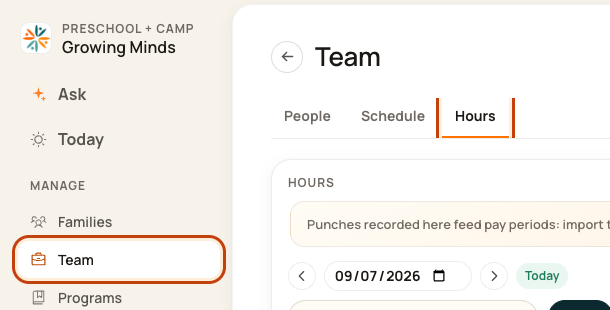
2. Find the day and person
Choose the date. Search for the person’s name.

3. Open Edit
Click Edit on their row.

4. Correct the times
Keep Action on Correct clock times. Enter the correct Check in and Check out dates and times. Click Save times.
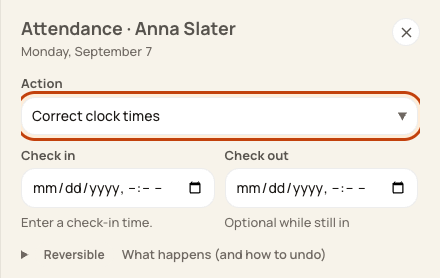
At the bottom of the form:

Good to know
Leave check-out blank only if the person is still in. Do not change actual time just to match a shift. This direct form has no reason field.
Check when you are done
Check the saved times and total. If Bloomily says the day has multiple shifts, this form cannot save the change. Ask your payroll admin to correct the specific shift. Do not clear the day to get around this.
Was this helpful?