Adding Family Notes and Dietary Information to a Menu
Add menu-level information families need when reviewing a meal. Keep it specific to the food offered that day.
Last updated About 2 hours ago
Add menu-level information families need when reviewing a meal. Keep it specific to the food offered that day.
1. Open the menu
In Meals → Menus, choose the correct meal type and date, then open the menu for editing.
2. Expand the details
Open Family note & dietary details. Enter a concise note for families, list known allergens as requested by the field and select the dietary labels that apply.
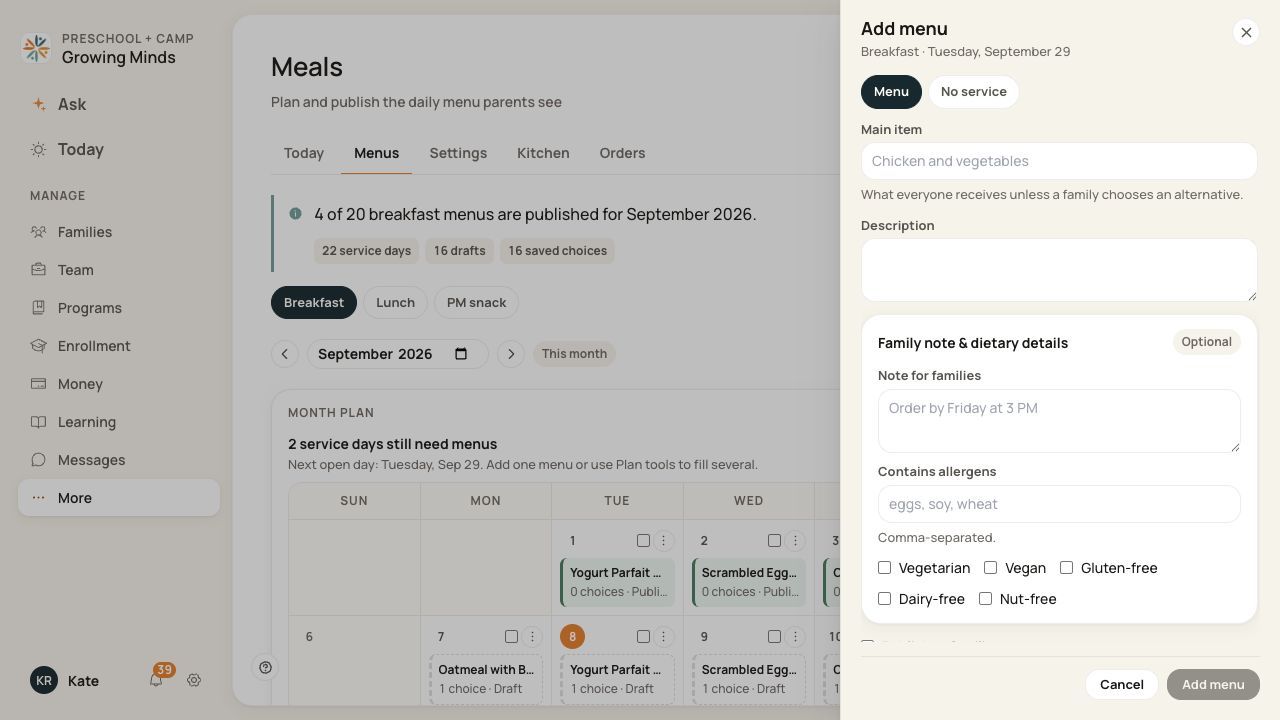
Keep family notes, allergen information and dietary labels accurate for this menu.
3. Check alternative dishes separately
If the menu offers choices, review each choice’s ingredients, allergens and dietary labels too. A label on one option should not be assumed to apply to another.
4. Save and review visibility
Save the menu. Confirm its publication state; a note on a draft menu is not yet a published family update.
Before you finish
Menu information describes the food. It does not replace a child’s health or dietary record.
An empty allergen field is not confirmation that food is allergen-free. Verify ingredients and preparation through your center’s process before making a dietary claim.
Editing a menu note is not proof that families received a notification or read it.
Related guides
Screenshots show an example center. Meal prices, times, service days and ordering policies depend on your center’s configuration.
Was this helpful?