Adding Alternative Meal Choices for Families
Offer alternative dishes when your meal configuration allows them. The main item remains part of the menu.
Last updated About 2 hours ago
Offer alternative dishes when your meal configuration allows them. The main item remains part of the menu.
1. Allow alternatives for the meal type
In Meals → Settings, edit the meal type’s policy. Set the maximum alternatives and decide whether families must make an explicit choice. Save the settings.
2. Open the menu’s family choices
Return to Menus, edit the date and expand Family choices. Review the main item and existing choices.
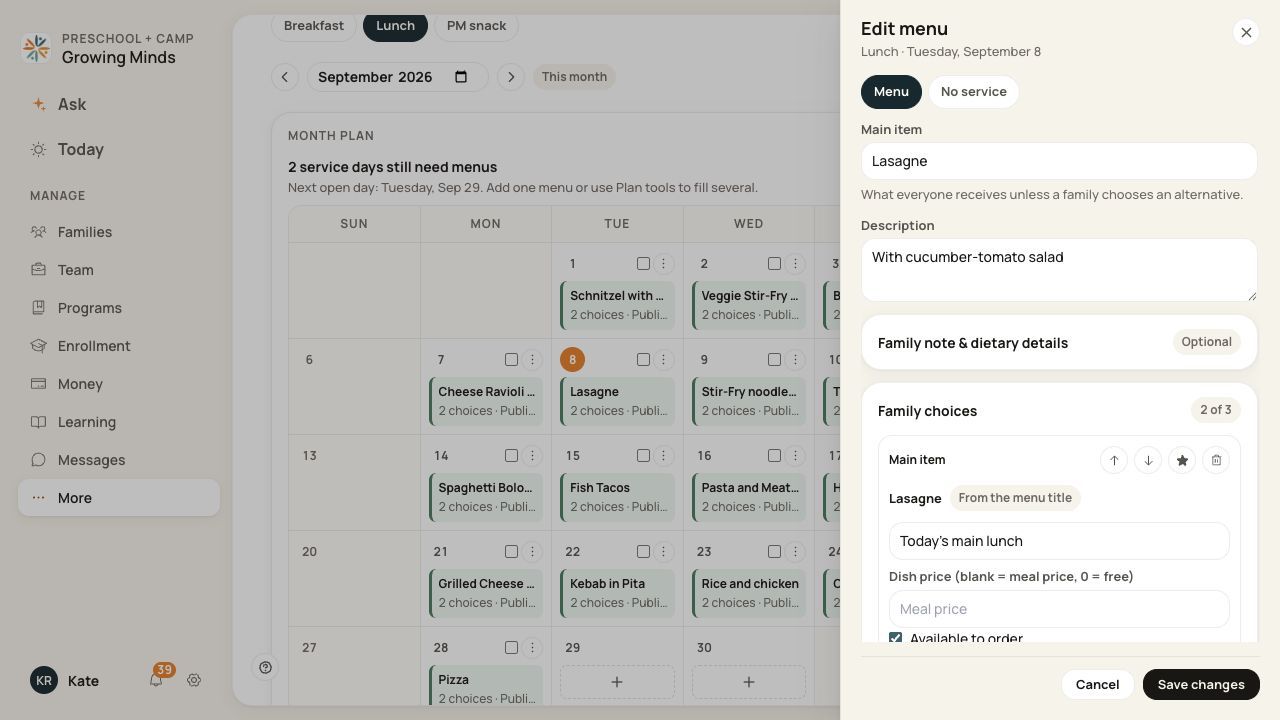
The menu’s choice limit comes from this center’s meal settings.
3. Describe each alternative
Choose Add choice. Enter its title and optional description, check availability and dietary details, and review the dish price. Blank uses the meal price; an explicit zero means a free dish where dish pricing applies.
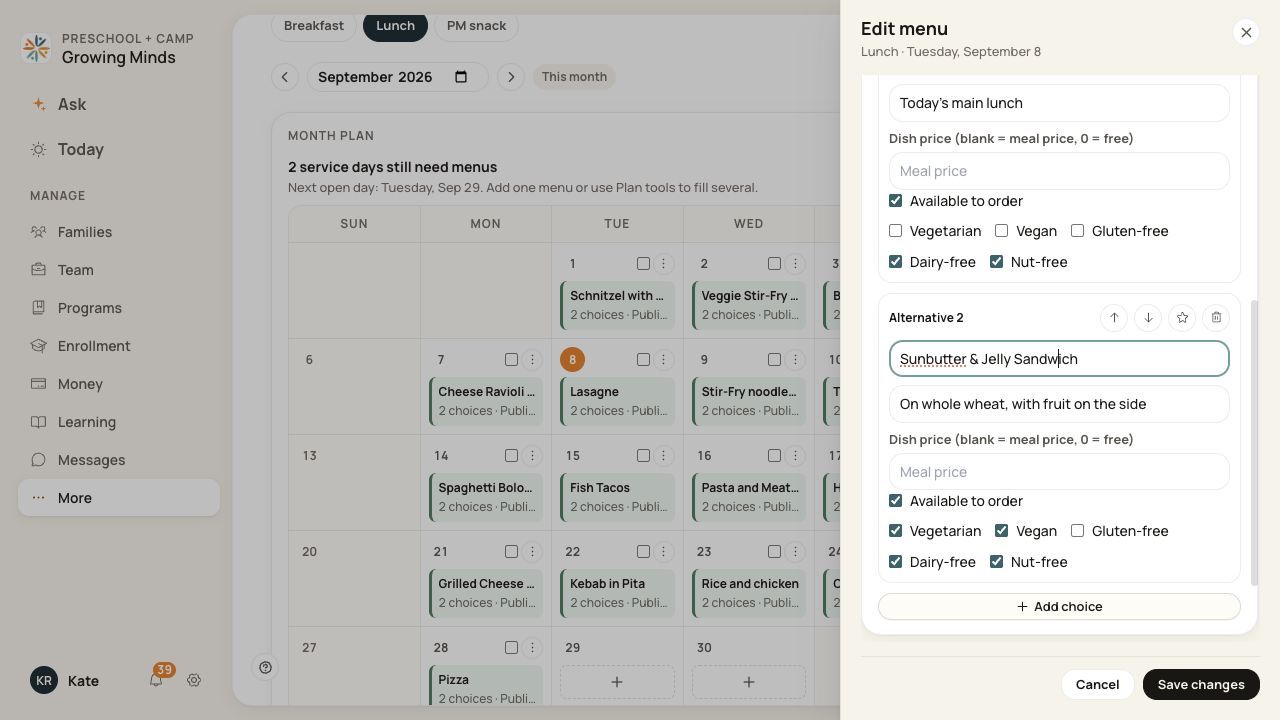
Review availability and pricing for each dish before saving.
4. Review the default and save
Use the default and ordering controls where needed. Save, then publish the menu when it is ready for families.
Before you finish
The maximum number of alternatives and required-choice policy are configurable, not the same for every center.
A dish price does not override an included or external-billing arrangement into a universal per-meal charge. Review the applicable child and meal pricing.
Removing or changing an option may affect how existing selections display. Review existing orders before changing a menu already in use.
Related guides
Screenshots show an example center. Meal prices, times, service days and ordering policies depend on your center’s configuration.
Was this helpful?