Copying a Menu to Another Day
Repeat one meal menu on another service date without overwriting an existing menu.
Last updated About 2 hours ago
Repeat one meal menu on another service date without overwriting an existing menu.
Workflow: Choose source → Choose target → Create draft → Review & publish
1. Select the source meal type
Open Meals → Menus and select the meal type to copy. Choose Plan tools → Copy a day.
2. Set the two dates
Enter Copy from and Copy to. Check that the source date has the intended menu and the target is an offered service date.
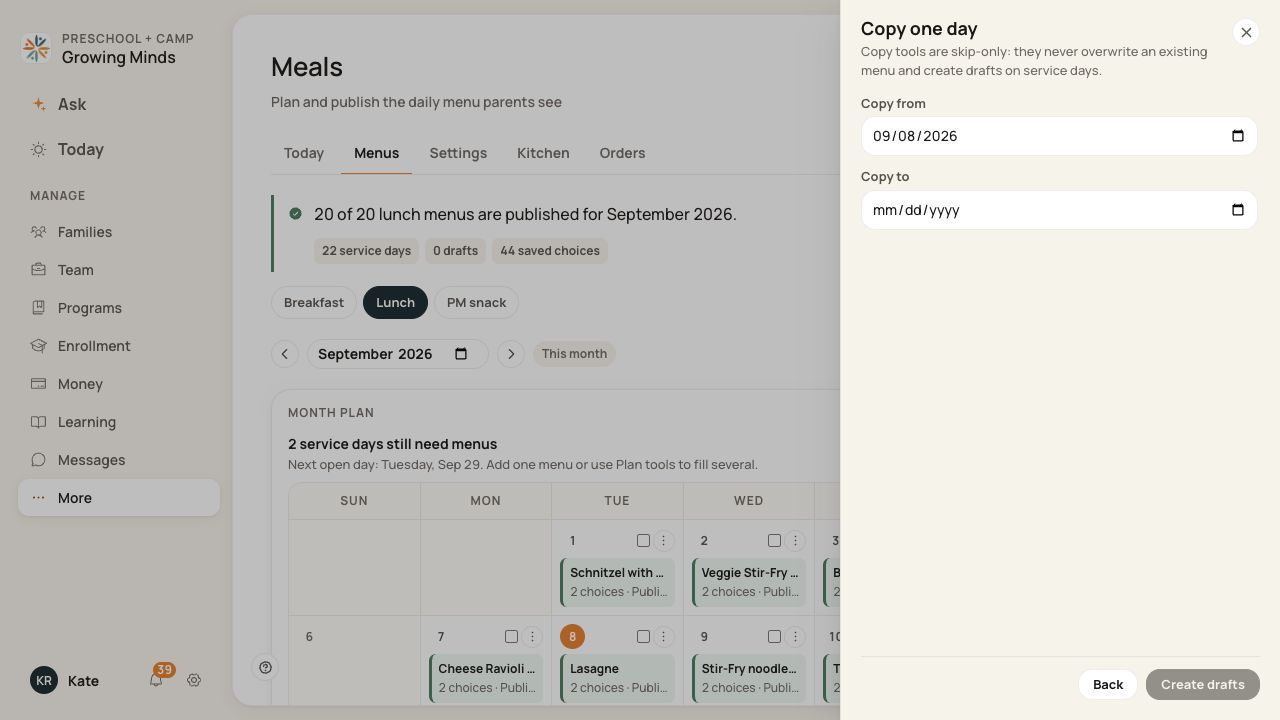
Copy a day uses the currently selected meal type.
3. Create and inspect the draft
Choose Create drafts. Read the result, navigate to the target date and review the copied main item, options and dietary information.
4. Publish when ready
Make any date-specific changes and publish the copied menu separately.
Before you finish
Copy tools skip existing menus; they do not overwrite them. An existing target or unsuitable service date can result in no new menu.
Copies are drafts and do not copy child orders or notify families.
Review holidays, no-service dates, prices and notes after copying.
Related guides
Screenshots show an example center. Meal prices, times, service days and ordering policies depend on your center’s configuration.
Was this helpful?