Publishing Menus to Families
Publish a reviewed menu to make it visible in family meal ordering. Saving a draft and publishing are separate choices.
Last updated About 2 hours ago
Publish a reviewed menu to make it visible in family meal ordering. Saving a draft and publishing are separate choices.
Workflow: Review draft → Publish → Verify Published label → Check family view
1. Review the menu first
Open Meals → Menus. Confirm the meal type, service date, main item, alternatives and dietary information.
2. Choose its family visibility
Edit the menu and select Publish to families. Save the menu. If you leave this unchecked, it remains a draft.
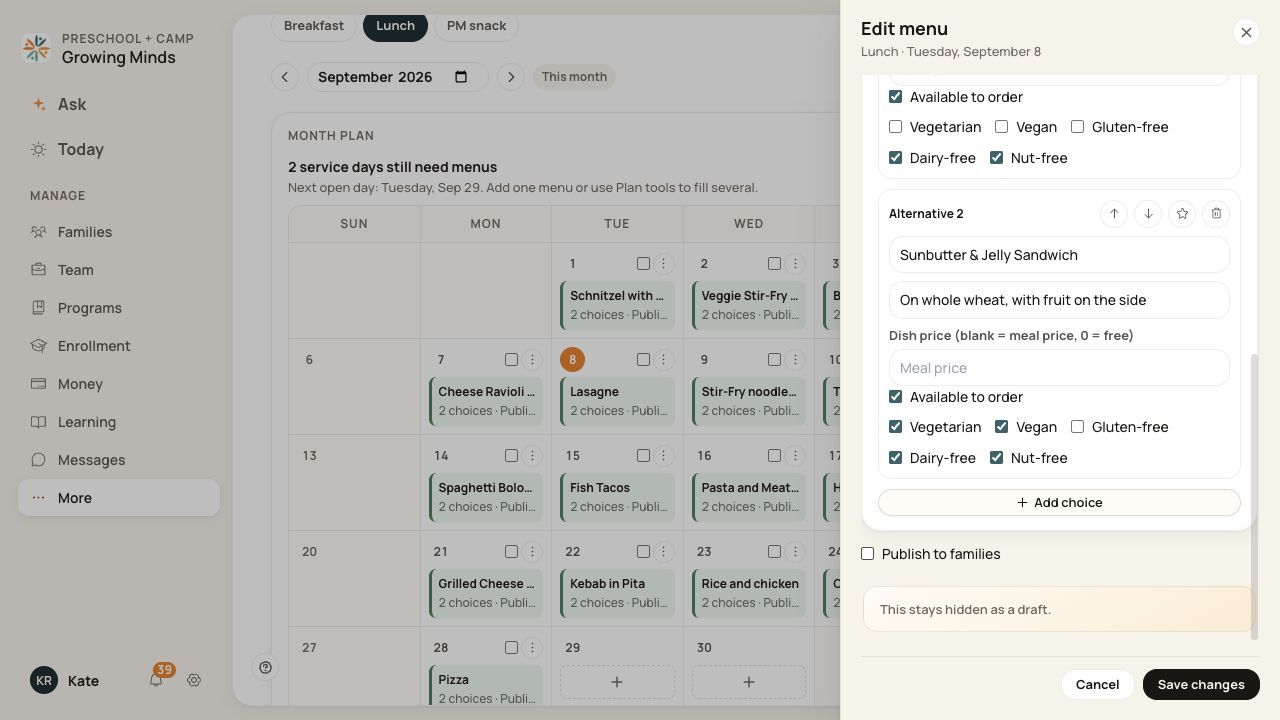
The unchecked state shown here keeps a menu hidden; check it before saving to publish.
3. Publish several selected menus
Select the intended date checkboxes in the calendar or list, choose the publish action and review the count in its confirmation before confirming.
4. Verify the result
Check that the intended menus show Published. Check the family view when available, especially after changing the offered meal types or order policy.
Before you finish
Publishing makes the menu visible; it does not create a meal order for every family.
Published does not mean ordering is open: service days, deadlines and your center’s configuration still apply.
Do not assume publishing sends a separate message to every family.
Related guides
Screenshots show an example center. Meal prices, times, service days and ordering policies depend on your center’s configuration.
Was this helpful?