Publishing a Full Month of Menus
Publish the month’s reviewed drafts for the selected meal type in one action.
Last updated About 2 hours ago
Publish the month’s reviewed drafts for the selected meal type in one action.
1. Select the month and meal type
Go to Meals → Menus. Verify the selected meal type and month, and review the calendar for missing menus and drafts.
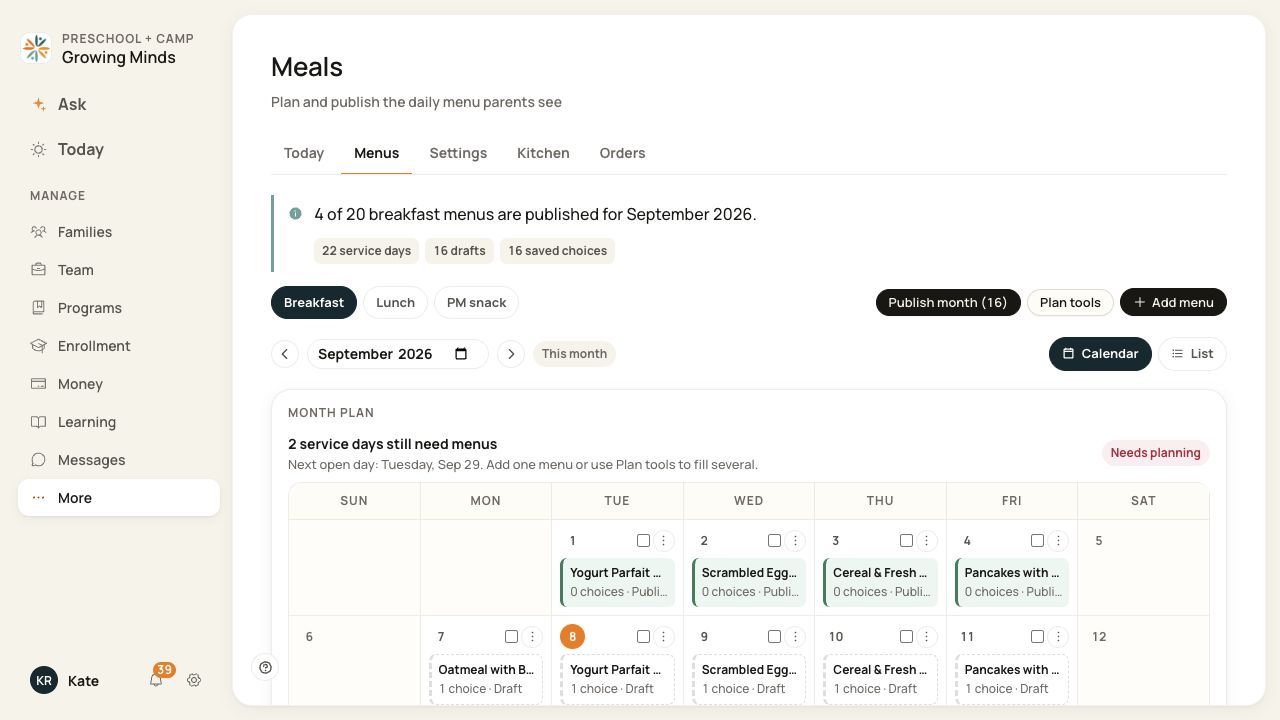
The month summary shows drafts and remaining planning gaps.
2. Open the publish review
Choose Publish month. The number in the button is the unpublished menus included in this action.
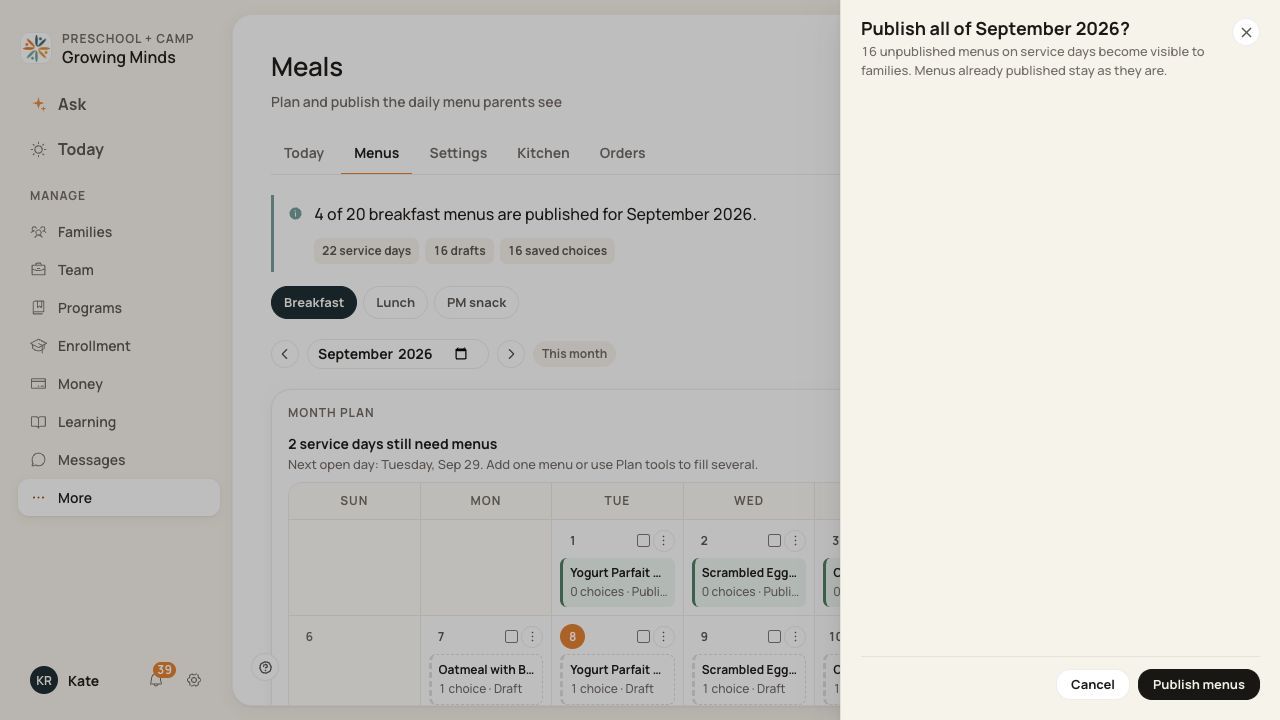
Read the month and menu count before confirming.
3. Confirm the reviewed batch
Choose Publish menus when the count and scope are correct. Wait for the action to finish.
4. Verify and repeat if needed
Check the published count. Select each other meal type you need to publish and repeat after reviewing it.
Before you finish
The action uses the selected meal type; it is not a guarantee every service in the month is published.
Missing menus are not created by publishing. Already published menus stay published.
If there are no unpublished menus eligible for this action, the button may not appear.
Related guides
Screenshots show an example center. Meal prices, times, service days and ordering policies depend on your center’s configuration.
Was this helpful?