Viewing and Filtering Meal Orders
Use the order ledger to find a child’s meal, review its selection and status, or export a focused list.
Last updated About 2 hours ago
Use the order ledger to find a child’s meal, review its selection and status, or export a focused list.
1. Open the ledger
Go to More → Meals → Orders. Check the date range above the ledger.
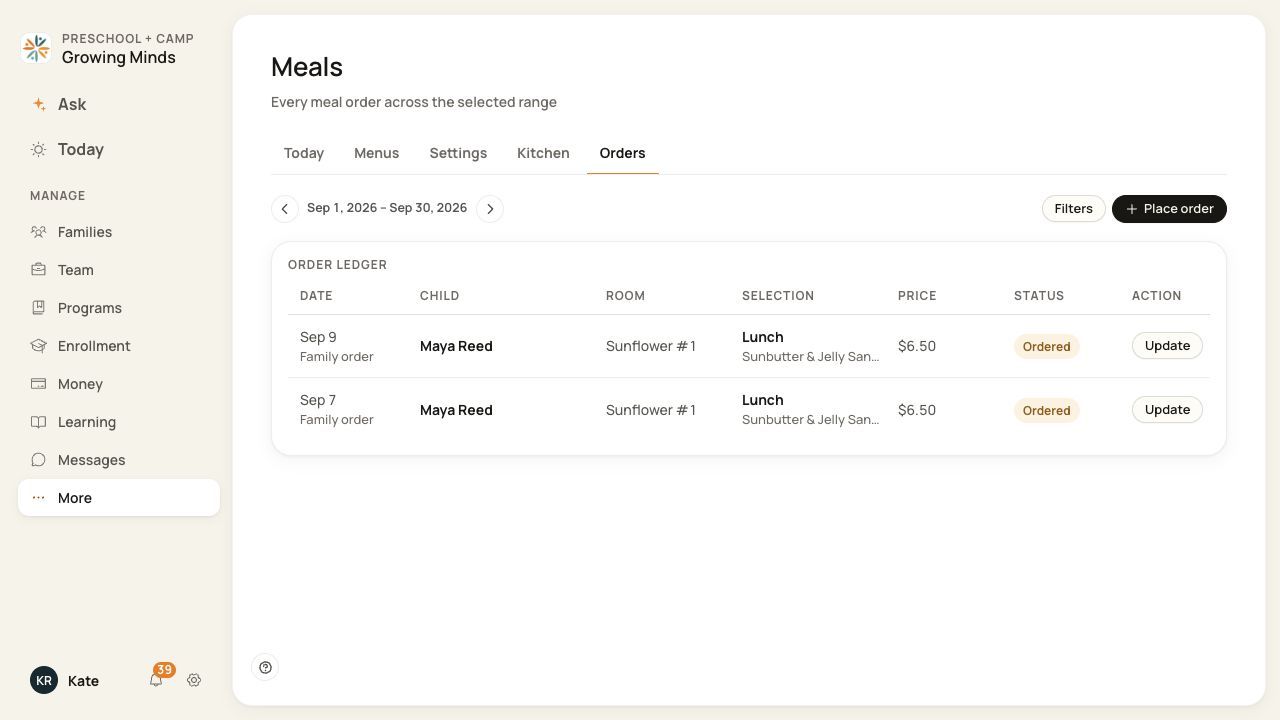
The ledger shows the service date, child, room, selection, price and status.
2. Refine the results
Choose Filters. Set From and To, meal, status, dietary alerts, room and child name as needed. Results update as filters change.
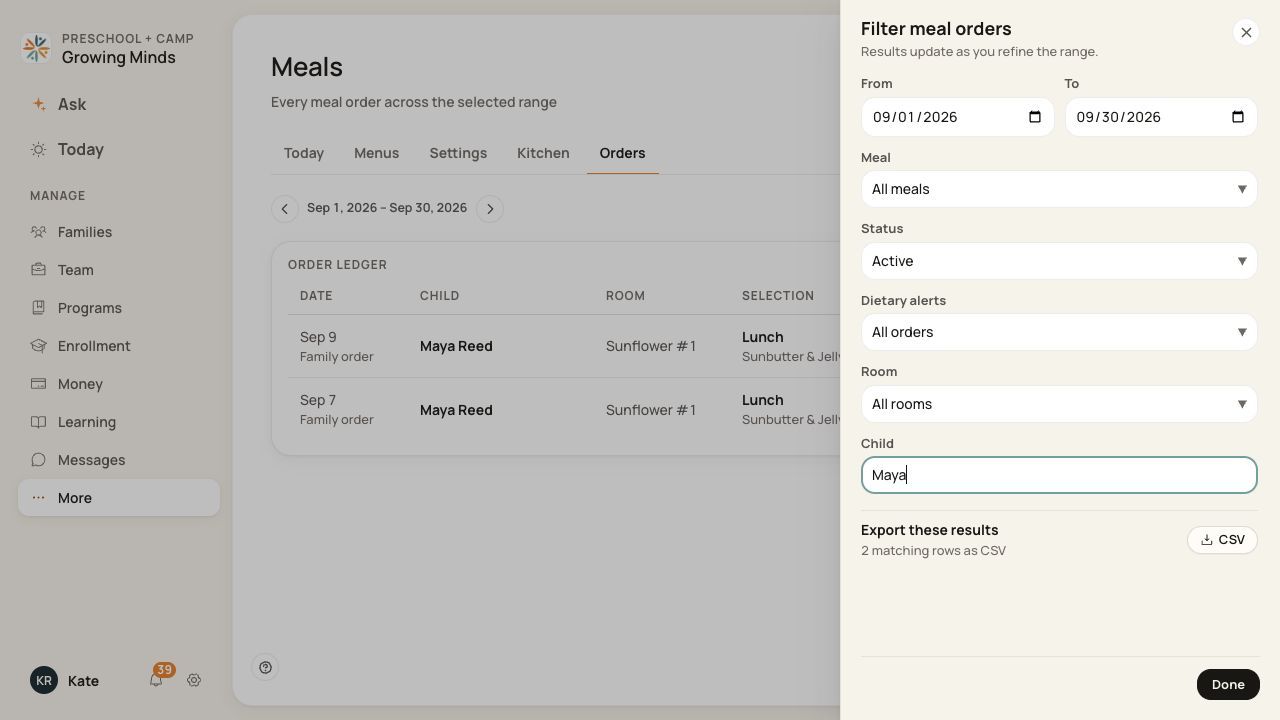
Use All statuses when searching for cancelled or completed records.
3. Review a specific order
Choose the child’s order link to see its selection, recorded price, status and available context. Distinguish Family order, Staff order and check-in sources where shown.
4. Export only the intended results
In Filters, review the matching-row count and use CSV. Check the file before sharing it.
Before you finish
If an order seems missing, widen the date range and clear status, child and room filters.
A disabled meal type can still have historical orders. A check-in selection is a different source and may have different management actions.
Do not treat an order’s recorded price as proof that an invoice was sent or a payment settled.
Related guides
Screenshots show an example center. Meal prices, times, service days and ordering policies depend on your center’s configuration.
Was this helpful?