Updating or Cancelling a Meal Order
Check whether you need to change the meal selection or record a final status. The Update control is a status action.
Last updated About 2 hours ago
Check whether you need to change the meal selection or record a final status. The Update control is a status action.
1. Locate the order
In Meals → Orders, filter to the child, meal and date. Open the record and check the current selection and status.
2. Correct an active selection when authorized
For an order still intended to be Ordered, use Place order with the same child, date and meal and select the correct dish. This can update the existing selection, or bring back a cancelled order. Review the recorded price afterward. Place order can no longer reopen a meal already marked Served or No-show — see the next section.
3. What happens if a meal is already Served or No-show
Once a meal is marked Served or No-show, Place order will not reopen it. You will see one of these messages: "This meal was already served. Open the order to correct it." or "This meal is marked no-show. Open the order to correct it."
Open the order and choose Correct. A staff member with edit access to Meals can do this. Add a reason, then choose Correct order. The order goes back to Ordered, so it can be updated, or marked Served or No-show again.
Correcting an order does not charge or refund money, and does not notify the family. The price stays the price recorded when the order was first placed, even if your meal prices have changed since.
4. Cancel an ordered meal
Choose Update or Update order, then select Cancelled in New status. Enter the cancellation reason and review the confirmation.
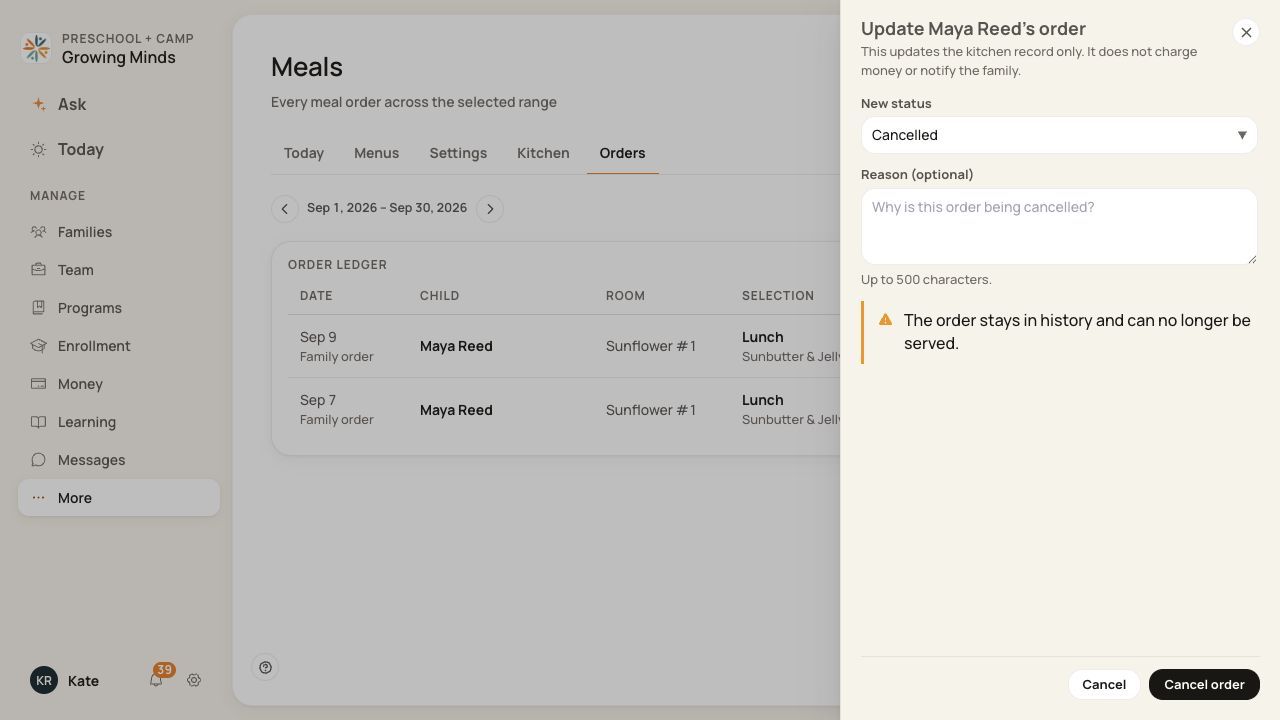
Cancellation is a status change; check the child and date before confirming.
5. Verify the outcome
Confirm the cancellation, then use All statuses or Cancelled to find it. For a selection correction, reopen the record and check the saved dish.
Before you finish
The status action accepts orders currently in Ordered status. If someone already changed it, refresh and review the current record.
Cancelling through this staff status action does not charge or refund money or notify the family. Check any invoice separately.
Changing a menu itself is not a substitute for correcting an individual order.
The Orders list updates on its own right after you save a status change — you do not need to reload the page. If a row still shows the old status, reload the page and let support know.
Related guides
Screenshots show an example center. Meal prices, times, service days and ordering policies depend on your center’s configuration.
Was this helpful?