Printing the Kitchen Meal List
Print a preparation sheet for one service date and meal type. The sheet includes orders currently in Ordered status.
Last updated About 2 hours ago
Print a preparation sheet for one service date and meal type. The sheet includes orders currently in Ordered status.
Workflow: Select date & meal → Review orders → Print → Check preview
1. Choose the preparation scope
Open More → Meals → Kitchen. Select the service date and meal type. Wait for the view to finish loading and review the matching orders.
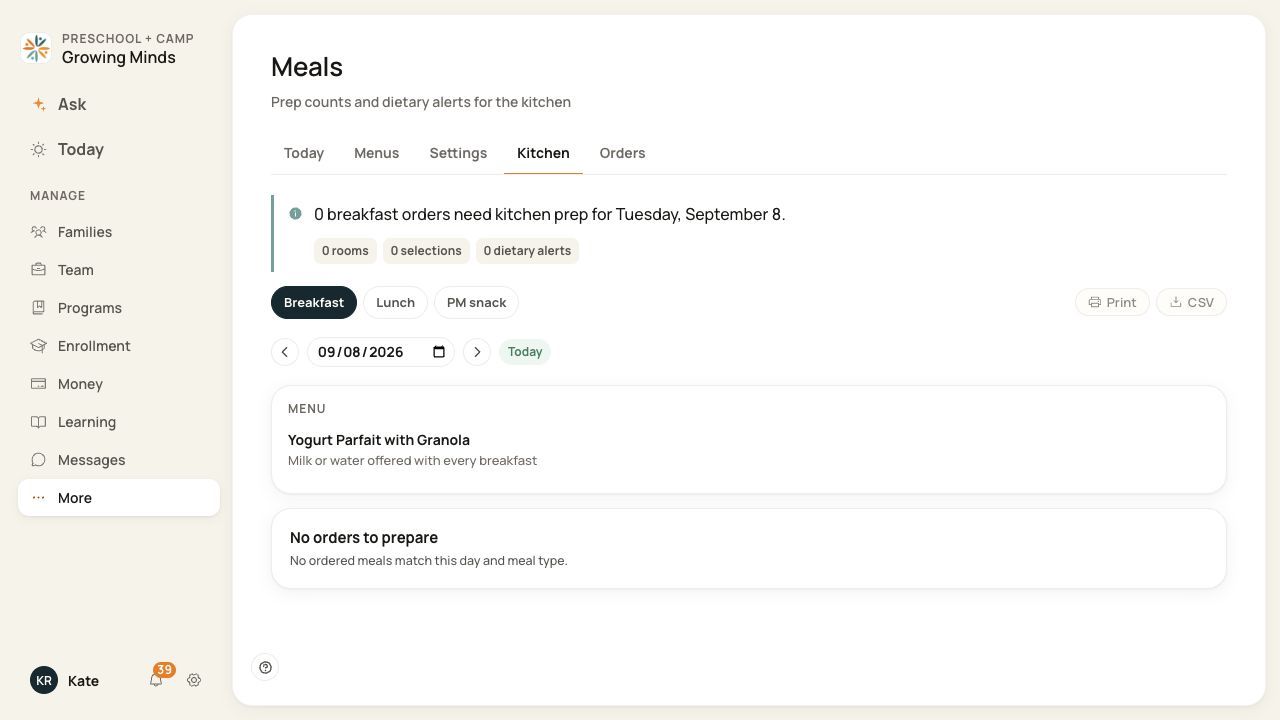
Print and CSV are beside the meal selectors. They are disabled in this empty example; choose a date and meal with orders.
2. Open the print sheet
Choose Print. Bloomily opens a separate window and requests the browser’s print dialog. If nothing opens, check whether your browser blocked the new window.
3. Review the output
Check the center, date, meal, order count and generated time. Review dietary alerts, preparation counts by selection and the child roster grouped by room.
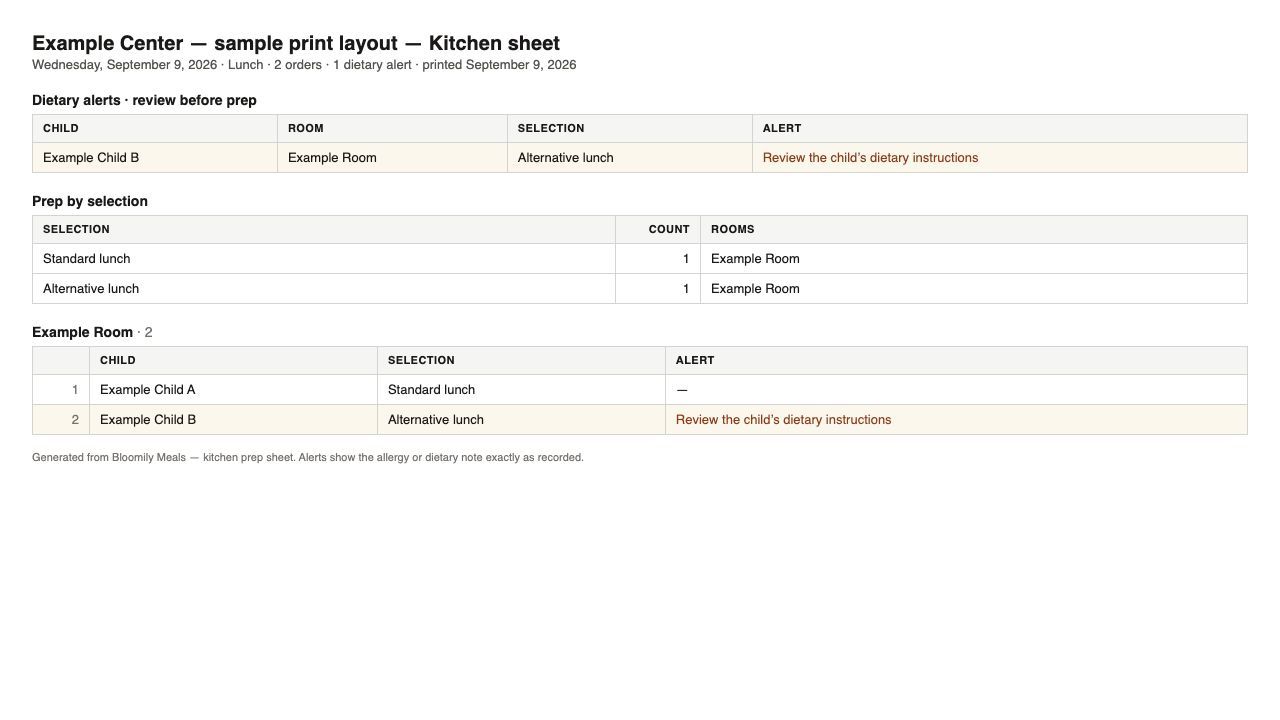
Sample print layout generated by the current Bloomily print template with fictional children and room names.
4. Choose a destination and print
In the browser’s print dialog, choose the printer and review the preview before confirming. Choose Save as PDF if your browser offers it. Reprint after order changes so staff use a current copy.
Before you finish
Print is disabled when no Ordered meals match the selected date and meal type. Served, Cancelled and No-show orders are outside this preparation list.
The sheet displays the recorded allergy or dietary note. Review the child’s full dietary instructions separately; a blank alert is not confirmation that no requirements exist.
Share child and dietary details only with the staff who need them. Printing does not mark meals Served or record food-program counts.
Related guides
Screenshots show an example center. Meal prices, times, service days and ordering policies depend on your center’s configuration.
Was this helpful?