Exporting Kitchen Meal Data to CSV
Download the selected day and meal’s active kitchen orders as a spreadsheet file.
Last updated About 2 hours ago
Download the selected day and meal’s active kitchen orders as a spreadsheet file.
Workflow: Select date & meal → Download CSV → Review columns → Use current copy
1. Select the date and meal
Open More → Meals → Kitchen. Choose the intended service date and meal type, wait for loading to finish and check the matching orders.
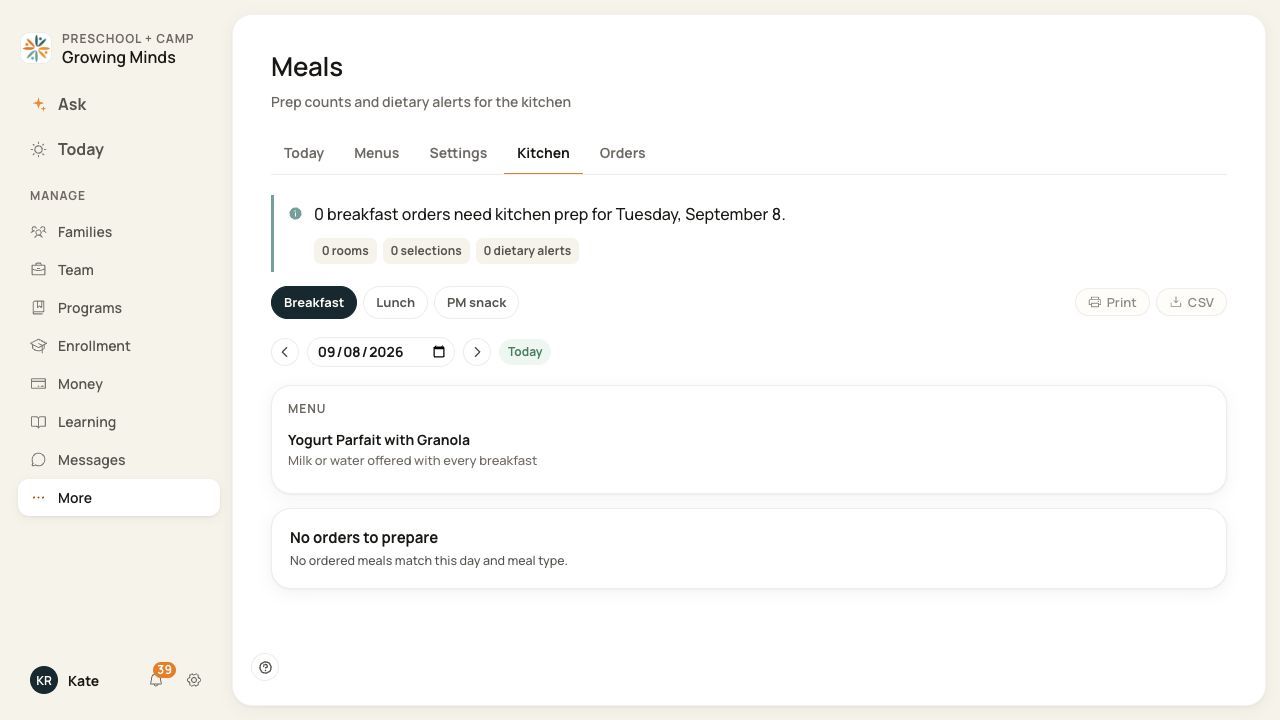
Use CSV in Kitchen for this date and meal. The button is disabled when the selected view has no orders.
2. Download the CSV
Choose CSV. The filename follows kitchen-YYYY-MM-DD-mealType.csv, using the selected date and meal type.
3. Check the columns
Open the file in your spreadsheet application. It contains Date, Meal, Option, Classroom, Child, Allergies, Dietary notes. Each row is an order currently in Ordered status for the selected date and meal.
4. Review and use the current copy
Confirm the dates, meal and number of rows before using the file. Export again after changes. Store and share the file with the staff who need its child and dietary information.
Before you finish
An absent option label appears as Default, and an absent classroom appears as Unassigned. Blank health fields mean no value was provided in the export, not proof that a child has no dietary requirements.
Kitchen CSV does not include Served, Cancelled or No-show records. Use the Orders ledger and its filters when you need a different status or date range.
This is a download, not an email or service confirmation. It differs from the monthly menu CSV, which exports planned menus rather than child orders.
Related guides
Screenshots show an example center. Meal prices, times, service days and ordering policies depend on your center’s configuration.
Was this helpful?