Setting up your Bloomily account
For new teachers: finding your invitation, setting up your account in a browser, keeping staff and parent accounts separate, and what to know before your first shift.
Last updated About 2 hours ago
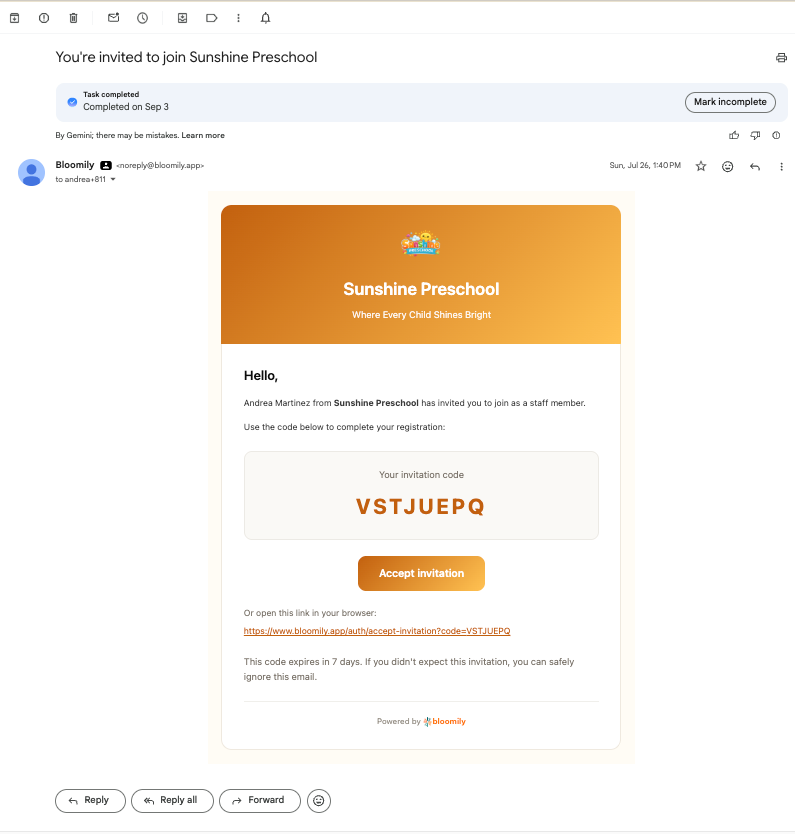
Finding your invitation
Search your inbox for and email from Bloomily.
Check junk and spam before you ask.
If it isn't there, your director can resend it. Tell them which email address you're expecting it at — the invitation only works at the address they entered, so a personal address won't find an invitation sent to a work one.
If you're a parent at your center too
If you are also a parent at your center, ask your director to check your existing account, guardian links and organization access before accepting or creating another invitation. Use the email address and sign-in route confirmed for your staff access. Do not assume a parent account automatically grants staff access.
Setting up your account
Open the invitation and set your password. Remember this password for future reference, these are your login credentials.
Go to bloomily.app in a browser.
Sign in with your email and the password you just set.
There's nothing to download. Your account lives in the browser — you don't need to install anything to get set up.
Do this at home, before your first shift — not standing at the door on your first morning with families arriving.
Where you'll actually work
Once you're set up, you'll use Bloomily in two places.
Your dashboard at bloomily.app. This is where your own things live — your schedule, your hours, time off, your profile, messages, announcements.
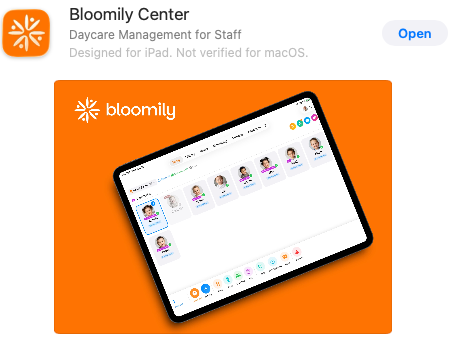
Bloomily Center on the classroom iPad. The orange app, already installed on your room's device. This is where the day happens — attendance, activities, photos, reports.
Use the sign-in method offered for your staff account and device. Shared classroom iPads also use staff switching and PIN controls.
Three Bloomily apps
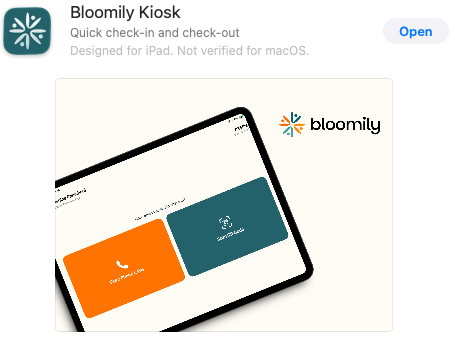
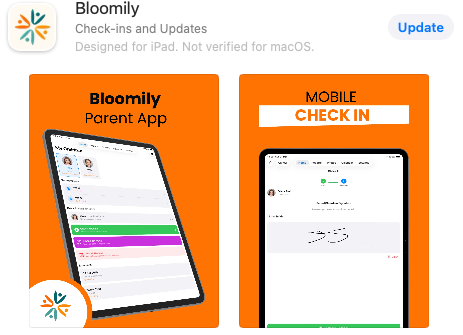
Search the App Store for Bloomily and you'll find three. They look similar and they are not interchangeable.
Bloomily Center is the only one you sign into as a teacher. The other two are worth recognizing, because you'll be the one families ask when something isn't working on their phone or at the door.
Your PIN
Your shared-device PIN is separate from your password and from a guardian kiosk PIN. Use your own name and PIN when switching into the classroom device.
Use the PIN controls available in your staff profile to set or change it. If you forget it or see a lockout, follow the displayed instructions or ask an authorized administrator to reset it. A newly generated PIN is shown for handoff; an existing hashed PIN cannot be read back.
Two things that surprise people on day one
Signing in is not checking in. Your hours don't start until you check in, and that's a separate action. This is the most costly thing to get wrong in your first week — see Checking yourself in and out.
Your menu may look smaller than a colleague's. What you can see is set by your organization, along with which rooms you're assigned to. If something isn't where you expect it, don't assume it's broken — ask your director.
If something isn't working
No invitation email: junk folder first, then ask your director to resend it, and tell them which address you're expecting.
Your email isn't recognized: it has to match the address your director entered.
The link has expired: your director can send a new one.
You already have a parent account on the same email: ask your director to check your existing account and the intended staff access — see If you're a parent at your center too.
When you report a problem, send four things in one message: your name, a screenshot, which device you're on, and what happened. "It isn't working" takes three replies before anyone can start looking.
Every screen has a ? guide button that explains the page you're on. For anything else, use in-app support or email support@bloomily.app.
Was this helpful?