Helping families at the kiosk
For teachers: how families check themselves in at the kiosk, why you can't look up a PIN, and what to do when someone is stuck at the door.
Last updated About 2 hours ago
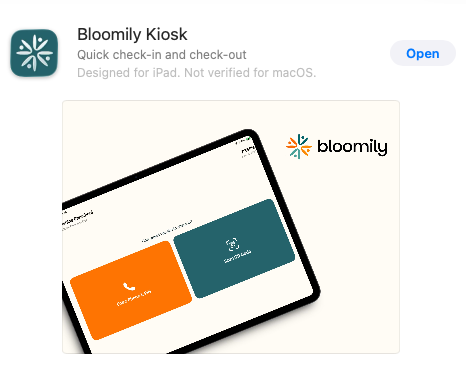
Families check their own children in and out on the Bloomily Kiosk iPad at the door — the dark teal app. It captures their signature, so a kiosk check-in is a complete record of who handed the child over.
Your job at the door is to keep it moving, not to solve PIN problems.
Getting the kiosk ready
Open the Bloomily Kiosk app on the iPad you're using for check-in and leave it ready before families start arriving.
How your center handles this depends on how many iPads you have — some keep a dedicated device at the door, others open the app on a shared one each morning. Either way it's just opening the app.
Getting back out of the kiosk
If the same iPad is used for the kiosk and then for your staff app, you don't need to close anything down.
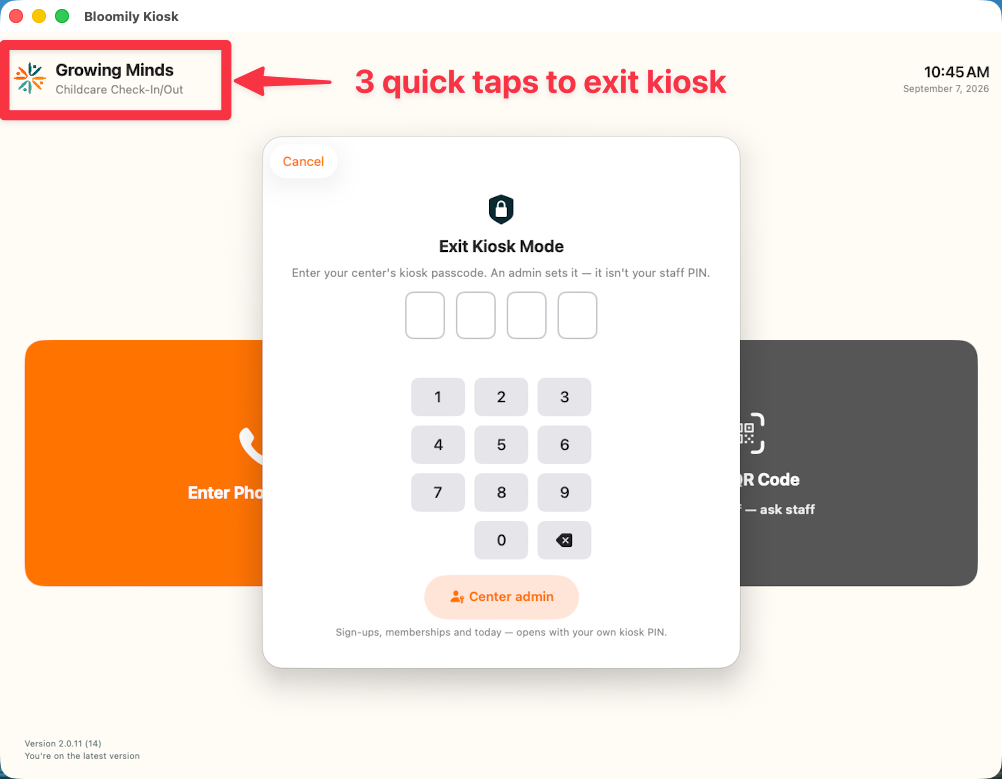
Tap the school logo in the top left three times, then enter your organization's PIN.
It's deliberately not a visible button. The kiosk sits in front of families all morning, and an obvious exit is an obvious thing to press by accident. The triple tap keeps it out of the way; the PIN is what actually protects it.
This is your organization's PIN, not your personal staff PIN. If you don't have it, ask your director.
How a family checks in
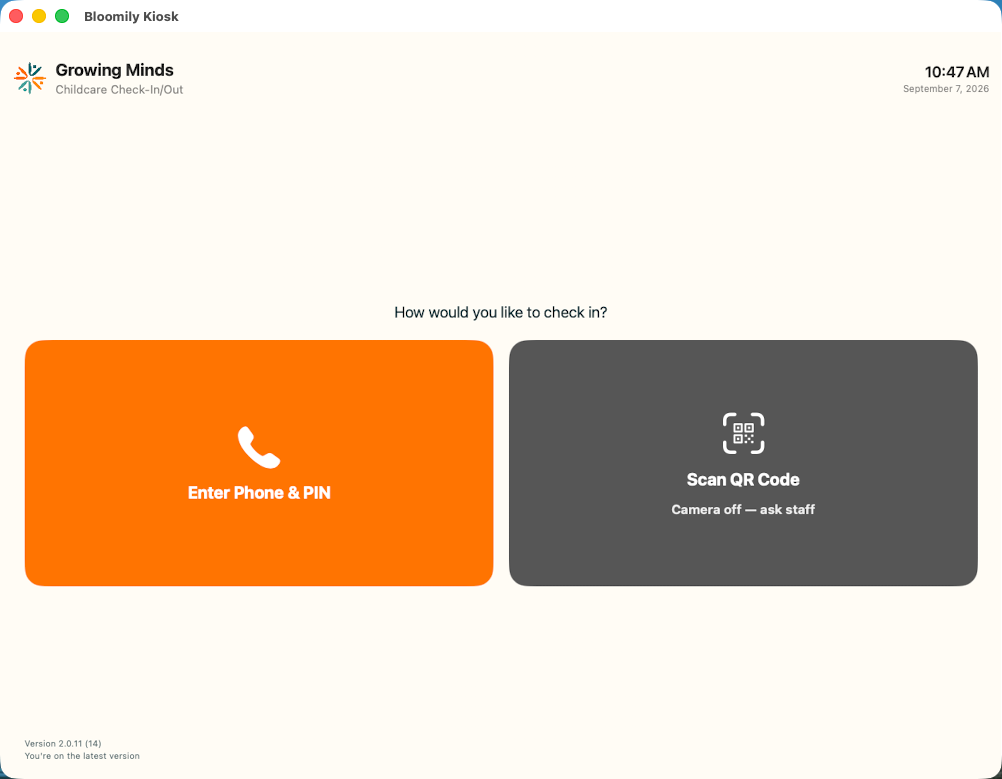
At the kiosk, a family types the last four digits of their phone number, then their PIN. Or they scan a QR code from their own app.
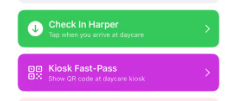
The QR route is Kiosk Fast-Pass, on the home page in their Bloomily app. It shows a code they hold up to the kiosk camera. Codes last two minutes, and there's a button to generate a new one if it runs out — so a code that's stopped working usually just needs regenerating.
There's a guide written for families covering both routes: bloomily.app/guides/check-in. Handy to point someone at rather than talking them through it at the door.
Checking in from their own phone
Families can also check in without touching the kiosk at all. In their Bloomily app, Quick Actions has a green Check In button for each child — they tap it as they arrive.
It only works when they're actually at the daycare. The button is geofenced, so a parent can't tap it from the car or on the way in. That's what makes it a real arrival rather than an intention.
What this means for you: some children will already be checked in when they walk through the door. If a child shows as checked in and you didn't do it and they didn't use the kiosk, this is usually why — not an error.
Everyone has their own PIN
Each adult has their own four-digit PIN, tied to their own phone number. That includes authorized pickups, not just guardians — an aunt collecting on Thursdays has her own PIN and uses her own number, not the parent's.
Shared codes don't work, and they aren't meant to. The PIN is what identifies who collected the child.
You can't look up a PIN — and that's the point
Teachers cannot look up a parent's PIN. Not on the iPad, not on your dashboard. Only an administrator can, and only from the dashboard.
That isn't a gap in your access. A PIN is how the system knows who took a child home, and it stops being that the moment it can be handed around.
So when someone can't get in, your options are to help them find their own, or to move them on.
Where families can find their own
Their own Bloomily app — a guardian can find the check-in code for authorized pick-ups, under people and access in the more section.
Their account at bloomily.app — for their own pin, in the parent portal, under profile, this is in the browser.
If neither works, the admin office can look it up.
If the kiosk says “Too many failed verification attempts”
After too many wrong tries, the kiosk stops taking phone numbers and PINs for 15 minutes. The message says how many minutes are left.
It can mean one of two things:
This parent is locked. After 10 wrong PINs for one phone number, that number is locked on every kiosk at your school.
This kiosk is locked. After 10 wrong tries on one kiosk, from any families, that kiosk stops taking PINs. Your other kiosks keep working.
What to do:
Send the family to another kiosk. If it works there, only the first kiosk was locked.
If they are locked on every kiosk, use Sign In on the Today screen.
Ask them to stop trying. Each wrong try adds to the count.
Kiosk Fast-Pass in their own app does not use a PIN, so it still works during a lock. So does the green Check In button, if your school allows check-in from the app.
Nobody can end a lock early. Not you, and not the office. It ends on its own.
A new PIN does not end it either. If a parent forgot their PIN, they can set a new one in their parent portal. It works once the lock is over.
The “attempts remaining” number can count other families' wrong tries on that kiosk. So a parent may see only a few tries left on their first mistake. That is normal on a busy morning.
When a family is stuck
Don't let a queue build while someone hunts for a PIN.
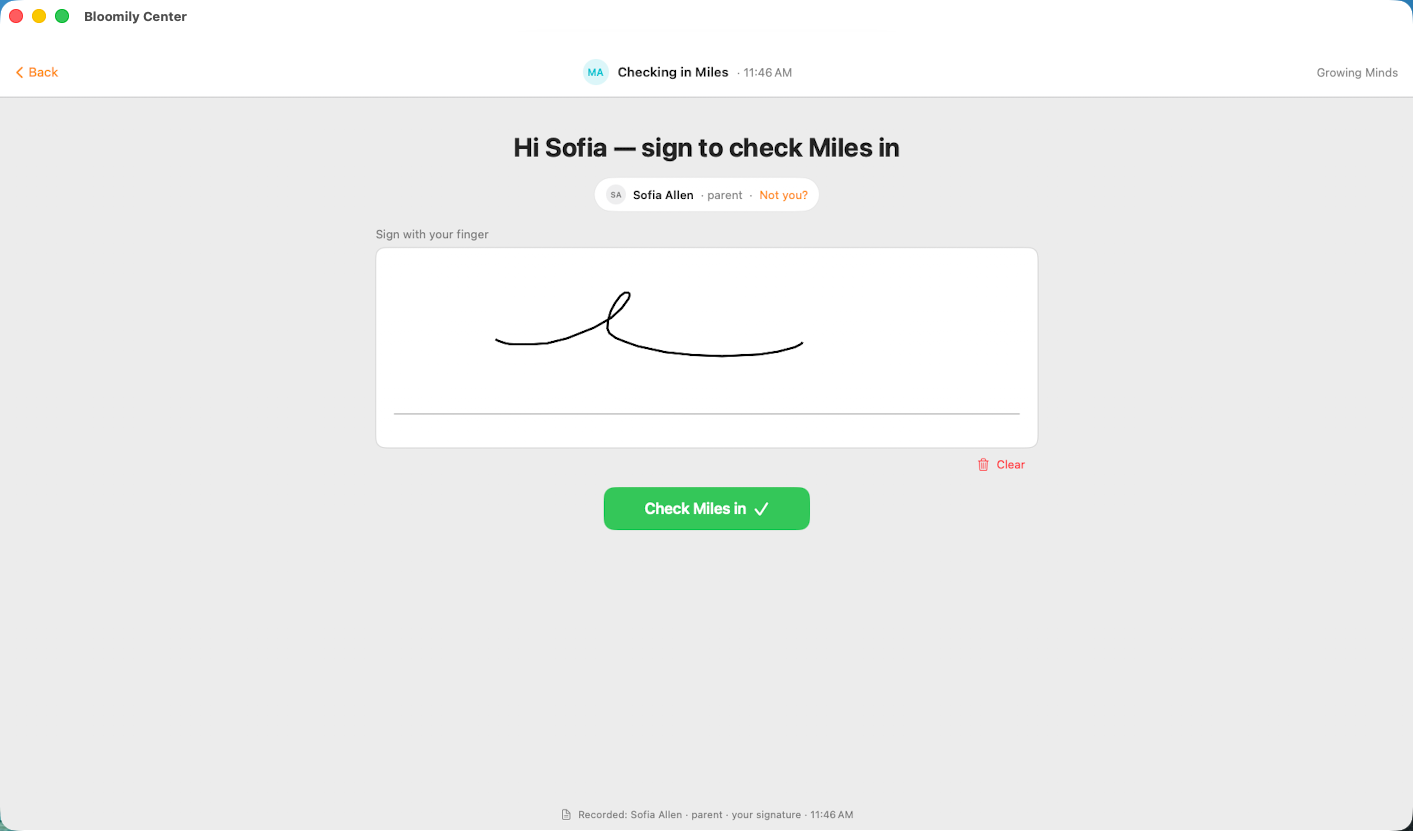
Move them to a staff-assisted check-in instead. Use Sign In on the Today screen and take their name, relationship and signature there — see guide Staff-assisted check-in and check-out.
This is the answer because it keeps everything that matters. You still capture who handed the child over and their signature, and the queue keeps moving. Nothing is lost by not using the kiosk.
Use Sign In, not Check In. Check In records that the child arrived and nothing else — no signature, no record of who brought them. At a drop-off with an adult standing in front of you, there's no reason to give that up.
What you're actually doing at the door
You facilitate. You don't retrieve PINs, and you don't need to.
Point families to their own app or their account for their code.
Send anyone locked out to another kiosk, or use Sign In. A new PIN only helps if they forgot theirs.
Send them to the admin office if they need more help than that.
Use staff-assisted Sign In so the morning keeps moving.
Follow your center's policy on what to do afterwards — some will want a note of who couldn't get in, so the underlying problem gets fixed rather than repeating tomorrow.
If something's wrong with the device
If the kiosk itself is unresponsive, or a family who should be there isn't showing at all, that's one for your director rather than something to work around at the door.
In the meantime, staff-assisted Sign In covers you. Nobody has to wait on a device being fixed.
Every screen has a ? guide button that explains the page you're on. For anything else, use in-app support or email support@bloomily.app.
Was this helpful?