Assign Staff to Different Rooms
Move a person to another room — for a whole week from the Schedule, or for a day (or part of one) from the Day Board.
Last updated About 2 hours ago
Two different moves, two different screens. Pick the one that matches how long the move needs to last.
Before either one will work, they have to be assigned to the room. You can only move someone into rooms already ticked on their profile. If the room you want is not in the list, that is why — open Team > People, open their record, and click Assign rooms.
→ Change a Team Member's Role or Room Access
Moving someone for a whole week
A room change that holds for the week rather than a day here and there. It happens on the Schedule, not the Day Board.
Open the walkthrough in a new window
The order to do it in
Open Team > Schedule and move to the week you mean.
Put the person on that week if they are not on it yet. If they have a main room, Bloomily places them in it automatically.
Set their days first. Use their actions menu and Set their whole week. The move option only appears once they have days on the week — on an empty row there is nothing to move.
Open their actions menu again and choose Move to another room this week.
Pick the room and confirm. Only this week changes, and their hours stay the same.
No main room? Someone assigned to several rooms with no main room set sits in a separate row at the bottom of the grid until you pick one. Their main room is set in one place only: their Team profile, under Rooms.
Moving someone for a day, or part of one
This is the Day Board version, and it is the one to use for cover that does not last the week — a morning in another room, an afternoon covering a lunch break, or a whole day when someone is out. The move lasts exactly the time window you set, so setting it to their full shift gives you a day's cover and nothing beyond it.
For center admins using Bloomily on a computer. The orange outline shows where to look or click.
1. Open Schedule
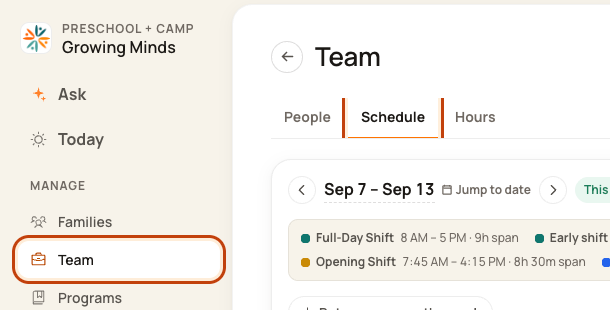
Click Team on the left. Then click Schedule.
2. Open the Day Board
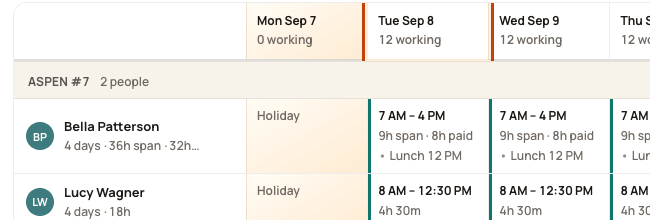
Click a date at the top of the week, such as Tue Sep 8. This opens that day's room plan.
3. Open their work block
Click the person's block on the Day Board. Check their name and date.

4. Set the room and times
Choose Move to a room…. Pick the room. Set From and To — a slice of the day for a short cover, or their whole shift for the full day. Check the details, then click Save day.
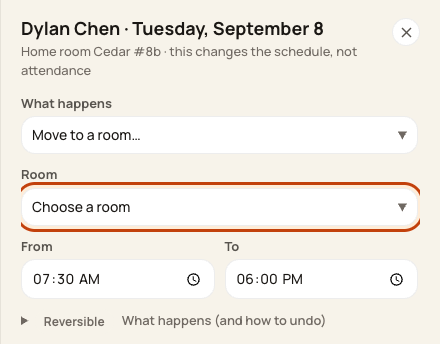
At the bottom of the form:

Good to know
Room access stays until you take it away. If you ticked a room on someone's profile just to move them there, it is still ticked afterwards. Nothing removes it for you. Untick it when the cover ends, or they will keep appearing as available for that room.
Set their week before you assign the room. The move option only appears once they have days on that week, so a blank row offers you nothing and it looks as though the feature is missing.
A main room is set in one place — their Team profile, under Rooms. The schedule and the staff app both read it from there.
The two moves are different sizes. A move on the Day Board lasts the time window you set, from an hour up to the whole day. A move on the Schedule lasts that week.
Check when you are done
Check both rooms after the move. Do not count the person in two rooms at the same time. If the week has already been published, publish again — a room move is a change like any other, and staff will not see it until you do.
Was this helpful?