Record a child’s learning assessment: Staff App
For teachers on the Bloomily center app: rating a child's developmental skills from the Skills button, adding a note and photo, checking the rating saved, and rating children from an activity.
Last updated About 2 hours ago
If your center uses Assessments, this is where you record what a child has actually demonstrated — what you saw them do, or heard them say — against the skills your center tracks.
This guide is for the staff app — Bloomily Center, on the iPad or whichever device your room uses. You can also record assessments from the staff portal in a browser, where the screens look different.
Prefer to watch? Walk through it here:
Step 1 — Select the child
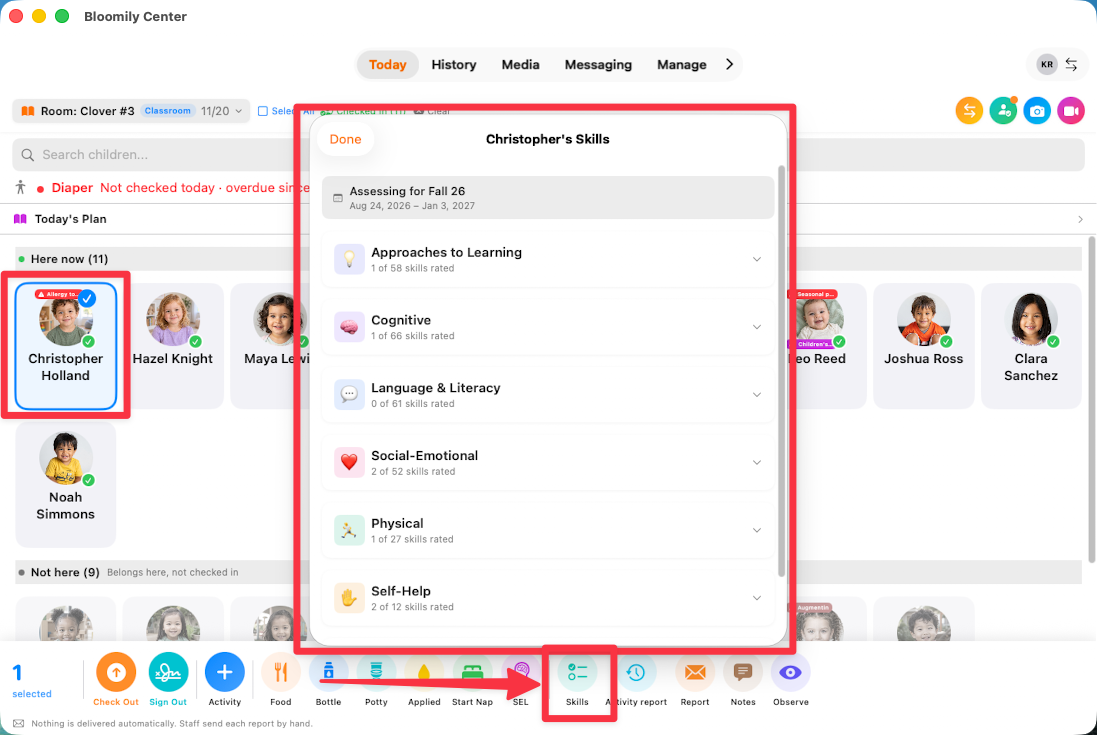
On Today, tap the child's card. The action bar appears along the bottom of the screen.
Step 2 — Open Skills
Tap Skills in the action bar. A sheet opens headed with that child's name — for example, Christopher's Skills.
It lists your center's learning areas, each showing how much has been rated so far: 0 of 58 skills rated, 1 of 66 skills rated, and so on.
Step 3 — Open a learning area
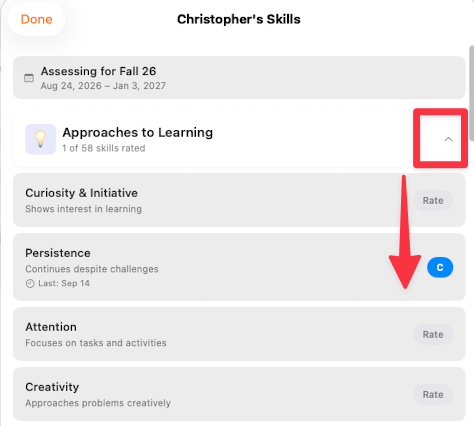
Tap the chevron on an area such as Approaches to Learning to expand it. Each skill appears with a short description and a Rate button.
Step 4 — Rate the skill
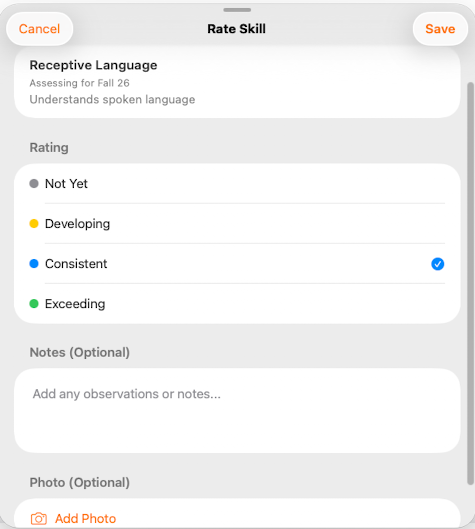
Tap Rate next to a skill. The Rate Skill sheet opens with four ratings:
Not Yet — not demonstrating yet
Developing — developing with support
Consistent — regularly demonstrates
Exceeding — extends beyond expectations
Choose the one that matches what you observed. A tick appears beside your choice, and Save becomes available in the top right.
Rate what you have seen, not what you know the child can do. A skill nobody has observed yet is Not Yet, and that is a perfectly good answer.
Step 5 — Add a note and a photo
Both are optional, and both make the rating far more useful later.
Notes — what you actually saw. "Trying really hard to not give up!" tells the next reader something a rating alone doesn't.
Photo — tap Add Photo to attach one.
The rating is your judgement. Only staff see your note. It's never on the family's report. The note is the evidence it rests on. Months later, at a family meeting, the note is what lets you say why.
Tap Save.
Step 6 — Check it saved
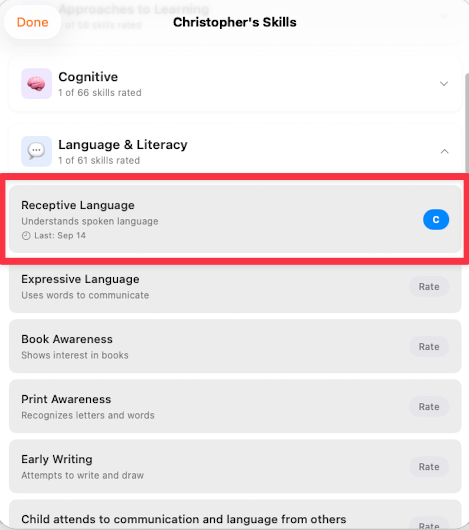
You return to the skills list. The skill you rated now shows a coloured badge for the rating and the date — Last: Sep 14 — and the area's count goes up by one.
Tap Done when you have finished with that child.
Rating from an activity
Logged an activity with learning goals? You can rate the children on those goals as soon as it saves, without opening Skills for each child.
The learning goals on an activity are the same skills as on each child's checklist, so a rating here lands on that skill.
On Today, select the children and tap Activity in the action bar. Log Activity opens.
Tap Add Learning Goals, tick the goals the activity was about, and save the activity as usual.
Add learning evidence opens. At some schools it shows as a button on the Saved for message at the bottom of the screen instead. Tap it.
You see one block for each goal, with a row for each child. Tap a rating beside a child. Each button is the first letter of one of your school's rating words: with the standard words, N, D, C and E for Not Yet, Developing, Consistent and Exceeding.
To give every child the same rating, tap it on the Everyone row, then change anyone who was different. Tap a chosen rating again to clear it.
Tap Save.
A child you leave blank gets nothing. Blank means not assessed, and nothing is saved for them. Skip closes the step without adding any ratings. The activity is already saved either way.
What you pick is a real rating. It counts the same as one from Skills, and it goes on the child's assessment record with the activity's name beside it. No family is told.
Taking part never moves a rating. Only a rating you tap does. Logging the activity on its own changes nothing.
There's no note or photo on this step. A note or photo on the activity stays with the activity. For a note on the rating itself, rate the skill from Skills.
Some goals aren't offered. A goal your school only observes can be tagged on an activity but is never rated, so it doesn't appear here.
This step is in the Bloomily Center app on the iPad. Logging an activity in the staff portal in a browser doesn't offer it.
Where this fits in the year
Rating skills on the staff app is the everyday part. You do it in the room, in the moment, a skill or two at a time — and across a term those ratings and notes build up into something substantial.
That is the point of doing it here rather than saving it up. A rating recorded the week you saw it is more accurate than one reconstructed in December, and it costs you thirty seconds.
When you have enough behind you and a child's checklist feels like it genuinely reflects them, that is the moment to move to the staff portal in a browser. That is where you generate the report, write each area's comments and overall comments and review it as a whole. Families read those comments.
What happens after that depends on your center. Some teachers publish a report themselves; at others a director reviews it first, or publishes on the teacher's behalf. Your portal will show you which applies — if the option you expect isn't there, that is a setting rather than a fault.
The app is for capturing. The portal is for pulling it together.
Writing a rating that holds up
Use a specific example, such as what the child said or did. Do not mark a skill only because the child took part in an activity — taking part is not the same as demonstrating the skill.
A rating with a one-line note is worth far more than a rating on its own, particularly at a family meeting months later when nobody remembers the moment.
If something isn't there
No Skills button: select a child first — the action bar only appears once a child is selected.
No skills configured: ask your director which skills or assessment term your center uses.
No Assessments at all: your center may not use it, or your account may not have access.
Related
Start here: assessments for teachers — the order to work through everything else.
Was this helpful?