Assessments in the staff portal
For teachers in the staff portal: the child checklist, marking a whole room, area notes, exporting a summary report for a family meeting, and sending a report for review.
Last updated About 2 hours ago
The staff portal is where assessments come together. You rate skills in the staff app as the term goes along; here you see the whole picture for a child, write area notes, generate a report and send it on.
Ratings on their own don't produce a report. Your director cannot see or review a child's assessment until you choose Generate report. Recording observations across the term is the first half of the job; generating the report is the second.
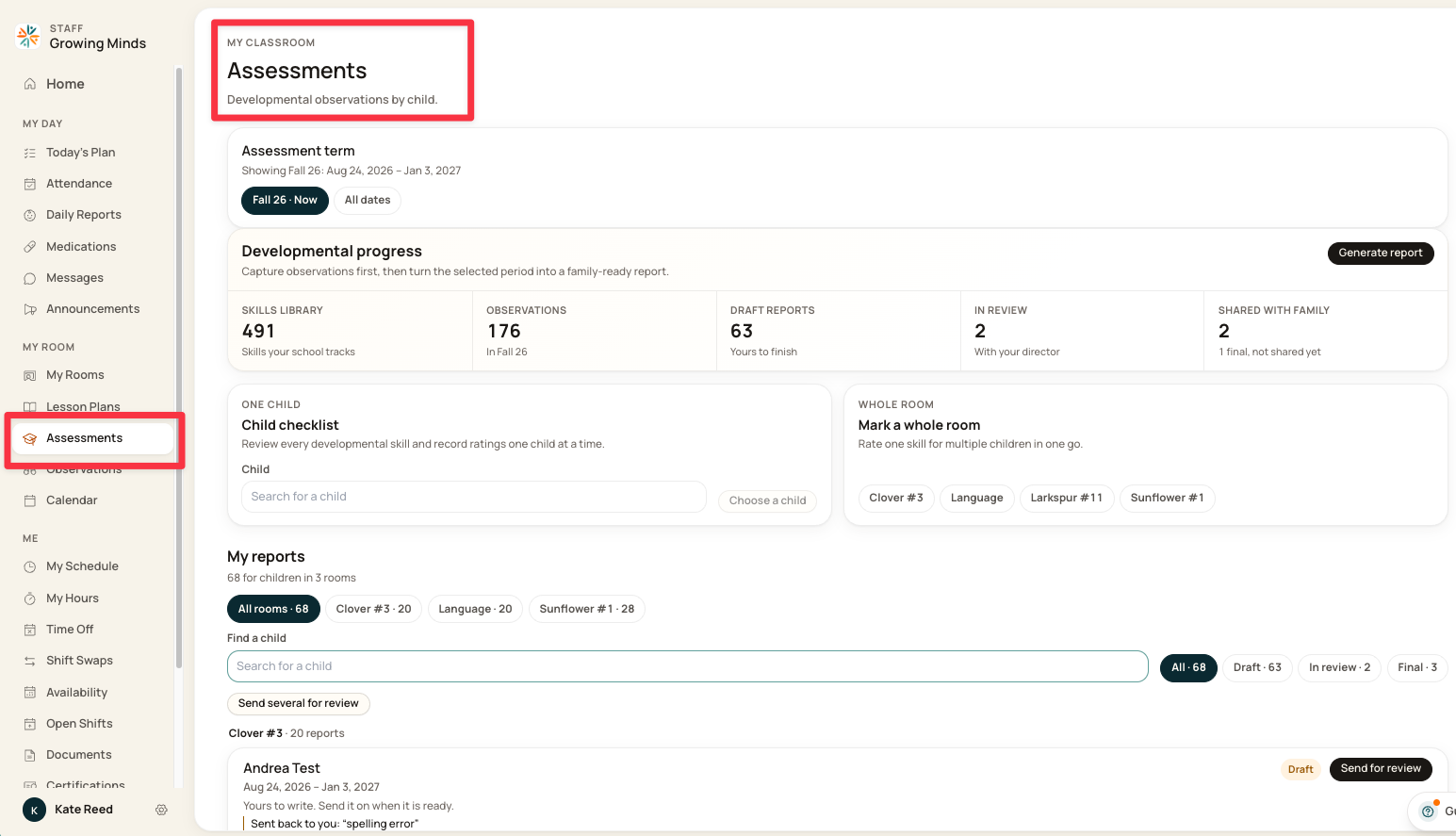
Open bloomily.app in a browser and go to Assessments, under My Room.
The assessment term controls everything
At the top sits your current term — for example Fall 26: Aug 24, 2026 – Jan 3, 2027.
Every count, checklist and report on the page is filtered to it. Switch to All dates to see a child's full history rather than just this term.
If numbers look wrong, check the term first. A child who looks barely assessed may simply have most of their ratings in an earlier one.
What the counters tell you
One child: the checklist
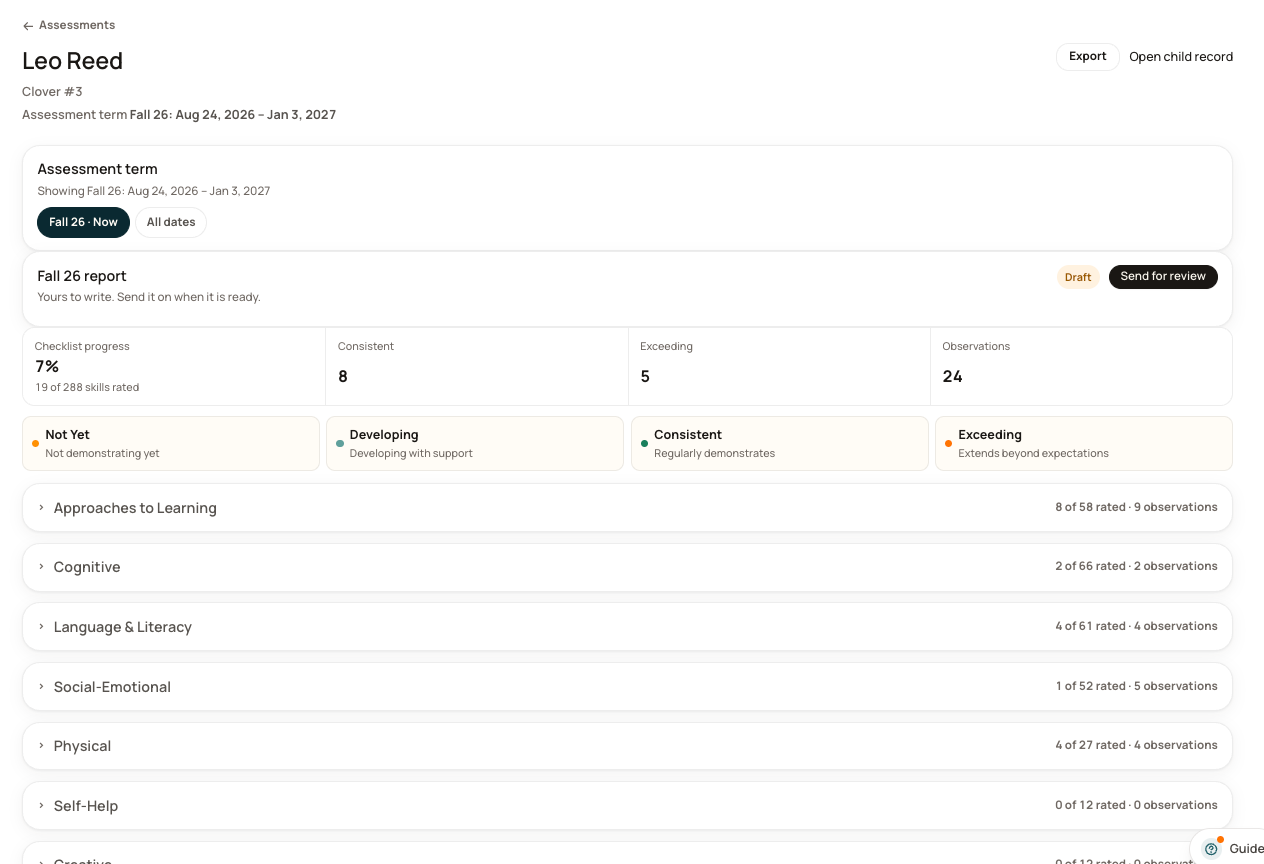
Search for a child and open their checklist. You get every skill your school tracks, for that one child, grouped into learning areas.
Across the top: checklist progress as a percentage, how many skills sit at Consistent and Exceeding, and the number of observations. Each area shows its own tally — 8 of 58 rated · 9 observations.
Areas start closed. Open the one you want rather than scrolling all of them.
Logging what you saw
Each skill shows its last rating and who recorded it. Choose + Observe to log a new one.
Pick a rating, and add a note describing what you saw:
Not Yet — not demonstrating yet
Developing — developing with support
Consistent — regularly demonstrates
Exceeding — extends beyond expectations
Saving an observation sends nothing. No email goes out and no family is told. Your school keeps it until a report is shared.
A photo attached to an observation may show as Awaiting approval where your center reviews media before it goes out.
A note for a whole area
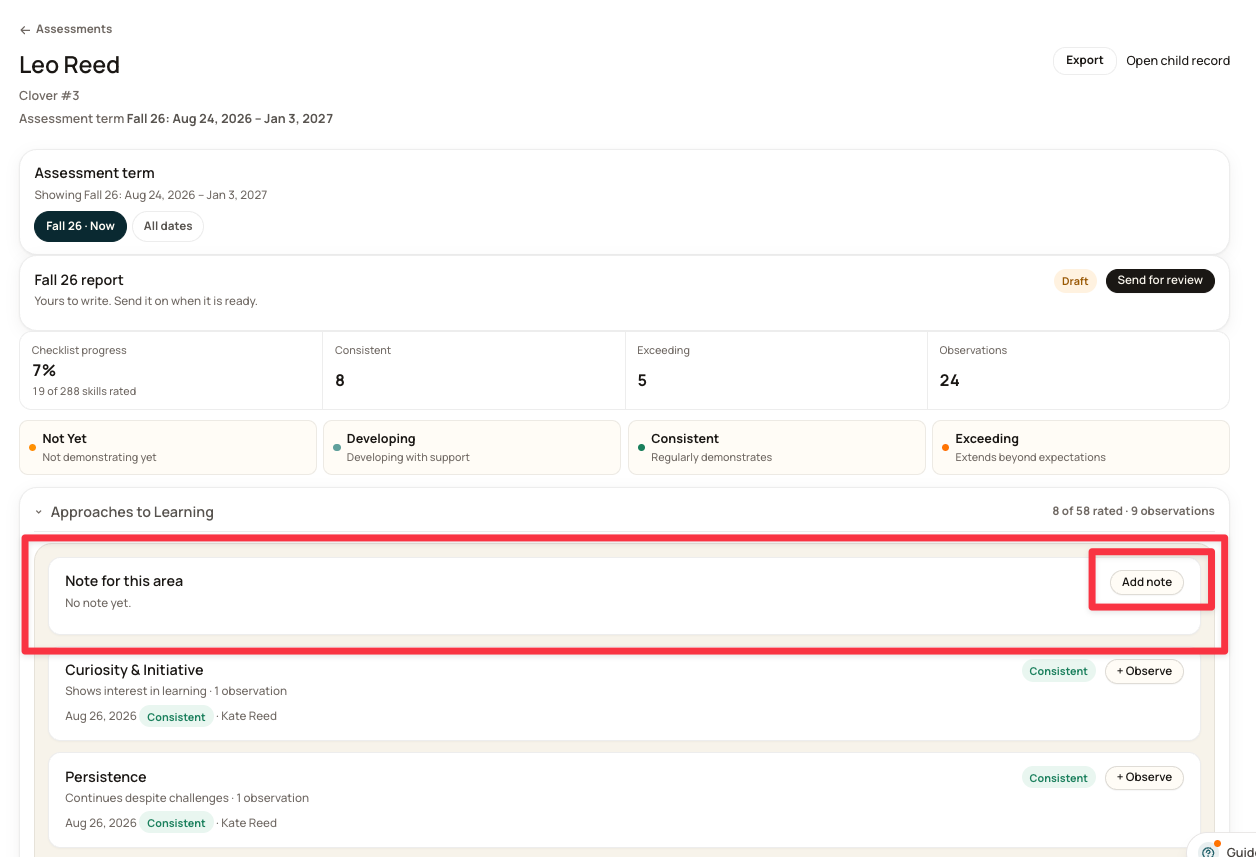
Add note at the top of an area records one note summarising that area for that child — how they are doing overall, rather than one skill.
One note per learning domain — seven in all, one each for Approaches to Learning, Cognitive, Language & Literacy, Social-Emotional, Physical, Self-Help and Creative. Your director sees the same note on their page, and it is carried onto the report when it is made final.
The note itself isn't tied to a term. Writing a new one next term replaces what's there — but any report already made final keeps the wording it had.
Families do see this note once the report is shared, so write it for them.
Exporting for a family meeting
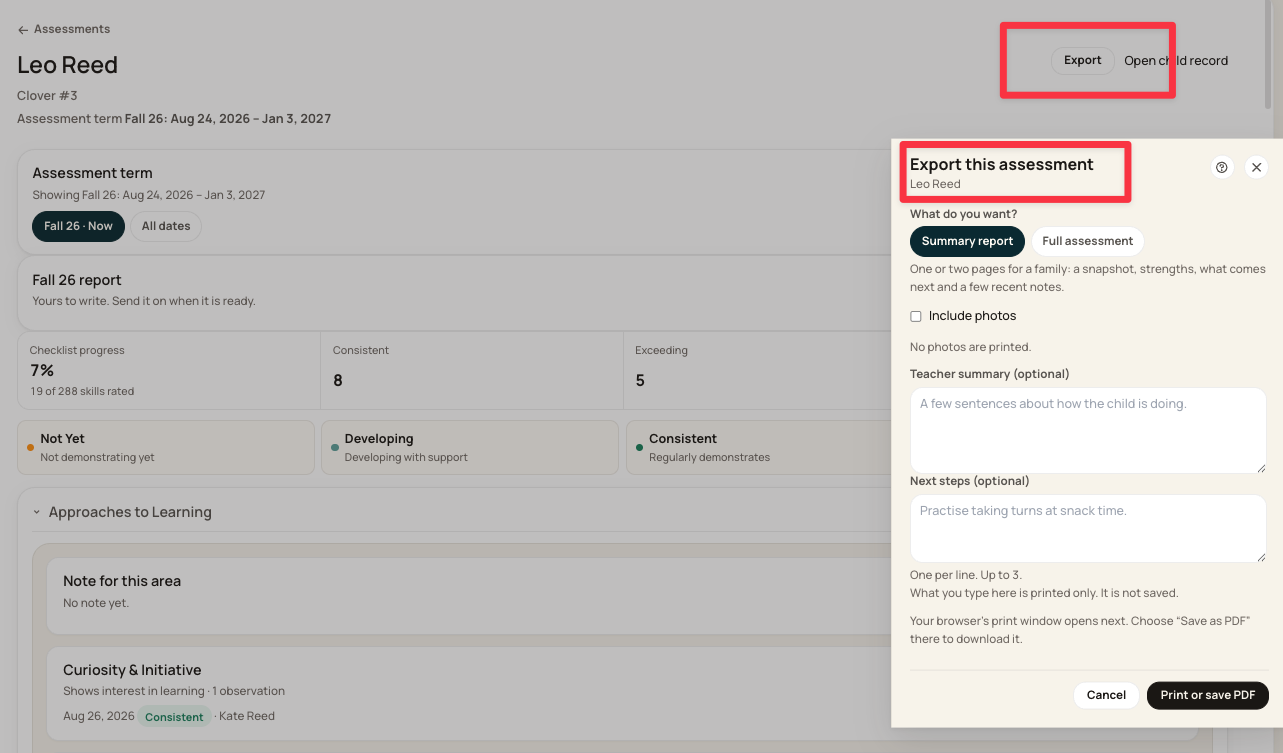
Export asks what you want:
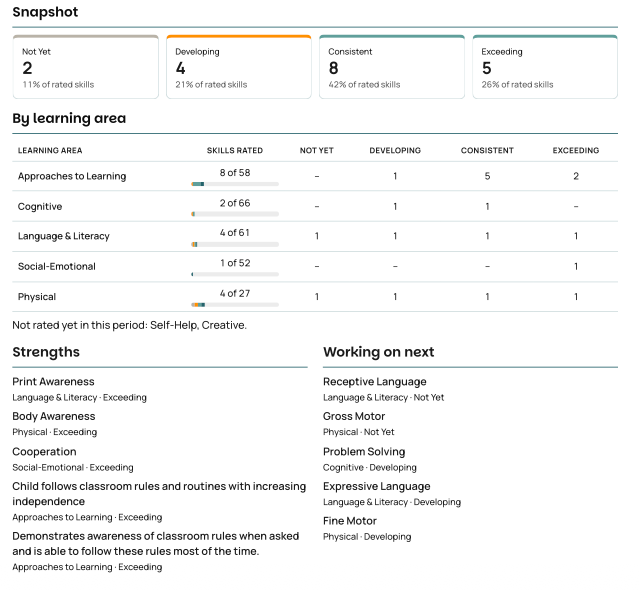
Summary report — one or two pages for a family. A snapshot, strengths, what comes next, and a few recent notes.
Full assessment — every skill, rated or not. Long, and better suited to an internal review than a meeting.
What's in a summary report
The summary pulls itself together from what you have already recorded:
Snapshot — how many skills sit at each rating, with percentages
By learning area — skills rated per area, broken down by rating, and which areas have nothing rated yet
Strengths and Working on next — drawn from the highest and lowest ratings
Recent notes — your own observation notes, quoted, with the date and skill
The percentages are of rated skills, not all skills. "42% Consistent" out of 19 rated does not mean 42% of everything your school tracks. Worth knowing before a parent asks.
Adding your own words
Two optional boxes: Teacher summary, a few sentences on how the child is doing, and Next steps, one per line, up to three.
What you type here is printed only. It is not saved. Close the dialog and it is gone — so if you want to keep it, write it into an area note first, then export.
Photos
Include photos prints the child's photo and approved photos from notes. Photos still awaiting approval are left out, so if a photo matters for a meeting, get it approved beforehand.
Your browser's print window opens next — choose Save as PDF there to download rather than print.
Summary Report:
A whole room: rating one skill at a time
Mark a whole room works the other way round — one skill, many children, in a single pass. Useful after an activity where you saw the same thing across the room.
Pick the room, and every child is selected by default. Deselect anyone the rating doesn't apply to before you save. Rating twenty children for something you saw six of them do is quick, and wrong.
Search skills or domains to find the one you want.
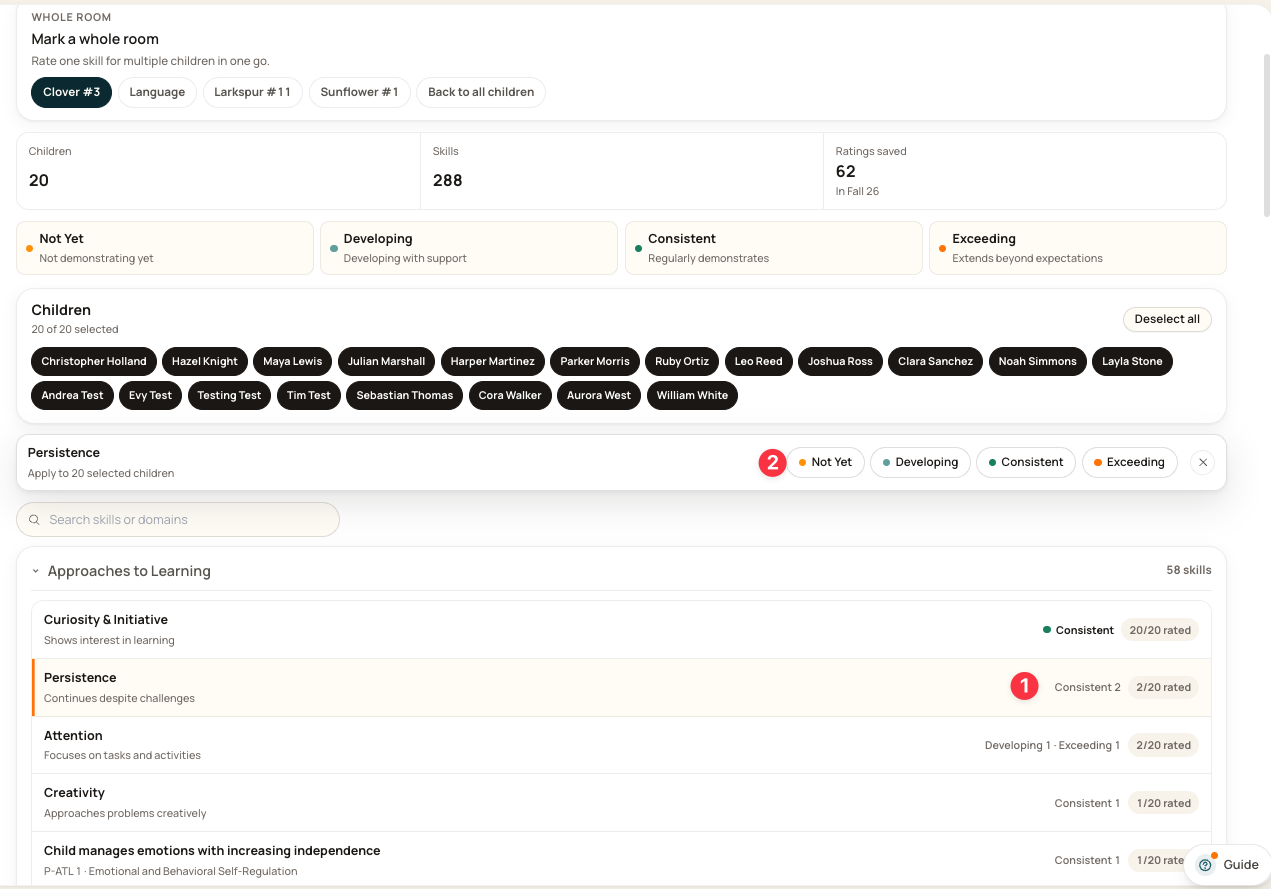
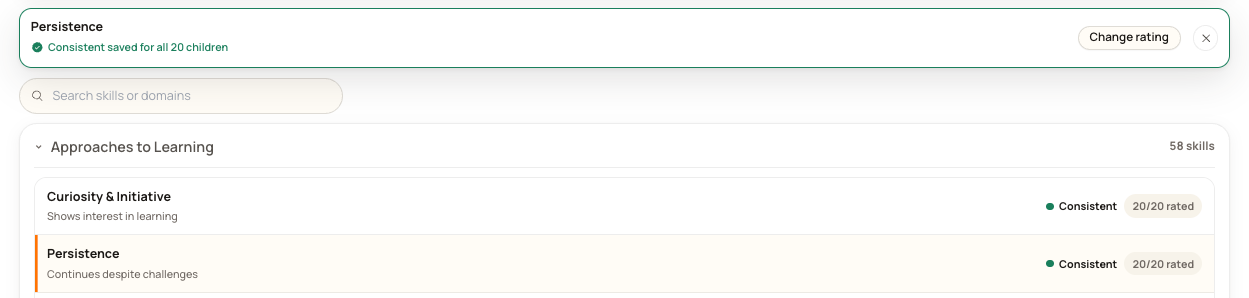
One skill rated across the whole class.
Generating a report
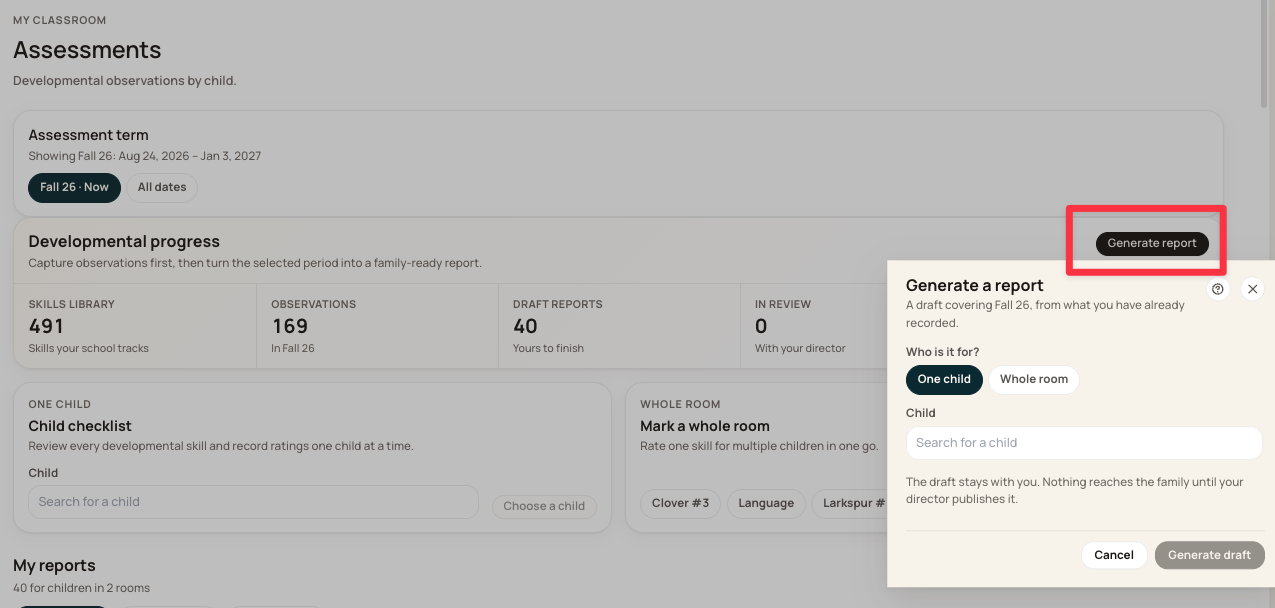
Choose Generate report. Pick whether it's for one child or a whole room, and Bloomily builds a draft for the current term from what you have already recorded.
Nothing exists for anyone else to look at until you do this. Ratings and observations sit on the checklist; a report is what turns them into something your director can review.
A generated report is a draft, and it stays with you. Nothing reaches a family at this point. The report appears under your My Reports section at the bottom of your Assessments homepage.
Open it, check it reads the way you want, and edit before sending it on.
Prefer to watch? Generating a report and sending it for review:
A draft keeps changing as you edit it
A report stays editable for as long as it is a draft. Go back in, change a rating, rewrite a comment — the report updates with it.
There is only one copy. Your director sees the same report you are working on, so anything you change is what they see. A draft is not a snapshot taken at the moment you generated it; think of your view and theirs as live copies of each other.
Sending a report on
Your reports are listed under My reports, each with its status. Where you teach in more than one room, use the room chips above the list to filter. A draft shows Send for review.
Sending moves it to your director. It leaves your Draft count and appears in In review.
Sending locks the report for everyone. Once it's in review you can't edit it — and neither can your director. They can Publish and share it, or Send it back to you. Nobody can change the ratings or notes while it sits in review. So read it through before you send; don't rely on your director tidying up a small mistake, because they can't.
That isn't final, though. If something needs changing, your director can send the report back to you — it returns to draft and becomes editable again.
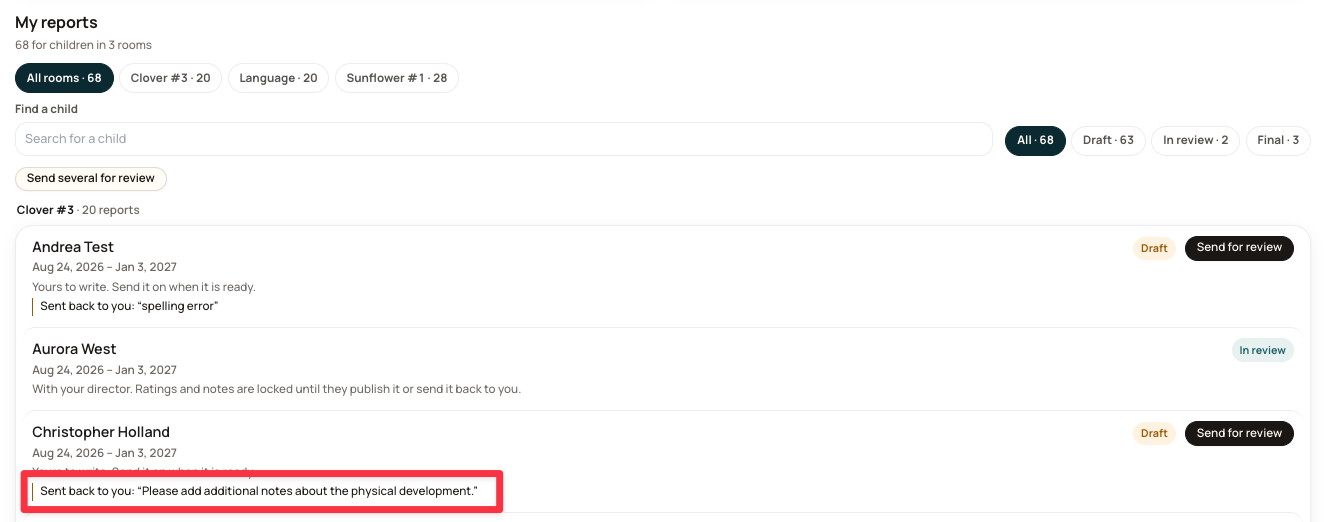
If a report comes back to you
A report your director returns goes back to Draft and is editable again.
They have to say why, and you read it on the report itself. The reason appears on that report's row in My reports — for example, Sent back to you: "add notes for each section please".
Make the changes, then send it for review again.
What happens after review
This depends on your center. Some teachers publish a report themselves once it's approved; at others a director publishes on the teacher's behalf.
Whichever applies, the sequence is the same: draft → review → final → shared, and only the last step reaches a family. A report can sit at Final — not shared for a while, which means it is approved and locked but the family cannot see it yet.
Your portal shows you which actions you have — if the one you expect isn't there, that's a setting rather than a fault. Check with your director how your center handles the final step to families.
The in-app guide
The checklist has its own walkthrough built in. Look for Guide in the bottom right — it explains the page you're on, step by step, and tells you what the button under your cursor actually does.
If something isn't right
A child's progress looks too low: check the assessment term. Try All dates.
A child isn't in the list: you see children in the rooms you're assigned to.
A director says they can't see a child's assessment: check you have generated a report. Ratings alone do not appear for them.
You need to change a report you have already sent: it's locked for you and your director both. They can send it back to you for editing.
A report has come back and you're not sure why: the reason is on that report's row in My reports.
No skills at all: ask your director which skills library and term your center uses.
A report hasn't reached a family: check its status. Draft, In review and Final — not shared are all still internal — a report only reaches a family once it shows Shared with family.
Related
Start here: assessments for teachers — the order to work through everything
Record a child's learning assessment: Staff App — rating in the room, on the classroom device
Was this helpful?