Setting Per-Child Meal Pricing Exceptions
Use a pricing exception when one child’s agreement differs from the center’s default for a particular meal type.
Last updated About 2 hours ago
Use a pricing exception when one child’s agreement differs from the center’s default for a particular meal type.
1. Open exceptions
Go to More → Meals → Settings, find Per-child pricing exceptions and choose Add exception.
2. Select the child and meal
Choose the correct child and meal type. An exception applies to that child–meal combination, not every sibling or every meal.
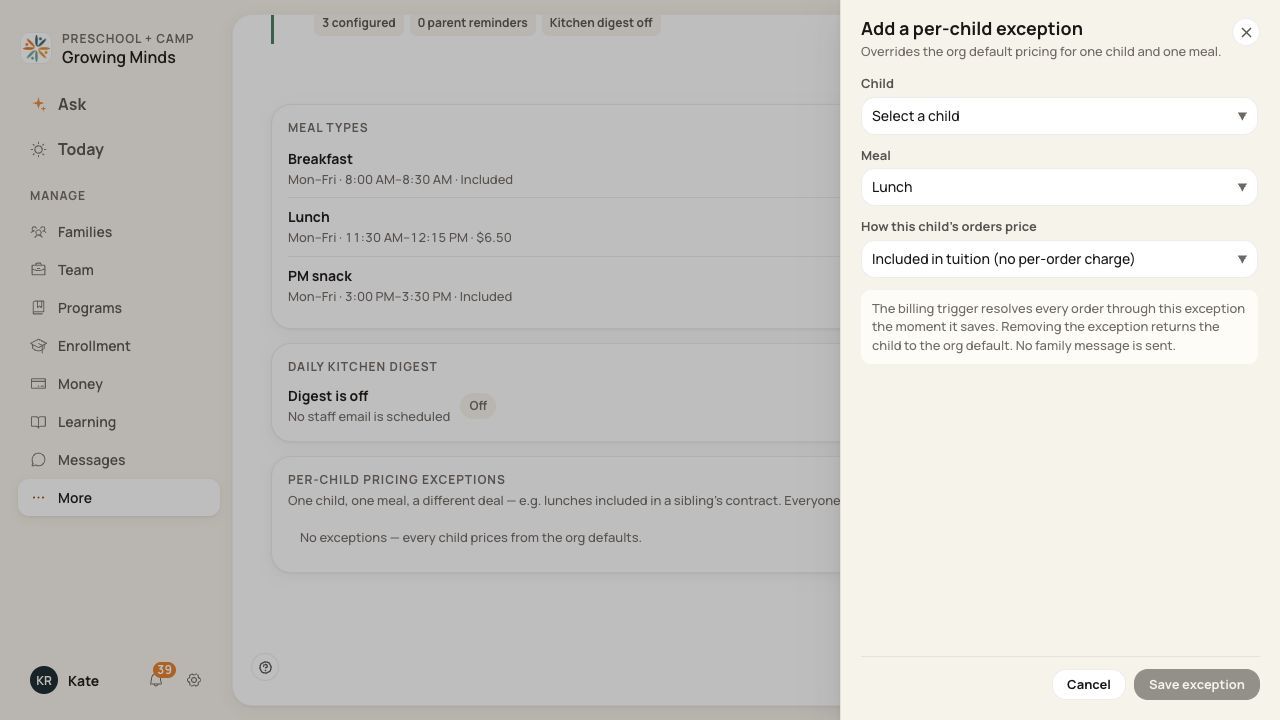
Select the child, meal and pricing arrangement together.
3. Set the arrangement
Choose the pricing option shown that matches the agreement. Included means no per-order charge; per meal uses the applicable meal price. For a subscription, enter the fee and billing period. Use Not enrolled only when that is the intended arrangement.
4. Save and check
Choose Save exception. Confirm the child and meal in the exceptions list. To return to the organization default, use that exception’s removal action and review its confirmation.
Before you finish
This form changes the child’s meal pricing arrangement; it is not a general field for any arbitrary per-meal discount.
An exception is used when order pricing is resolved. Saving it does not itself send a family message, refund a charge or revise an issued invoice.
Check an affected order’s actual price and any billing record after a pricing change.
Related guides
Screenshots show an example center. Meal prices, times, service days and ordering policies depend on your center’s configuration.
Was this helpful?