Filling Timesheets from Published Staff Schedules
Fill missing timesheet days from published staff shifts after checking that scheduled hours are the appropriate basis.
Last updated About 2 hours ago
Fill missing timesheet days from published staff shifts after checking that scheduled hours are the appropriate basis.
Workflow: Read published shifts → Review scope → Confirm fill → Compare actual hours
1. Select the open period
Open Time entries → Manage hours → Fill hours from the schedule.
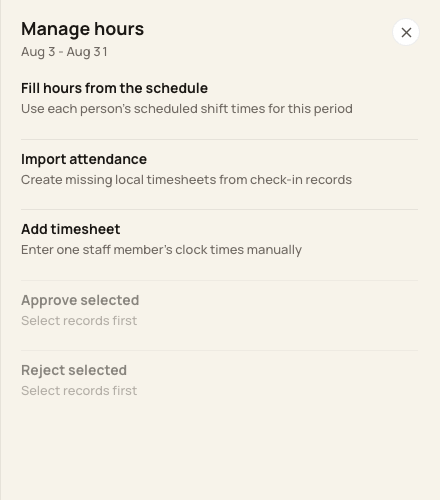
Choose the schedule-fill action from Manage hours.
2. Review the preview
Wait for the plan to load. Expand Staff included to narrow the staff scope if needed. Review the included staff, days, hours and omitted or unresolved dates.
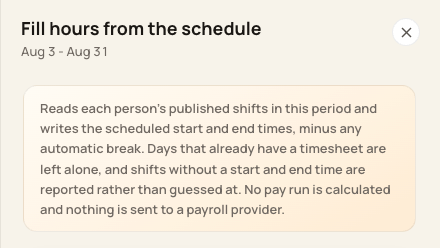
The preview explains the source and that existing timesheet days are left alone.
3. Confirm the planned fill
Choose the Fill button only when the scope is correct. Complete any typed confirmation shown. If the plan changes, review the refreshed count.
4. Verify the result
Review the creation receipt and the filed entries. Compare actual attendance separately and correct differences before approval.
Before you finish
Existing timesheet days are skipped. Off days, unresolved shift times and multiple shifts that cannot be resolved are not guessed.
Scheduled lunch/unpaid blocks can determine break minutes; otherwise an applicable automatic break rule can apply.
For a large plan, narrow the staff selection as requested by the form.
Related guides
Screenshots show an example center. Pay periods, approval, rounding, breaks and overtime settings depend on your organization’s configuration.
Was this helpful?