Health Checks
For teachers: recording a child's temperature and symptoms at arrival, what happens when a screening fails, and doing a check any time from the action bar.
Last updated About 2 hours ago
A health check records a child's temperature and any symptoms at the start of their day. Whether your center runs them, and what happens when one fails, is set by your organization — so the first thing worth knowing is whether you'll see them at all.
When a check appears
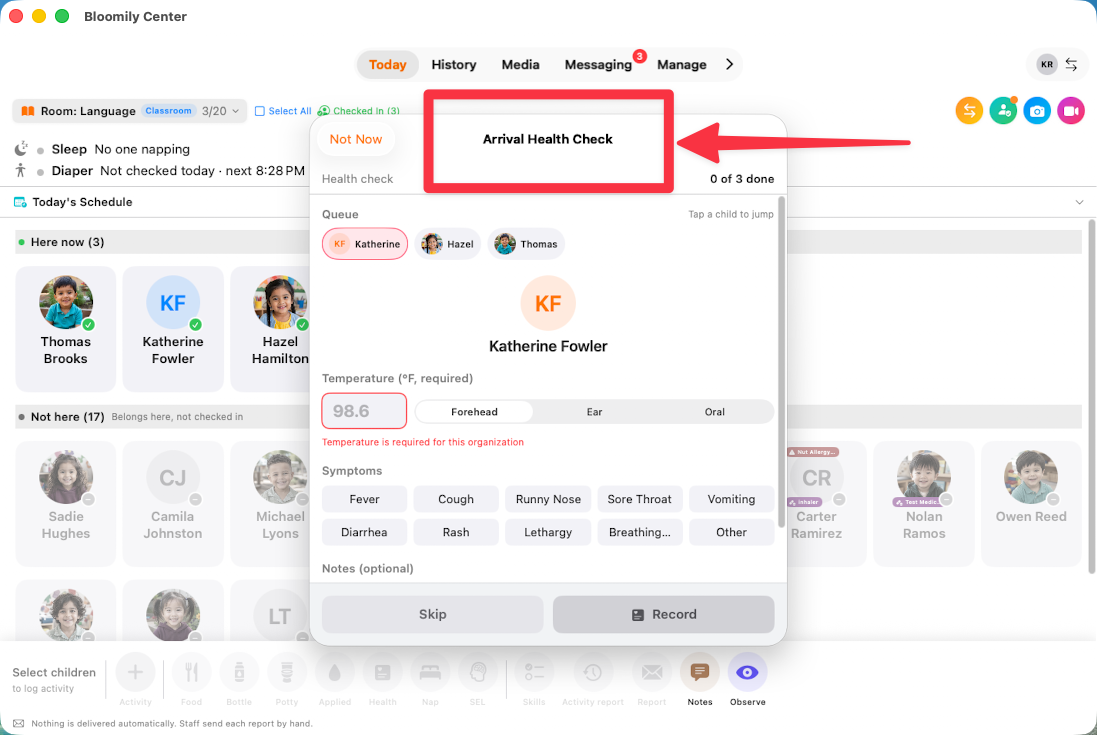
If your center has screening switched on, an Arrival Health Check pop-up appears in Bloomily Center covering the children who have just checked in.
At the top it tells you where you are — 0 of 3 done — and the Queue along the top shows every child still to check. Tap any child to jump straight to them rather than working in order.
Not Now dismisses the sheet. The checks don't go away; you can pick them up again from the quick bar.
Doing a check
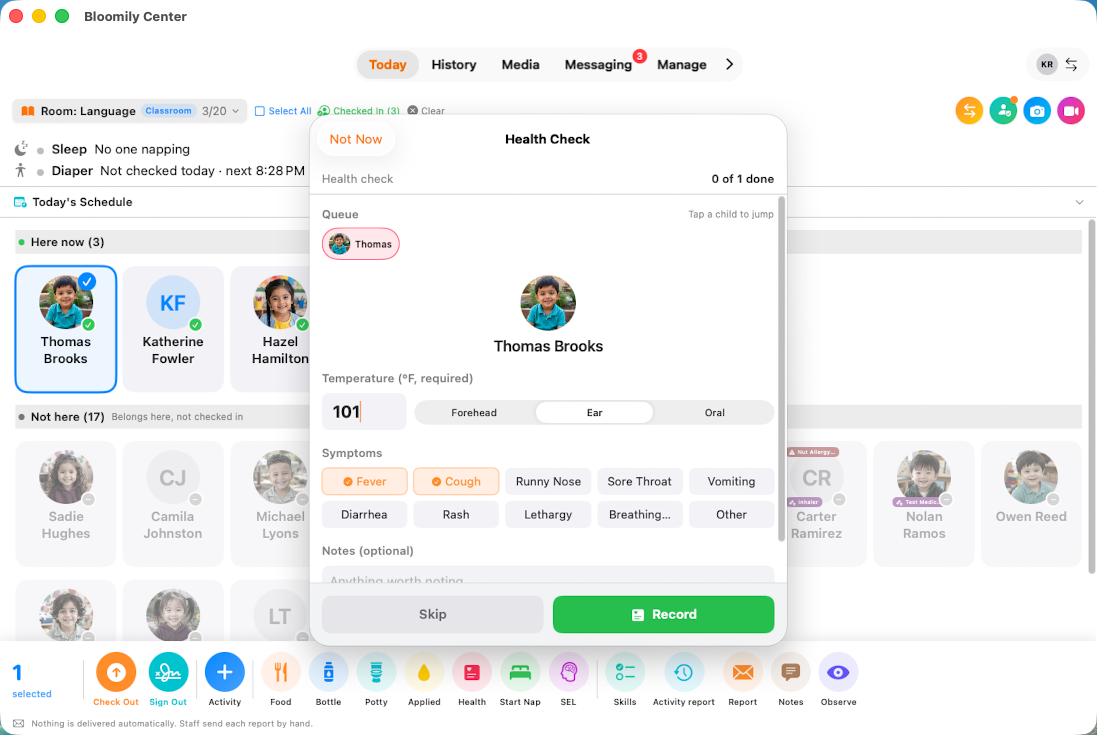
Temperature. Type the reading, then choose how you took it — Forehead, Ear or Oral. The method matters, because the same child reads differently depending on where you measured.
Symptoms. Tap any that apply — Fever, Cough, Runny Nose, Sore Throat, Vomiting, Diarrhea, Rash, Lethargy, Breathing difficulty, Other. Selected ones highlight, and you can pick several.
Notes. Optional, but useful for anything the chips don't cover — what a parent mentioned at drop-off, or something you noticed that isn't on the list.
Tap Record.
The child drops off the queue and you move to the next one.
If Record won't press
Some organizations require a temperature. Where that's on, the field turns red with "Temperature is required for this organization" and Record stays greyed out until you enter one.
Others make it optional, in which case you can record symptoms alone.
When a screening fails
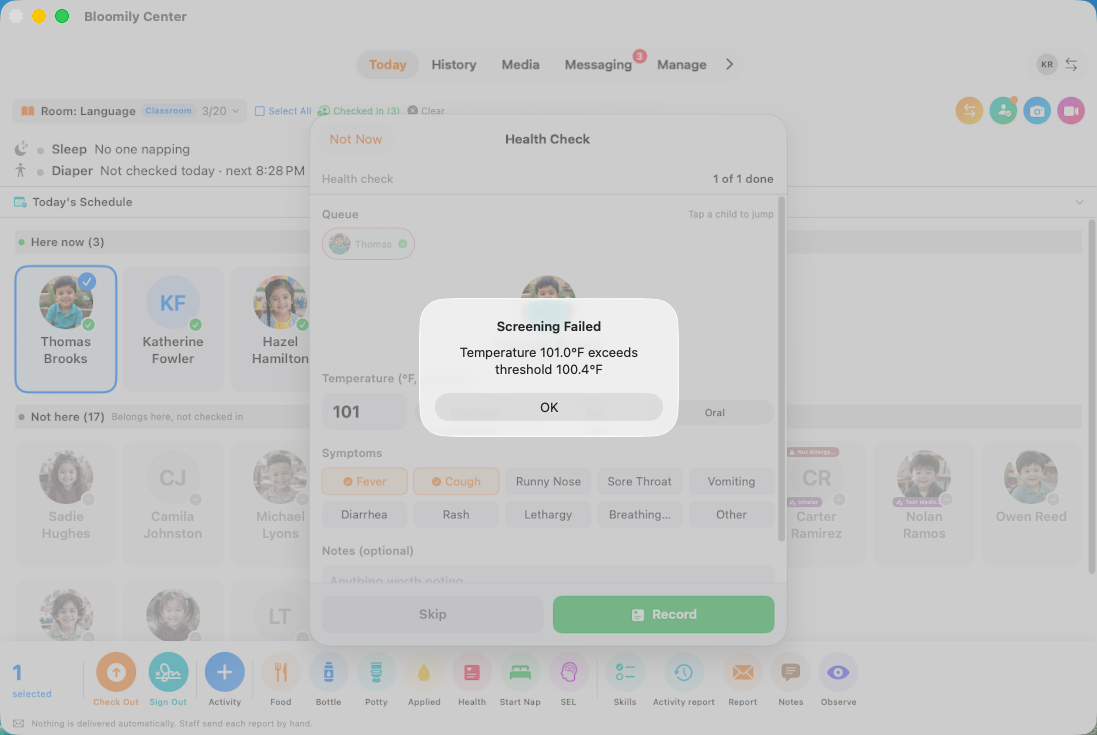
If the temperature is above your center's threshold, you'll get an alert — for example, "Screening Failed — Temperature 101.0°F exceeds threshold 100.4°F". The same happens if you tick a symptom your center has set to fail a screening.
The check is still recorded. Failing isn't an error and it isn't something to undo — it's the result.
What happens next is your center's policy, not the app's. Some organizations run screening as advisory, where a failure is a flag; others use it to block attendance. Follow your center's process for a child who fails, and tell your director straight away.
Skipping a check
Where your center allows it, Skip moves past a child — you'll be asked for a reason.
Use it for a genuine reason, like a child who left before you got to them. It's a recorded answer, the same as a completed check, and a skipped check with a clear reason is far more useful than a guessed temperature.
Doing a check any time
You don't have to wait for the prompt. Select a child on Today and tap Health in the action bar along the bottom.
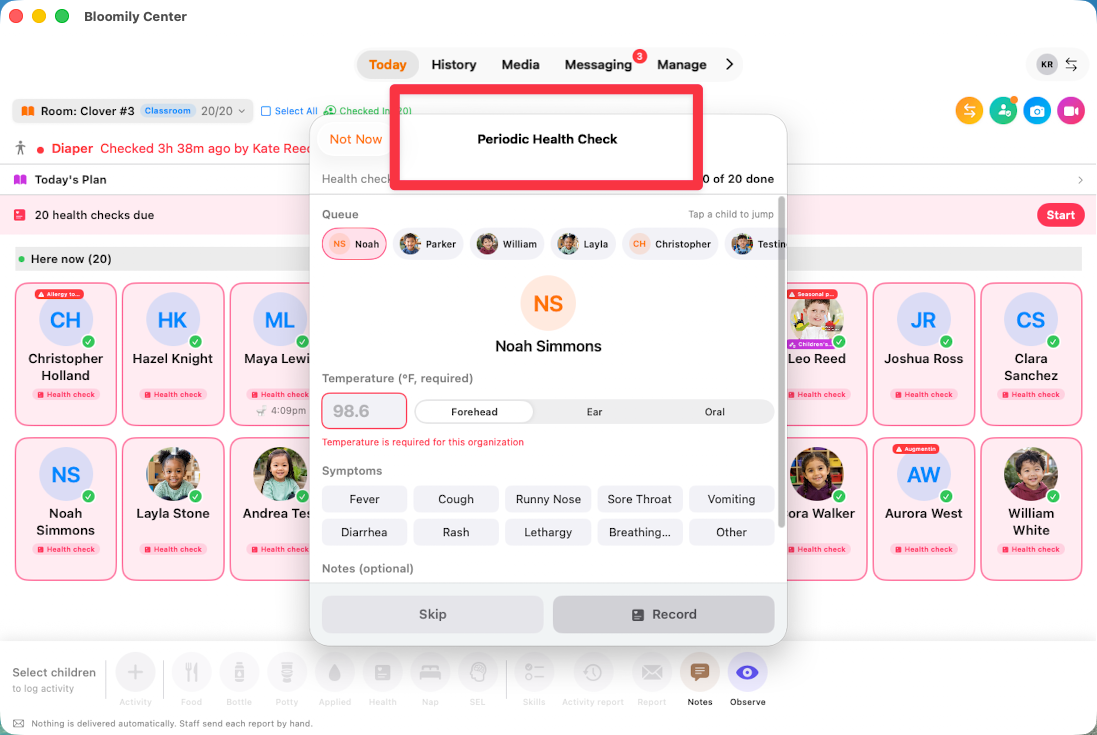
Useful when you dismissed the sheet earlier, when a child arrives late, or when a child seems unwell later in the day. Some centers also have screening repeat during the day, in which case the prompt comes back on its own.

Periodic health Check Pop-up:
What your center decides
All of this is configurable, which is why two teachers at different centers will describe it differently:
Whether screening runs at all
When it appears, and whether a failure is advisory or blocks attendance
Whether a temperature is required or optional
The fever threshold
Which symptoms fail a screening
Whether you can skip, and whether checks repeat during the day
If something doesn't match what you're reading here, that's the reason. Ask your director rather than assuming it's broken.
If something isn't working
No health check appears: your center may not have screening switched on.
A child isn't in the queue: check they're checked in.
Record is greyed out: a temperature is required and hasn't been entered.
You dismissed the sheet: use Health in the action bar to pick the checks back up.
Every screen has a ? guide button that explains the page you're on. For anything else, use in-app support or email support@bloomily.app.
Was this helpful?