Exporting the Monthly Menu
Download the month’s menus as a CSV for review or use in a spreadsheet.
Last updated About 2 hours ago
Download the month’s menus as a CSV for review or use in a spreadsheet.
1. Select the month
Open Meals → Menus and navigate to the month to export.
2. Download the menu CSV
Choose Plan tools, then CSV beside Export month. This export includes all meal types for the month. A direct CSV control may appear instead for some permissions.
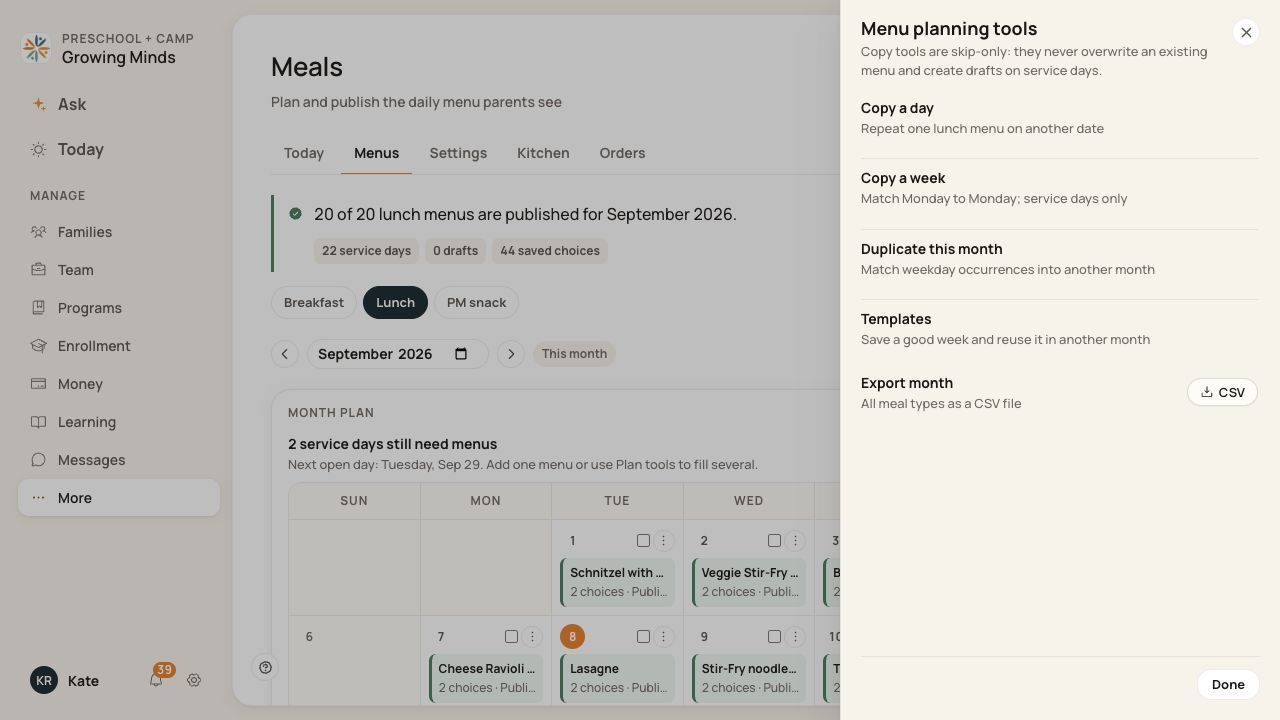
Export month is in Plan tools and includes all meal types.
3. Review the file
Open the downloaded CSV. Check its dates and the Date, Weekday, Meal, Title, Options, Allergens and Status columns.
4. Use the status column
Check for Draft as well as Published rows before using the export as a family-facing menu. Prepare any print layout in your spreadsheet application.
Before you finish
Exporting is a download; it does not publish menus or email the file.
The menu CSV is different from an Orders CSV or a Kitchen preparation export.
Review the actual file before sharing it, including drafts and date-specific notes in your intended output.
Related guides
Screenshots show an example center. Meal prices, times, service days and ordering policies depend on your center’s configuration.
Was this helpful?