Reopening or Correcting a Locked Pay Period
An eligible locked period can be reopened only when it has no prepared payroll run. Reopening does not undo approval on an individual entry.
Last updated About 2 hours ago
An eligible locked period can be reopened only when it has no prepared payroll run. Reopening does not undo approval on an individual entry.
1. Identify the correction
Record the staff member, work date and discrepancy. Check whether a file has already reached your payroll provider.
2. Check Reopen period
Select the period and open More timesheet actions. Use Reopen period if offered for that locked period.
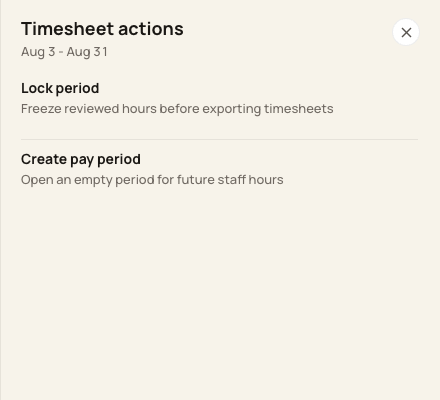
This Open-period example shows Lock; eligible locked periods offer Reopen instead.
3. Confirm and verify
Review the confirmation and check that the state becomes Open. If a prepared run exists or the action is unavailable, contact the authorized administrator or Support.
4. Check the entry status
Correct only an eligible non-approved entry. An approved entry remains protected; contact Support for the available correction path, then verify a fresh export.
Before you finish
Do not create a replacement period or duplicate entry to bypass the lock.
A new export does not replace an earlier file already uploaded to a payroll provider.
Related guides
Screenshots show an example center. Pay periods, approval, rounding, breaks and overtime settings depend on your organization’s configuration.
Was this helpful?