Adding a Time Entry Manually
Add a manual entry when the intended staff/date hours are not already represented.
Last updated About 2 hours ago
Add a manual entry when the intended staff/date hours are not already represented.
1. Check existing entries
Choose the correct Open period and inspect All timesheets for that staff member and date.
2. Open Add timesheet
Choose Time entries → Manage hours → Add timesheet.
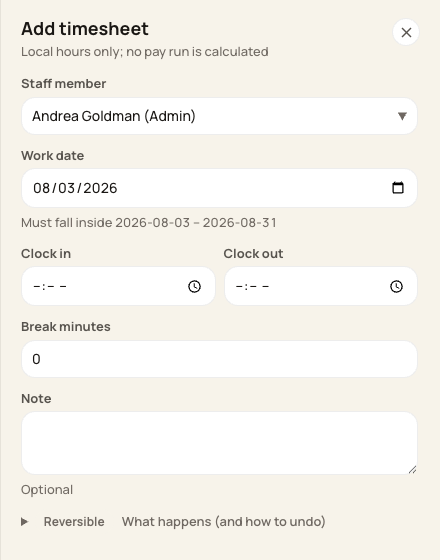
Choose the staff member, work date and clock times in the manual-entry form.
3. Enter the verified facts
Select a work date inside the period, enter Clock in and Clock out, review Break minutes and add useful context in Note. The same-day form requires clock-out after clock-in.
4. Save and verify
Choose Add timesheet, complete the review shown and check the saved entry, hours and status in the ledger.
Before you finish
Do not invent missing punches or create duplicate coverage. A manual entry does not clock the person in or out in Attendance.
Overnight or split-shift cases need individual review; do not force an overnight shift into a same-day time range.
Related guides
Screenshots show an example center. Pay periods, approval, rounding, breaks and overtime settings depend on your organization’s configuration.
Was this helpful?