Adding or Correcting Break Minutes
Review break minutes together with clock times and calculation rules.
Last updated About 2 hours ago
Review break minutes together with clock times and calculation rules.
1. Verify the actual break
Confirm which minutes were unpaid and check any schedule block or automatic-break rule.
2. Open the eligible entry
In an Open period, choose Correct on a non-approved entry.
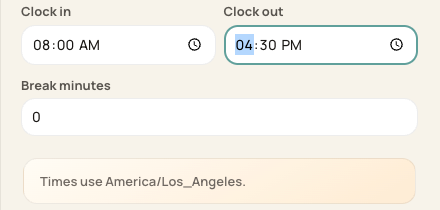
Break minutes is a separate field below the clock times.
3. Enter the intended minutes
Enter a non-negative whole-minute value. Check that it makes sense within the shift and that the clock times remain correct.
4. Save and recheck
Save the correction, then verify the resulting hours. An enabled automatic rule can matter when an entry has zero explicit break minutes.
Before you finish
A correction clears the schedule-break provenance and is recalculated under the applicable rules. If the saved result differs from your intent, resolve it before approving.
For an approved entry or locked period, follow the restricted correction path.
Related guides
Screenshots show an example center. Pay periods, approval, rounding, breaks and overtime settings depend on your organization’s configuration.
Was this helpful?