Understanding Regular, Overtime, and Total Hours
Bloomily stores regular, overtime and total hours. Calculation depends on the organization’s configured rules and the entries being recalculated.
Last updated About 2 hours ago
Bloomily stores regular, overtime and total hours. Calculation depends on the organization’s configured rules and the entries being recalculated.
1. Read the configured rules
Open Staff & setup → Pay period settings → Edit settings → Advanced calculation rules. Review weekly overtime, daily overtime, thresholds and Time rounding.
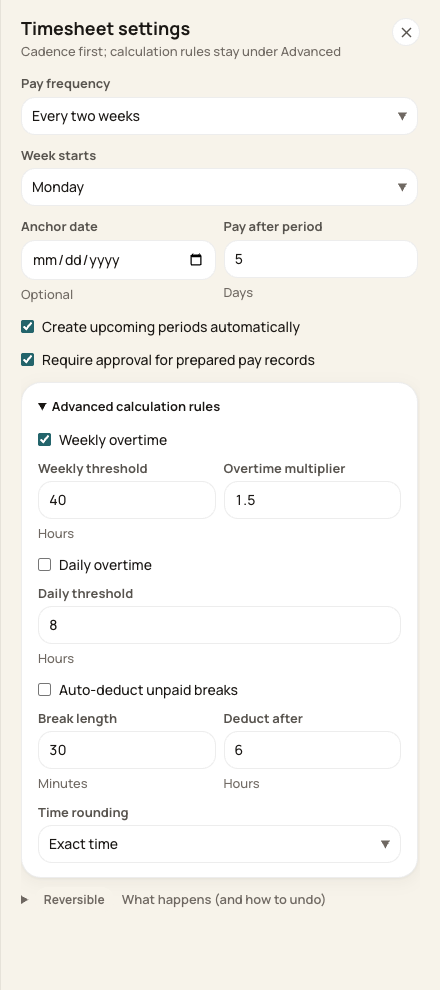
The values shown are this example’s settings, not a universal policy.
2. Understand the calculation
Elapsed clock time is rounded if configured, applicable unpaid breaks are deducted, and regular/overtime hours are allocated. Enabled daily overtime is applied before the remaining weekly regular-hour excess is moved to overtime.
3. Review the whole workweek
Check all relevant days, including a workweek that crosses a pay-period boundary. Recalculation is scoped to the selected period, so do not assume a partial-week export establishes the complete weekly result.
4. Check the export split
Payroll summary CSV separates regular, overtime and double-overtime columns. Detailed CSV combines overtime and double overtime in its Overtime hours column. Verify the final classifications with payroll.
Before you finish
Settings shown are examples. Use your organization’s agreed policies and verify the final hours with the person responsible for payroll.
The presence of settings or double-overtime columns is not a guarantee of jurisdiction-specific wage-rule compliance. The current recalculation does not automatically allocate double overtime.
Related guides
Screenshots show an example center. Pay periods, approval, rounding, breaks and overtime settings depend on your organization’s configuration.
Was this helpful?