Removing an Incorrect or Duplicate Time Entry: Current Options
The current Time entries interface does not expose a verified Delete entry action. Treat duplicate or incorrect hours as a review case before exporting.
Last updated About 2 hours ago
The current Time entries interface does not expose a verified Delete entry action. Treat duplicate or incorrect hours as a review case before exporting.
1. Identify the disputed coverage
Note the person, dates, source and times. Compare every entry covering the same work.
2. Check whether correction is sufficient
An eligible non-approved entry in an Open period can be corrected. Correction is not deletion.
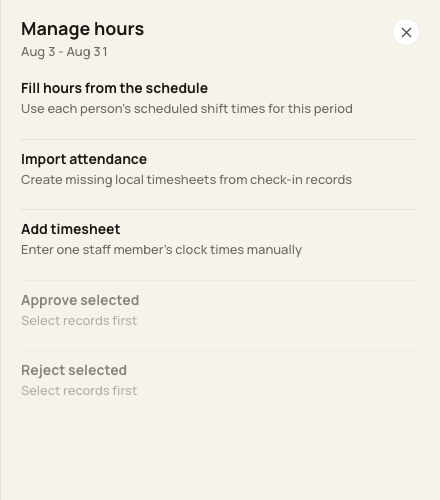
The current Manage hours menu offers entry creation and review actions, not Delete entry.
3. Ask for the supported resolution
If an entry must be removed or merged, contact Bloomily Support with the affected period and record details through the support channel.
4. Verify before export
Recheck the period after resolution. Do not assume a rejected entry is excluded from a payroll file.
Before you finish
Exports include every approval status for the selected staff across the whole pay period. The Show filter does not limit the export.
Deleting an empty pay period is a different operation and does not provide a delete-entry workflow.
Related guides
Screenshots show an example center. Pay periods, approval, rounding, breaks and overtime settings depend on your organization’s configuration.
Was this helpful?