Deactivate or Reactivate a Team Member
Turn a person’s center access off when they leave. Turn it back on if they return.
Last updated About 3 hours ago
Turn a person’s center access off when they leave. Turn it back on if they return.
For center admins using Bloomily on a computer. The orange outline shows where to look or click.
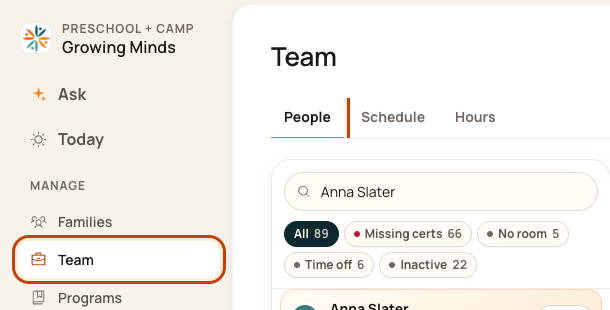
1. Open People
Click Team on the left. Then click People.
2. Find the person
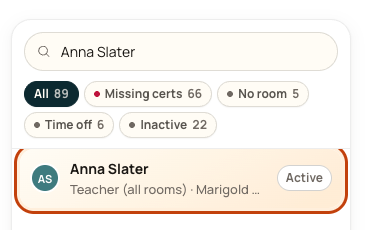
Type the person’s name in Search team. Click their name. Our example uses Anna Slater.
3. Open their menu
Click the … button on their profile, beside Edit profile.

4. Choose Deactivate
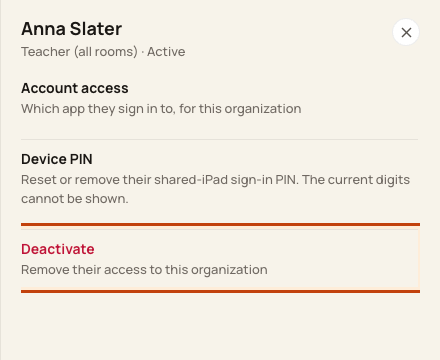
Click Deactivate. Check the person’s name, then confirm with Deactivate.
5. To bring someone back
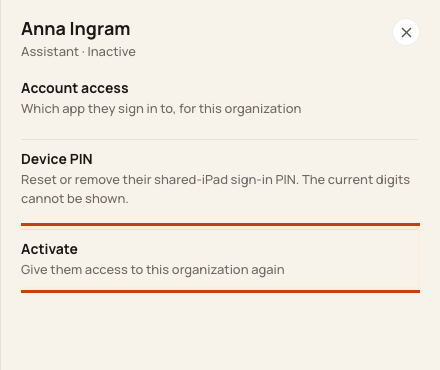
Click Inactive in People. Open the person’s record and its … menu. Choose Activate, then review and confirm.
Good to know
This keeps their history. It does not delete their account. Check future shifts separately. Before you restore access, review the person’s role and rooms.
Check when you are done
Look for Inactive after you turn access off, or Active after you restore it.
Walkthrough: Reactivate Team Members in Bloomily
Open Team and find the inactive team member.
Open their record and choose Reactivate when available.
Review the organization and access being restored, confirm, and check the resulting status.
Reactivation restores the organization access described by the confirmation. Review role, app access and room assignments afterward; do not assume every previous permission is appropriate.
The recording uses one center’s example data and settings. Names, amounts, dates, counts and policy choices are examples. Follow the written guidance above where recording labels differ.
Open the walkthrough in a new window
Walkthrough: Deactivate Team Members in Bloomily
Open Team and select the team member.
Open the record menu and choose Deactivate.
Review the organization access being removed, confirm the action, and check the member’s status.
Deactivation concerns access to this organization. It is not a request to delete their historical records or every account they may use elsewhere.
The recording uses one center’s example data and settings. Names, amounts, dates, counts and policy choices are examples. Follow the written guidance above where recording labels differ.
Was this helpful?