Record Time Off for a Team Member
Record leave for a staff member.
Last updated About 3 hours ago
Record leave for a staff member.
For center admins using Bloomily on a computer. The orange outline shows where to look or click.
1. Open People
Click Team on the left. Then click People.
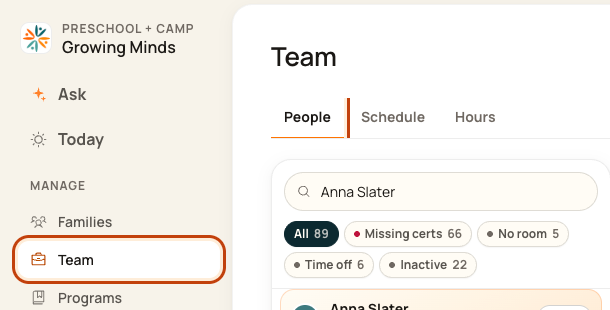
2. Open time-off tools
Click the … button at the top right of People. This opens More actions.

3. Choose Record time off
Click Record time off.
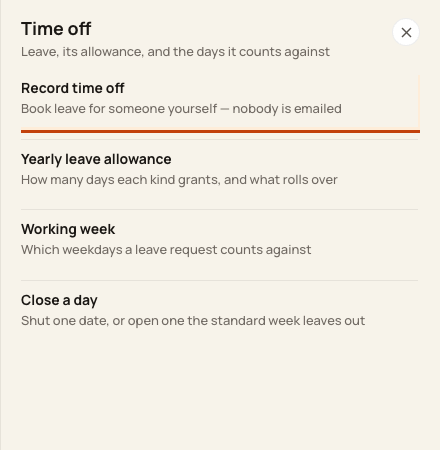
4. Enter the leave
Pick the staff member. Set Start and End. Choose Type and Status. Add a reason if needed. Check the dates, then click Save time off.
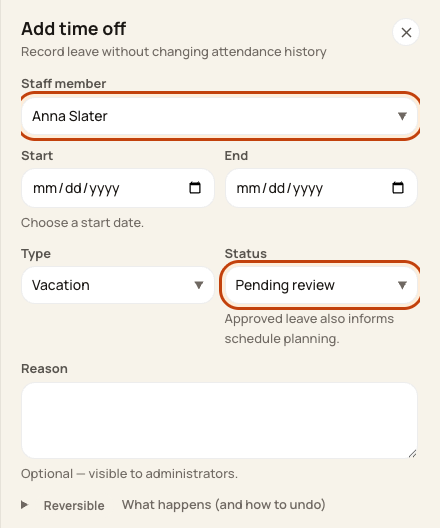
At the bottom of the form:

Good to know
Pending review still needs a decision. Approved adds the leave to the work plan. This action does not email the person.
Check when you are done
Check the saved request and the affected days in Schedule. Only days that count under your center’s leave calendar use leave days.
Was this helpful?