Set the Standard Working Week
Choose which days of the week count toward leave.
Last updated About 3 hours ago
Choose which days of the week count toward leave.
For center admins using Bloomily on a computer. The orange outline shows where to look or click.
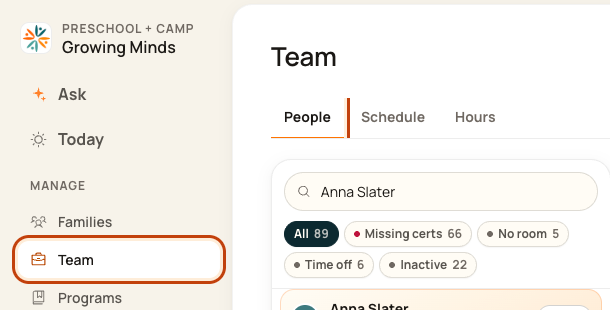
1. Open People
Click Team on the left. Then click People.
2. Open time-off tools
Click the … button at the top right of People. This opens More actions.

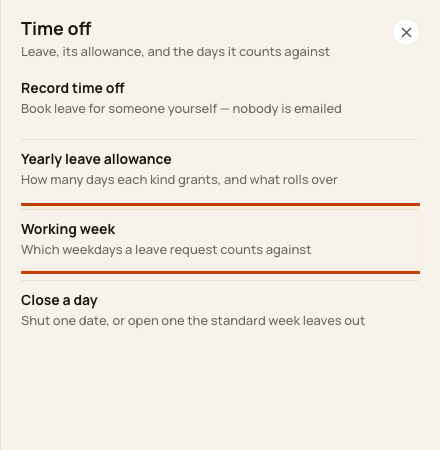
3. Open Working week
Click Working week.
4. Choose the days
Wait for the settings to load. Tick the normal workdays. Keep at least one day ticked. Click Save working week.
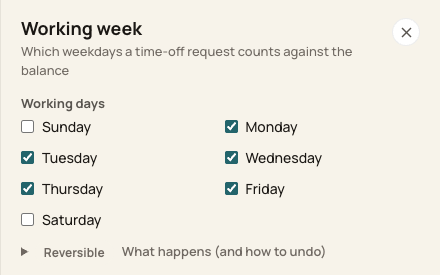
At the bottom of the form:

Good to know
This setting is for the whole center. It does not set one person’s shifts. Use Close a day for a one-date exception.
Check when you are done
Reopen the form and check the saved days.
Was this helpful?