Add Someone to the Schedule
Give someone a row on the week, then set their work hours.
Last updated About 3 hours ago
Give someone a row on the week, then set their work hours.
For center admins using Bloomily on a computer. The orange outline shows where to look or click.
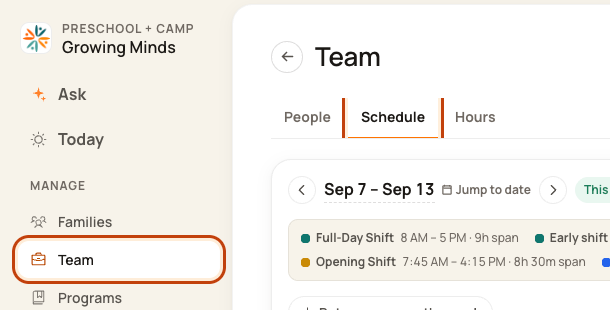
1. Open Schedule
Click Team on the left. Then click Schedule.
2. Open the staff picker
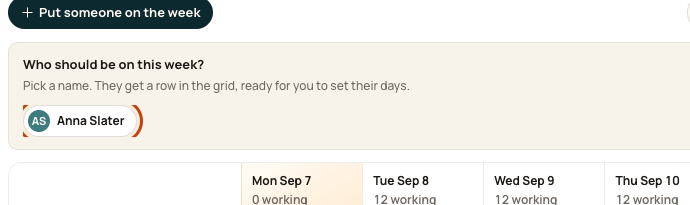
Click Put someone on the week.

3. Pick the person
Type their name. Click the matching name. This adds an empty row.
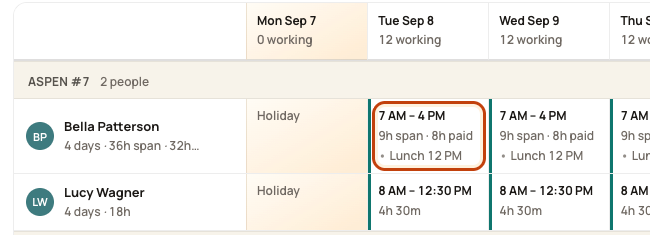
4. Set a working day
Click a date box in their new row. Choose a shift or Custom hours, then save. The picture shows an existing row as an example.
Good to know
An empty row does not give the person work hours. A person with an invite pending must accept before you schedule them.
Check when you are done
Check each working day and its room on the Day Board.
Was this helpful?