Edit or Clear a Team Member’s Week
Change or remove one person’s plan for the week.
Last updated About 3 hours ago
Change or remove one person’s plan for the week.
For center admins using Bloomily on a computer. The orange outline shows where to look or click.
1. Open Schedule
Click Team on the left. Then click Schedule.
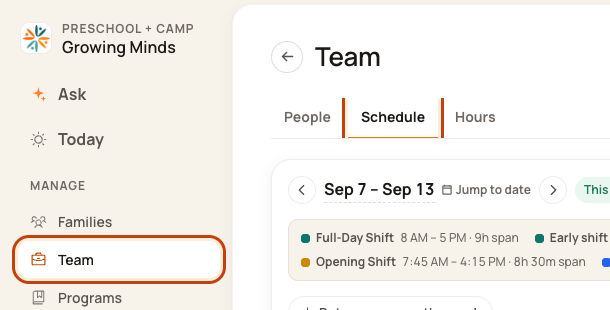
2. Open their week menu
Point to the person’s name. Click the … button beside it.
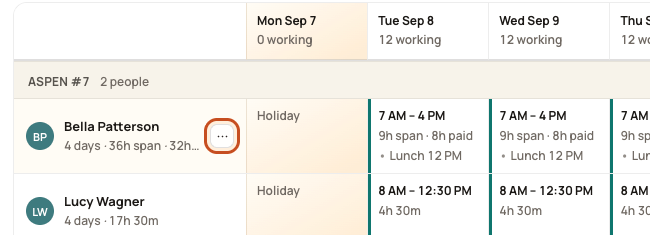
3. Choose the right action
Use Set their whole week to set hours. Remove from this week only removes the row’s manual pin. Their scheduled days stay.
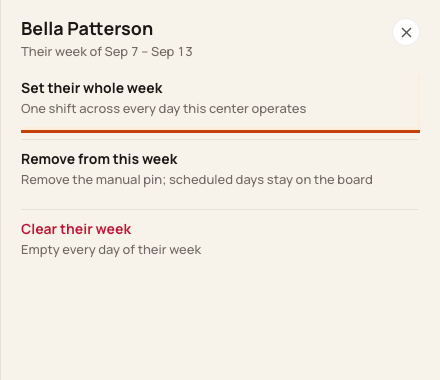
4. To clear their days
Choose Clear their week. Check the person and week in the next form before confirming.
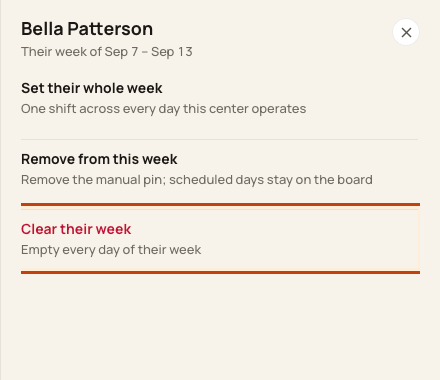
Good to know
Clear removes planned work for that week. Approved leave is kept. It does not erase clock-in or clock-out records.
Check when you are done
Check the week and room gaps. Other people’s plans should stay the same.
Was this helpful?