Copy Last Week’s Schedule
Use last week’s work plan as a starting point for this week.
Last updated About 3 hours ago
Use last week’s work plan as a starting point for this week.
For center admins using Bloomily on a computer. The orange outline shows where to look or click.
1. Open Schedule
Click Team on the left. Then click Schedule.
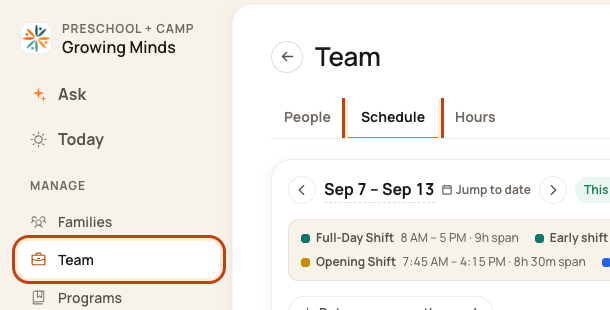
2. Choose the new week
Open the week you want to fill. This is the destination week.

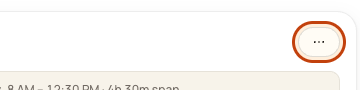
3. Open the week menu
Check the week. Click the … button at the top right. This means More actions.
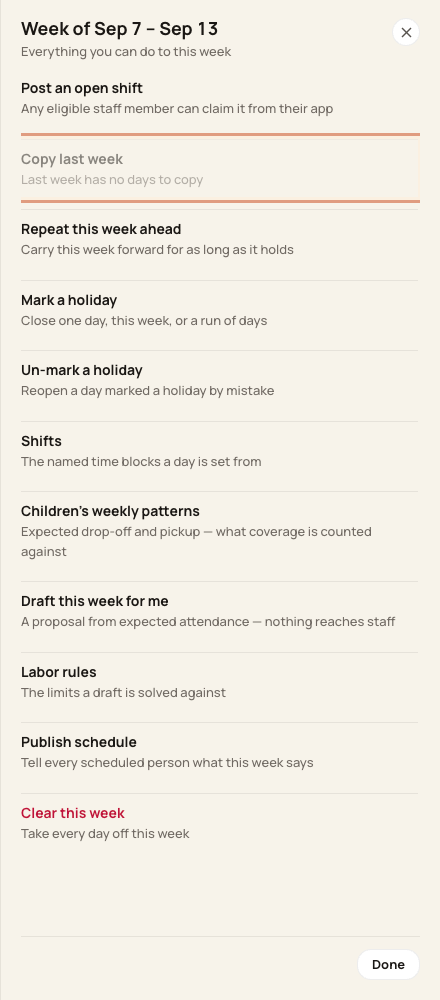
4. Choose Copy last week
Click Copy last week. It is gray if the prior week has no work to copy.
5. Review and copy
Check the week and replacement warning. Click Copy last week in the form. Read the result.
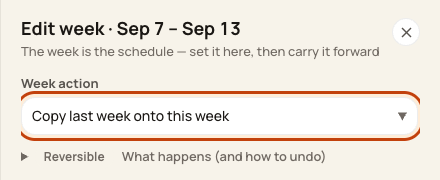
At the bottom of the form:

Good to know
Copy can replace work already planned in the new week. It keeps days off already there. It does not repeat last week’s absences or approved late/early exceptions.
Check when you are done
Check hours, rooms, breaks, and days off. Publish the new week when it is ready.
Walkthrough: Duplicating Schedules & Adding Holidays
Open Team > Schedule and select the destination week.
Use Copy last week or the week menu’s repeat-ahead action, then review the target dates and affected staff before confirming.
To mark a holiday, choose the date and intended staff scope, review the effect, and confirm.
Use Un-mark holiday if the holiday marking was a mistake, then review the day and rebuild any needed shifts.
Copying, repeating and holiday actions can affect multiple staff records. Review the result rather than assuming every shift was copied or that removing a holiday automatically restores the previous schedule.
The recording uses one center’s example data and settings. Names, amounts, dates, counts and policy choices are examples. Follow the written guidance above where recording labels differ.
Was this helpful?