Add a Private Administrator Note to a Scheduled Day
Add a short note that other schedule admins can read.
Last updated About 3 hours ago
Add a short note that other schedule admins can read.
For center admins using Bloomily on a computer. The orange outline shows where to look or click.
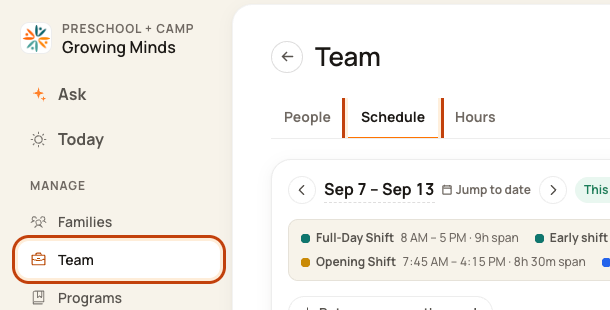
1. Open Schedule
Click Team on the left. Then click Schedule.
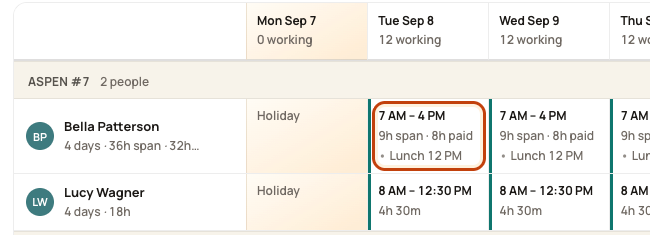
2. Open the day
Find the person’s row. Click the box under the date you want. Check the name and date before you go on.
3. Choose the right day plan
Choose the absence or approved late/early plan that fits the day. Our example uses Holiday.
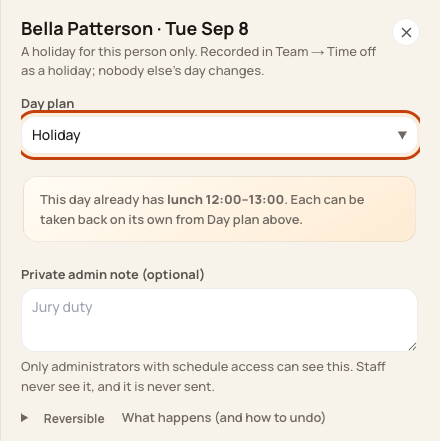
At the bottom of the form:

4. Add the note
Type in Private admin note (optional). Check the person and date, then save the day.
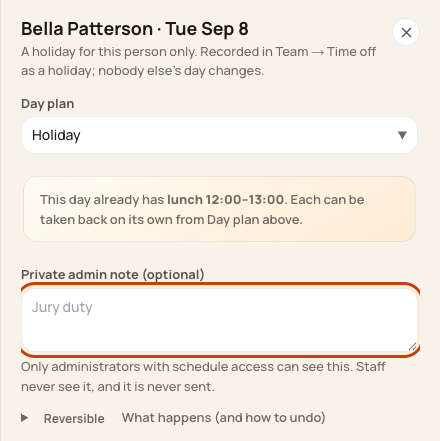
At the bottom of the form:

Good to know
Staff do not see this note. It is not sent in schedule messages. Do not use this field to send a message to the person.
Check when you are done
Reopen the same day to check the note. To remove just the note, clear its text and save. Do not clear the whole day.
Was this helpful?