Mark a Staff Member’s Day as a Holiday
Mark a holiday for one staff member.
Last updated About 3 hours ago
Mark a holiday for one staff member.
For center admins using Bloomily on a computer. The orange outline shows where to look or click.
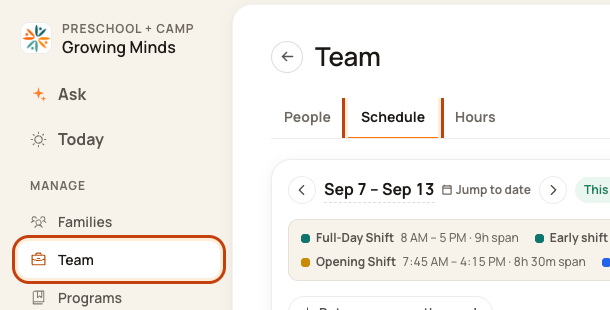
1. Open Schedule
Click Team on the left. Then click Schedule.
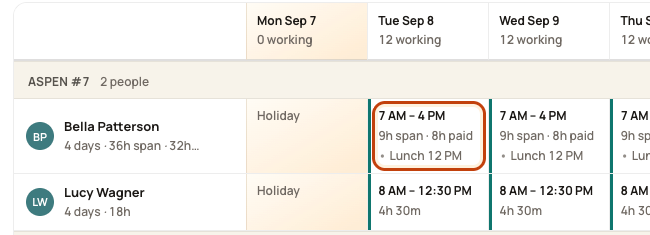
2. Open the day
Find the person’s row. Click the box under the date you want. Check the name and date before you go on.
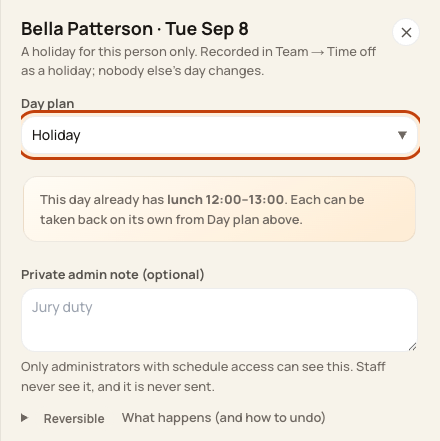
3. Choose Holiday
In Day plan, choose Holiday. Add a private admin note if needed. Check the person and date. Click Mark holiday. Then check that the date box says Holiday.
At the bottom of the form:

Good to know
This affects one person. It does not close the center for everyone. Check room staffing after taking the person off the plan.
Was this helpful?