Manage Children’s Weekly Attendance Patterns
Set when children are expected so the Day Board can plan staff.
Last updated About 3 hours ago
Set when children are expected so the Day Board can plan staff.
For center admins using Bloomily on a computer. The orange outline shows where to look or click.
1. Open Schedule
Click Team on the left. Then click Schedule.
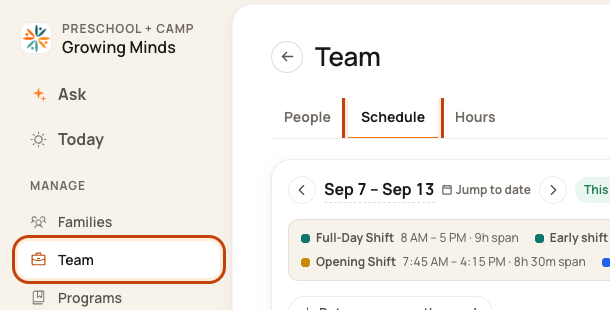
2. Open the week menu
Check the week. Click the … button at the top right. This means More actions.
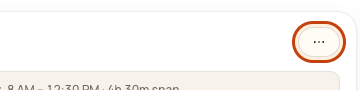
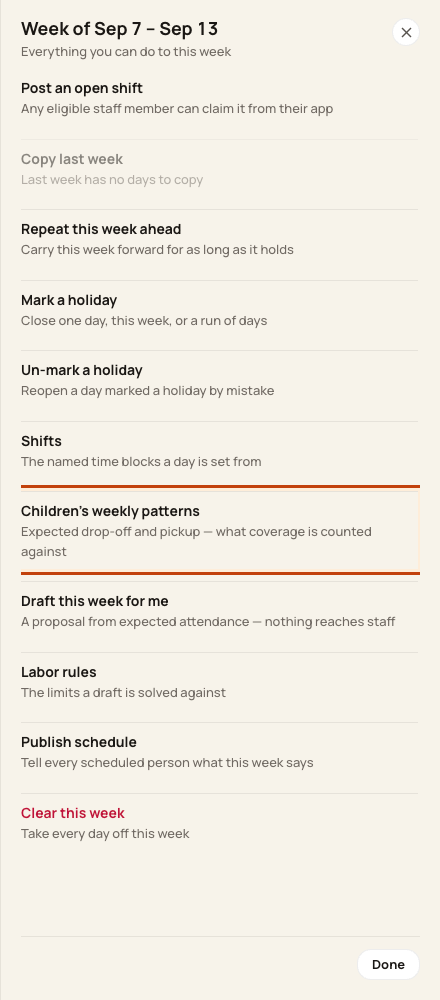
3. Open weekly patterns
Click Children’s weekly patterns.
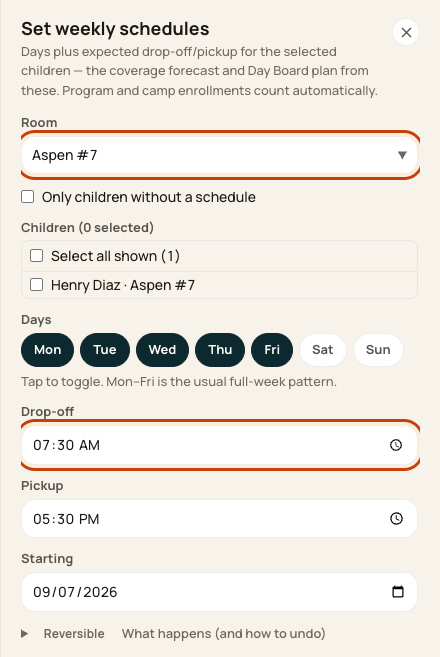
4. Choose children and times
Filter by Room. Tick the right children. Choose their days, Drop-off, Pickup, and Starting date. Check the count, then click Apply to … children.
At the bottom of the form:

Good to know
Only select children with the same pattern. Pickup must be after drop-off. Program and camp hours also feed the plan.
Check when you are done
Open the affected date on the Day Board. Check expected children and room staffing. Expected does not mean checked in.
Was this helpful?