Create a Draft Schedule from Expected Attendance
Ask Bloomily for a work plan that you can review.
Last updated About 3 hours ago
Ask Bloomily for a work plan that you can review.
For center admins using Bloomily on a computer. The orange outline shows where to look or click.
Read every day the proposal covers before you apply it, then check the week and the Day Board again.
1. Open Schedule
Click Team on the left. Then click Schedule.
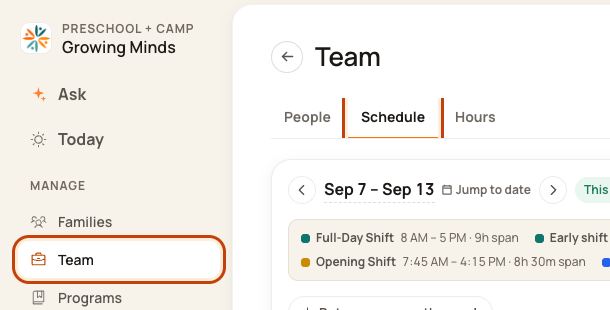
2. Open the week menu
Check the week. Click the … button at the top right. This means More actions.
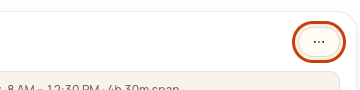
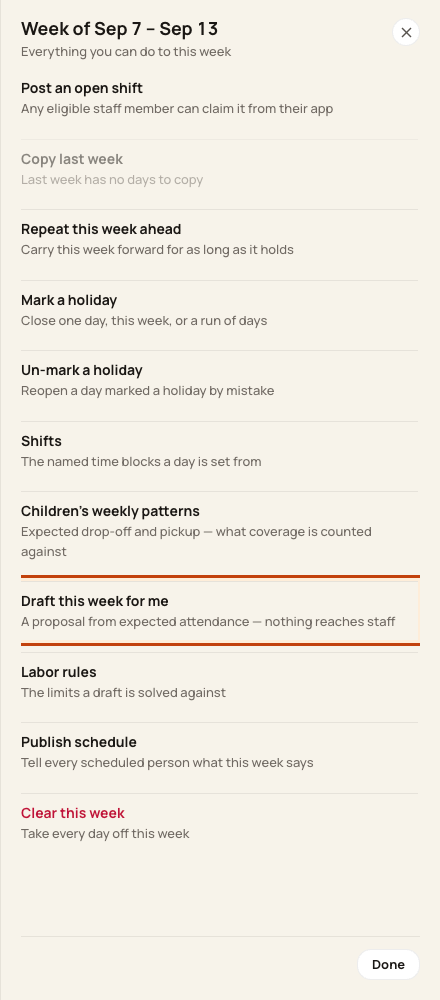
3. Choose Draft this week for me
Click Draft this week for me.
4. Generate a proposal
Wait for the form to load. Click Generate draft. This makes a proposal to review.
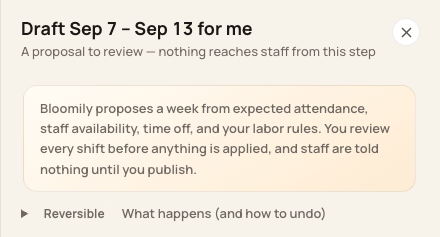
At the bottom of the form:

To see the proposal, reopen More actions > Draft this week for me. It shows the number of shifts it wants to apply.
5. Review before applying
Check the proposed people, rooms, dates, hours, and breaks. Read all warnings. Apply only when the plan is right. Then check the week and Day Board.
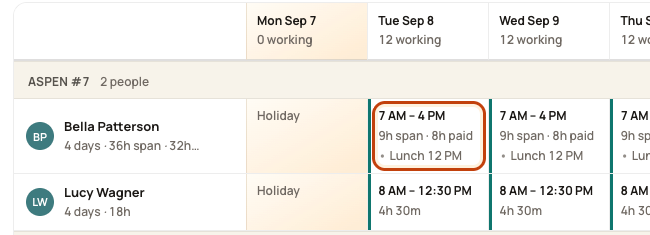
This is the step to be slow about. A proposal can run to dozens of shifts, and applying it writes all of them at once. Check each shift's start time, end time and hours. Anything wrong has to be corrected person by person afterwards.
Good to know
Mark real center closures before drafting. Generating does not change the working schedule. Applying can skip days that already have manual changes. Read the result.
Check when you are done
Publish is a separate step. Staff are not told just because you generated a proposal. The last picture shows where to check the working plan.
Walk the week before you publish it. Open each day on the Day Board and look at the hours on each block. Fix anything odd first, because publishing sends it to everyone.
Was this helpful?