Clear an Entire Week’s Schedule
Clear planned work for an entire week.
Last updated About 3 hours ago
Clear planned work for an entire week.
For center admins using Bloomily on a computer. The orange outline shows where to look or click.
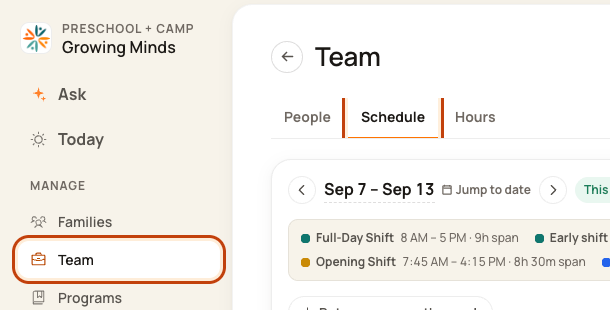
1. Open Schedule
Click Team on the left. Then click Schedule.
2. Open the week menu
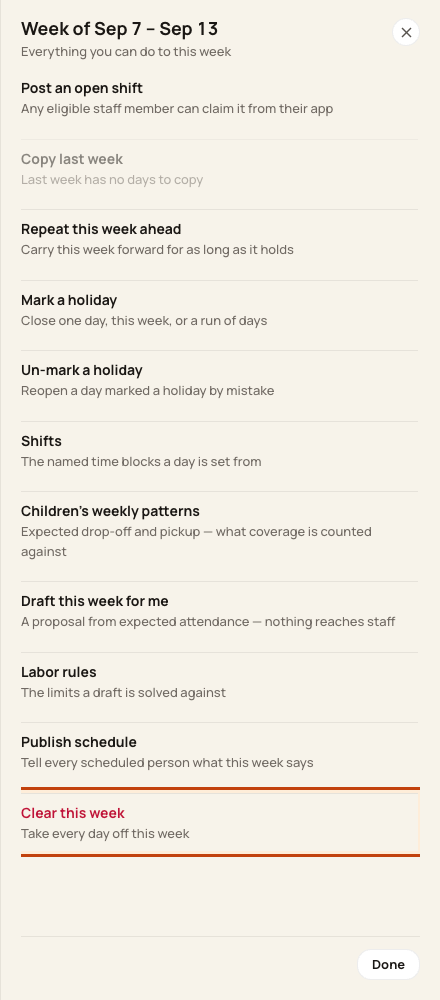
Check the week. Click the … button at the top right. This means More actions.

3. Choose Clear this week
Click Clear this week at the bottom of the menu.
4. Check the week carefully
Review the dates and warning. Click Clear week only if this is the week you mean. Read the result.
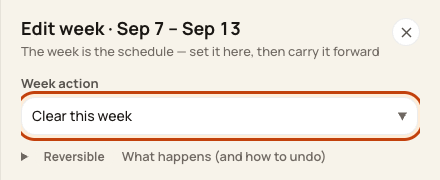
At the bottom of the form:

Good to know
This affects the whole team’s week. Approved leave is kept. It does not erase actual clock-in or clock-out records.
Check when you are done
Check the Day Board for gaps. Rebuild and review the plan before you publish it again.
Understand recovery before clearing
Expand What happens (and how to undo) and read the dates and consequences before confirming. Recovery means rebuilding work or copying a suitable prior week; it is not an exact one-click restore of the cleared plan. Copy last week may be unavailable if that week has no work to copy. Approved leave is kept.
The inspected warning does not list exact affected staff, day or block counts. Check the intended week and keep a record of the plan you may need to rebuild before you proceed. Clearing the plan does not erase actual attendance records.
Was this helpful?