Day Board Overview
See which staff are planned in each room through the day.
Last updated About 3 hours ago
See which staff are planned in each room through the day.
For center admins using Bloomily on a computer. The orange outline shows where to look or click.
Before staff appear here
Two things have to happen first:
Add the person to your team.
Give them shifts in the weekly Schedule.
The Day Board only shows what has been scheduled. Someone who has been added to your team but never given shifts won't appear on any day — so an empty room usually means missing shifts rather than a broken board.
1. Open Schedule
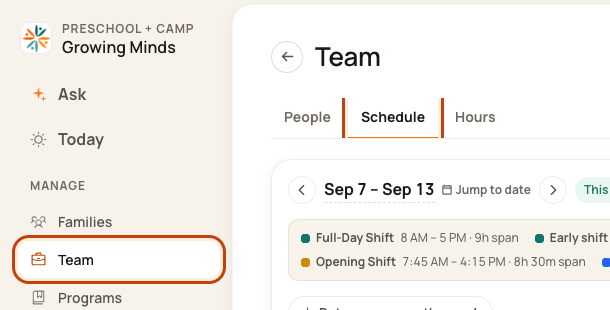
Click Team on the left. Then click Schedule.
2. Open the Day Board
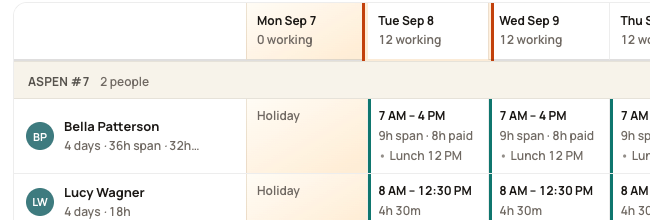
Click a date at the top of the week, such as Tue Sep 8. This opens that day’s room plan.
3. Choose the date
Use the date box or arrows. Back to today returns to today.

4. Read the room plan
Blocks show staff and their planned times. The line below compares expected children with staff needed. Red shows a gap.
A gap can mean nobody has been scheduled yet, not only that you are short-staffed.

Good to know
This is a plan. Check Attendance and the room itself to know who is actually there. Click Week to return to the weekly grid.
Check each coverage interval
Read the detailed strip as children · planned staff / required staff. Check opening, lunch, room moves and closing separately. A green interval does not establish actual staff presence.
Current limitation: a red room summary can combine intervals with different staffing levels. A summary saying “nobody” may include some partly staffed intervals. Check the staff blocks and the detailed strip before choosing cover. Confirm the room and From/To times in the form.
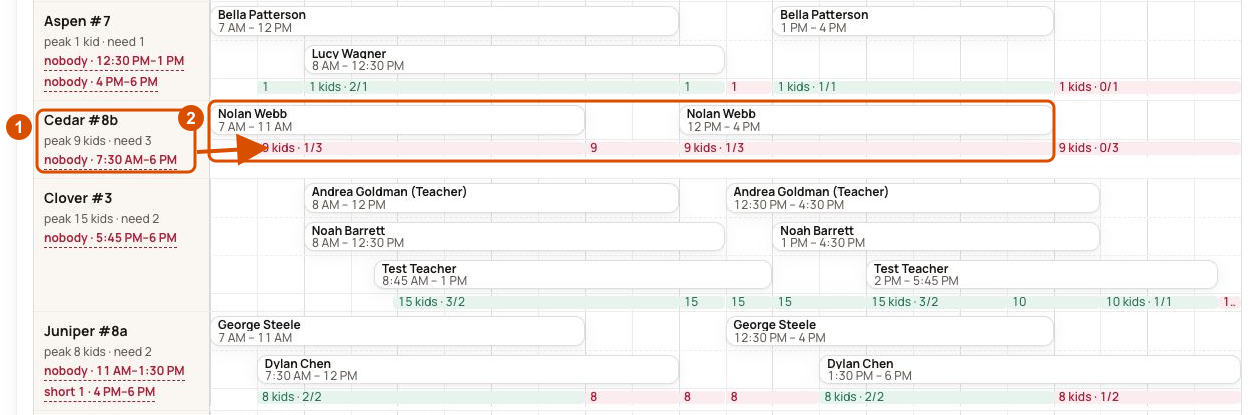
In this demo example, Cedar’s summary spans periods with one planned staff member. Use the interval counts to check each time window.
Was this helpful?