Understand Room Coverage and Ratios
Read the numbers that show whether a room has enough planned staff.
Last updated About 3 hours ago
Read the numbers that show whether a room has enough planned staff.
For center admins using Bloomily on a computer. The orange outline shows where to look or click.
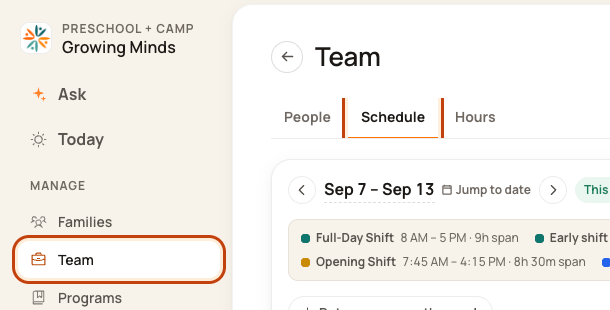
1. Open Schedule
Click Team on the left. Then click Schedule.
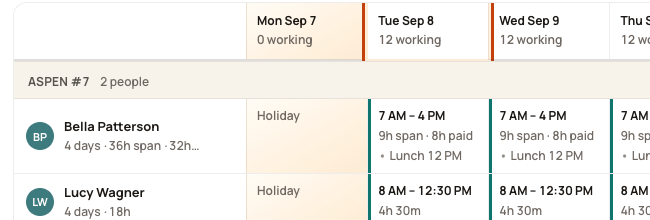
2. Open the Day Board
Click a date at the top of the week, such as Tue Sep 8. This opens that day’s room plan.
3. Read the coverage line
The format is children · staff planned / staff needed. For example, 9 kids · 2/3 means two staff are planned and three are needed.

4. Check the red gap
A red note shows when staff are missing. Click it to review cover options.

Good to know
The first staff number is planned. The second is needed. Green means enough planned staff for that time. It is not proof of actual attendance.
Check when you are done
Check each time window, including opening, lunch, and closing.
Walkthrough: Configure Manual Staffing Ratios
Open Settings > Safety and review the manual-ratio option.
Open the relevant record in Rooms & spaces and choose Set manual ratio when available.
Enter the authorized children-per-staff ratio, policy or licensing reference, and reason. Read the acknowledgment before applying it.
Review the saved room ratio.
The recording’s 1:14 ratio is an example, not a Bloomily default or a statement of what licensing permits. Only use a ratio your organization is authorized to apply.
The recording uses one center’s example data and settings. Names, amounts, dates, counts and policy choices are examples. Follow the written guidance above where recording labels differ.
Was this helpful?