Schedule Someone Directly from the Day Board
Fill a room’s staffing gap from the Day Board.
Last updated About 3 hours ago
Fill a room’s staffing gap from the Day Board.
For center admins using Bloomily on a computer. The orange outline shows where to look or click.
1. Open Schedule
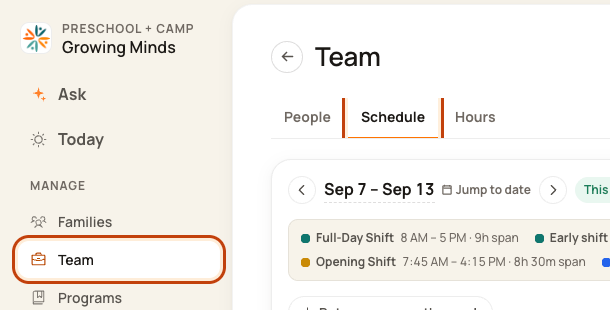
Click Team on the left. Then click Schedule.
2. Open the Day Board
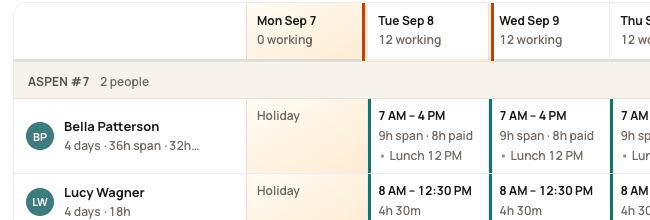
Click a date at the top of the week, such as Tue Sep 8. This opens that day’s room plan.
3. Open the gap
Click the room’s red shortage note. Some empty rooms show Schedule someone into … instead.

4. Pick the person and time
Choose Who covers it. Check From, To, and the room in the title. Read the notice message. Click Add it to the schedule when ready.
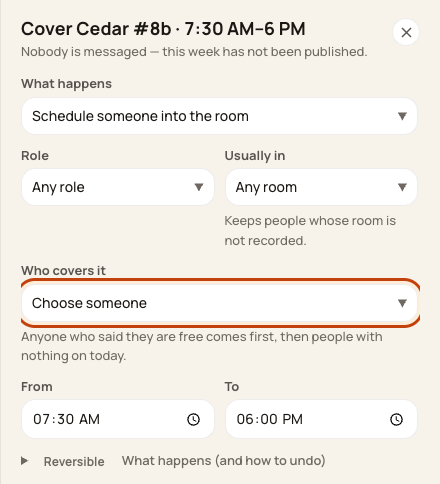
At the bottom of the form:

Good to know
If the week is already published, this action may notify the person. If it opens the week grid instead, add their work day there.
Check when you are done
Check their new block and the room’s coverage. Moving an existing worker can leave a gap in their old room.
Was this helpful?